August 29, 2026
Best CleverType Alternative for iPhone
The best CleverType alternative depends on why you are looking for one. If you want AI-assisted rewriting, grammar help, and tone changes from an iPhone keyboard, RewriteMate is worth considering. If you want Apple’s built-in editing tools and have a compatible device, Apple Writing Tools may be enough. If you primarily need multilingual typing or search, a traditional keyboard such as Gboard may fit better.
The practical question is not which keyboard has the longest feature list. It is which one helps you write better in the apps you already use.
What CleverType is designed to do
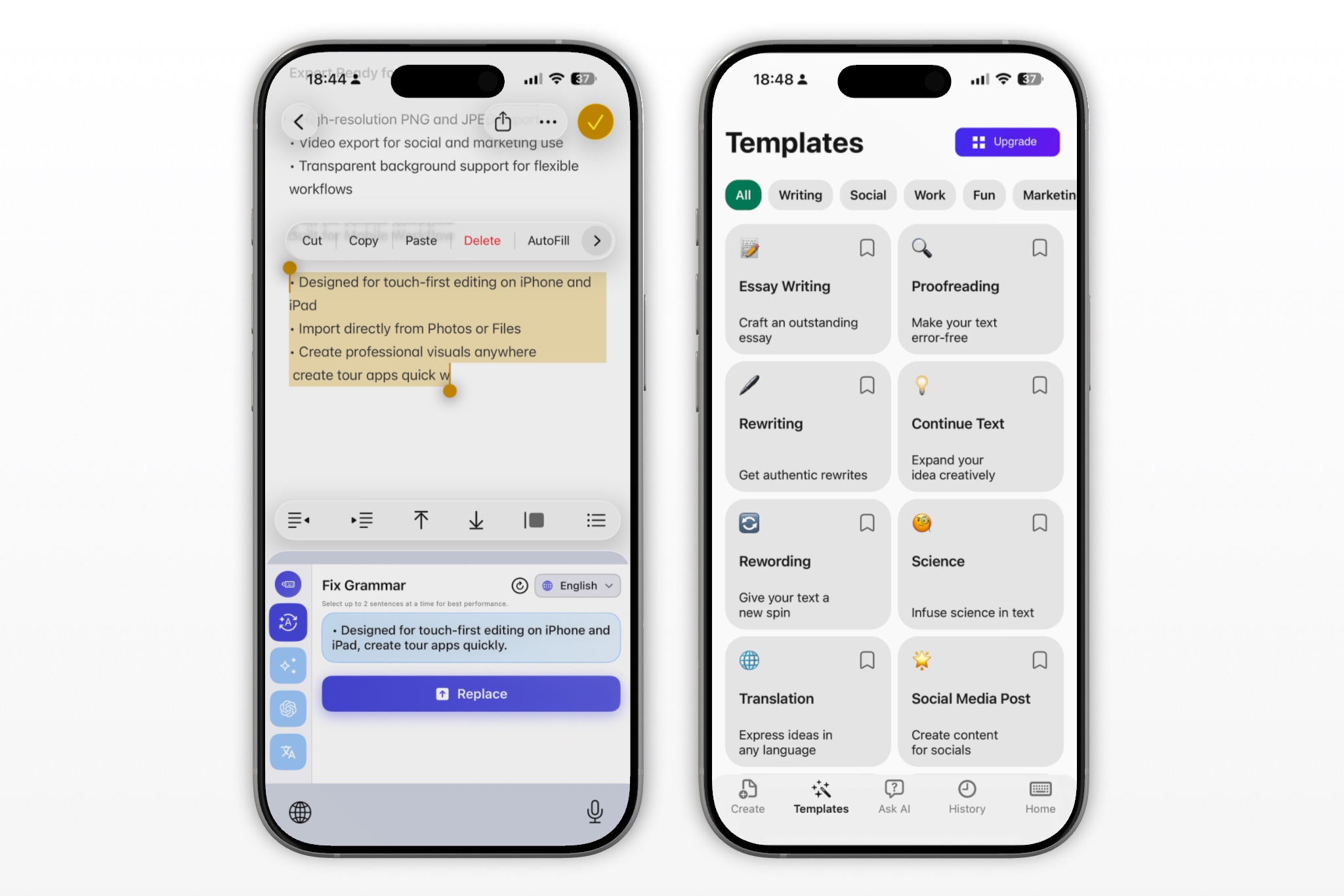
CleverType is an AI keyboard app for iPhone that offers grammar correction, writing assistance, custom tones, and other AI-based writing features. Its App Store listing describes grammar, spelling, and punctuation correction, as well as customizable writing assistance. CleverType’s App Store page is the best place to check its current features, privacy information, compatibility, and pricing.
People usually look for a CleverType alternative for one of these reasons:
- They want a simpler keyboard workflow.
- They need more control over how AI rewrites text.
- They prefer Apple’s built-in tools.
- They want a keyboard that better fits work messages, email, or multilingual writing.
- They are evaluating privacy settings and third-party keyboard permissions.
- They want to avoid copying text between an app and a separate AI chat.
Before replacing any keyboard, identify the exact problem you are trying to solve. That makes comparison much more useful.
Quick comparison: CleverType alternatives for iPhone
| Option | Best for | Main workflow |
|---|---|---|
| RewriteMate | Editing, rewriting, grammar, and tone changes from a keyboard workflow | Draft where you are writing, then ask for a focused revision |
| Apple Writing Tools | Built-in proofreading and rewriting on supported iPhones | Select text and choose a proofreading or rewrite action |
| Gboard | Multilingual typing, search, and familiar Google keyboard tools | Switch to Gboard when typing and language features matter |
| Grammarly Keyboard | Grammar-focused writing support | Use grammar and writing suggestions while composing |
| Apple keyboard | Everyday iPhone typing and secure fields | Use built-in autocorrection, prediction, and text settings |
No option is universally “better.” The right choice depends on your device, the apps where you write, your privacy preferences, and whether you need quick typo correction or more complete writing help.
Choose RewriteMate if you want targeted AI revisions
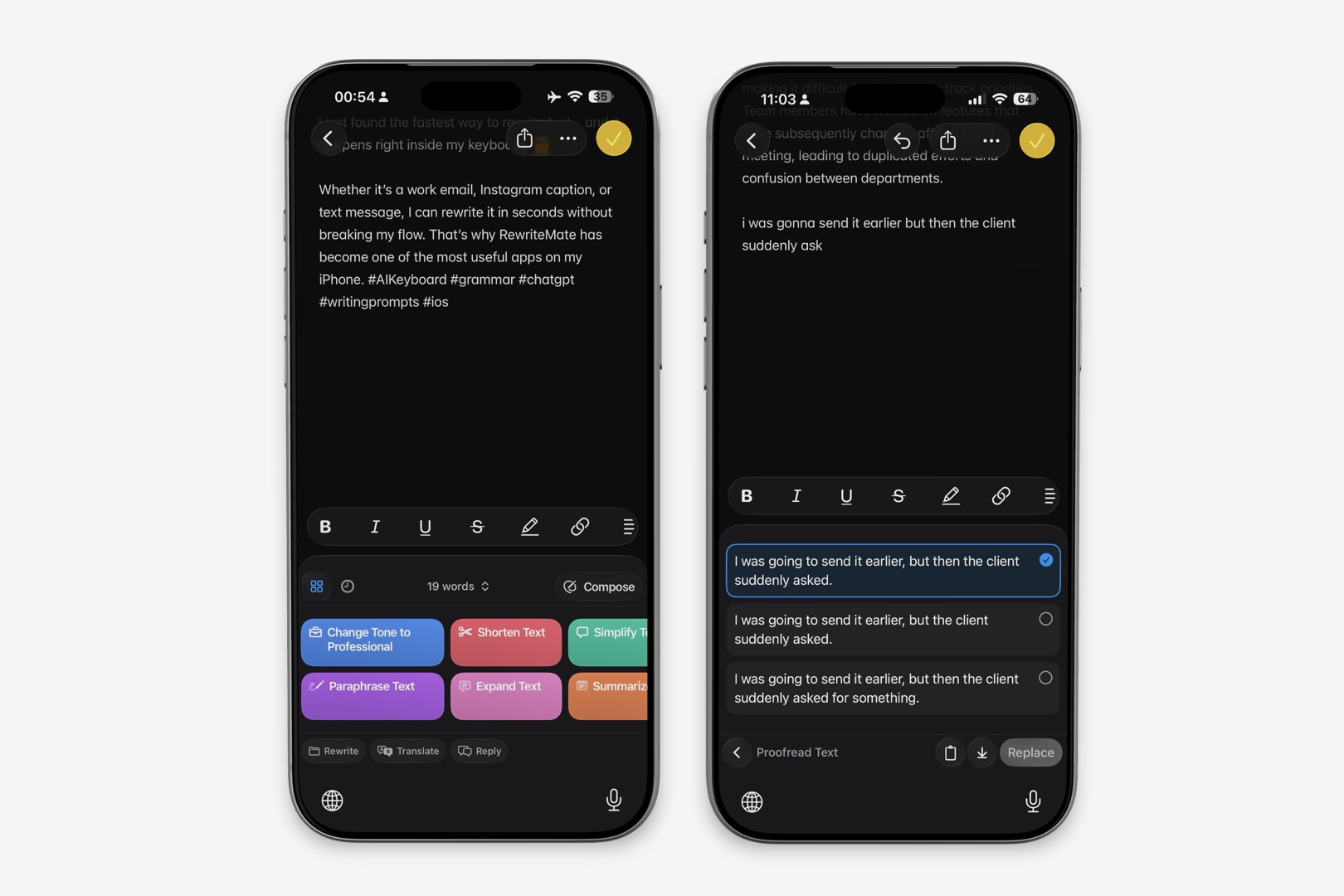
RewriteMate is a strong CleverType alternative when you want to give the AI a precise editing instruction rather than select from a broad set of generic tools.
For example, you can start with your own draft and ask for:
- “Fix grammar only. Keep my tone and wording.”
- “Make this message concise and professional.”
- “Rewrite this as a friendly client reply without adding promises.”
- “Make this sound more confident, not aggressive.”
- “Turn this into a short Slack update with a clear next step.”
- “Correct the English while preserving names, dates, and numbers.”
This approach works well when you know what you want to say but need help making it clearer, shorter, more professional, or more natural.
Who RewriteMate suits
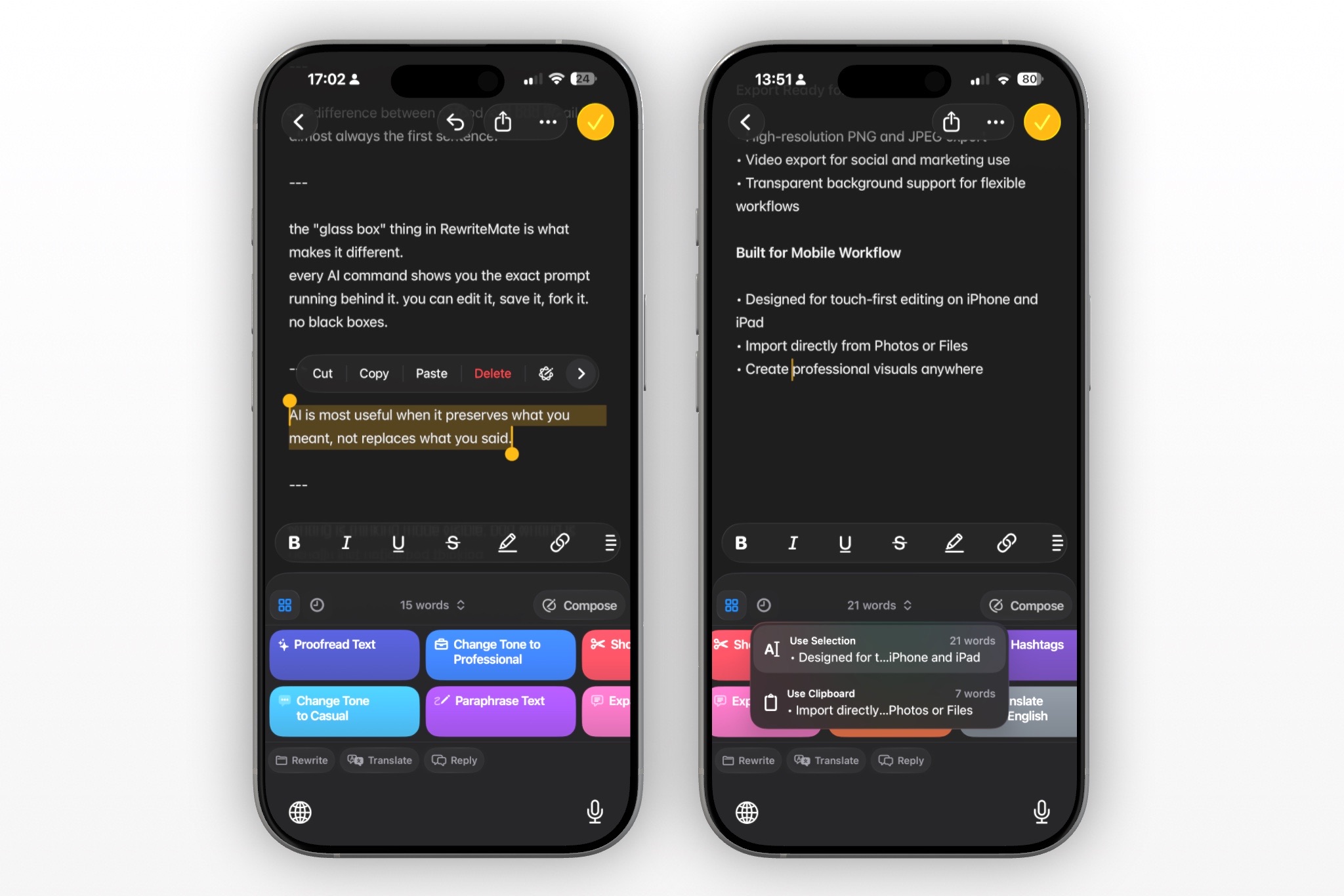
RewriteMate may be a good fit if you:
- Write frequently in Messages, Mail, Slack, or other text-heavy apps.
- Want to revise messages without moving them into a separate AI app.
- Need more than basic spelling correction.
- Want to keep control over tone and instructions.
- Prefer to start with your own words instead of generating a message from scratch.
- Need different editing styles for work, personal messages, and customer communication.
An AI keyboard should function like an editor. You provide the facts and intent; the tool helps you refine the wording.
Choose Apple Writing Tools if you have a compatible iPhone
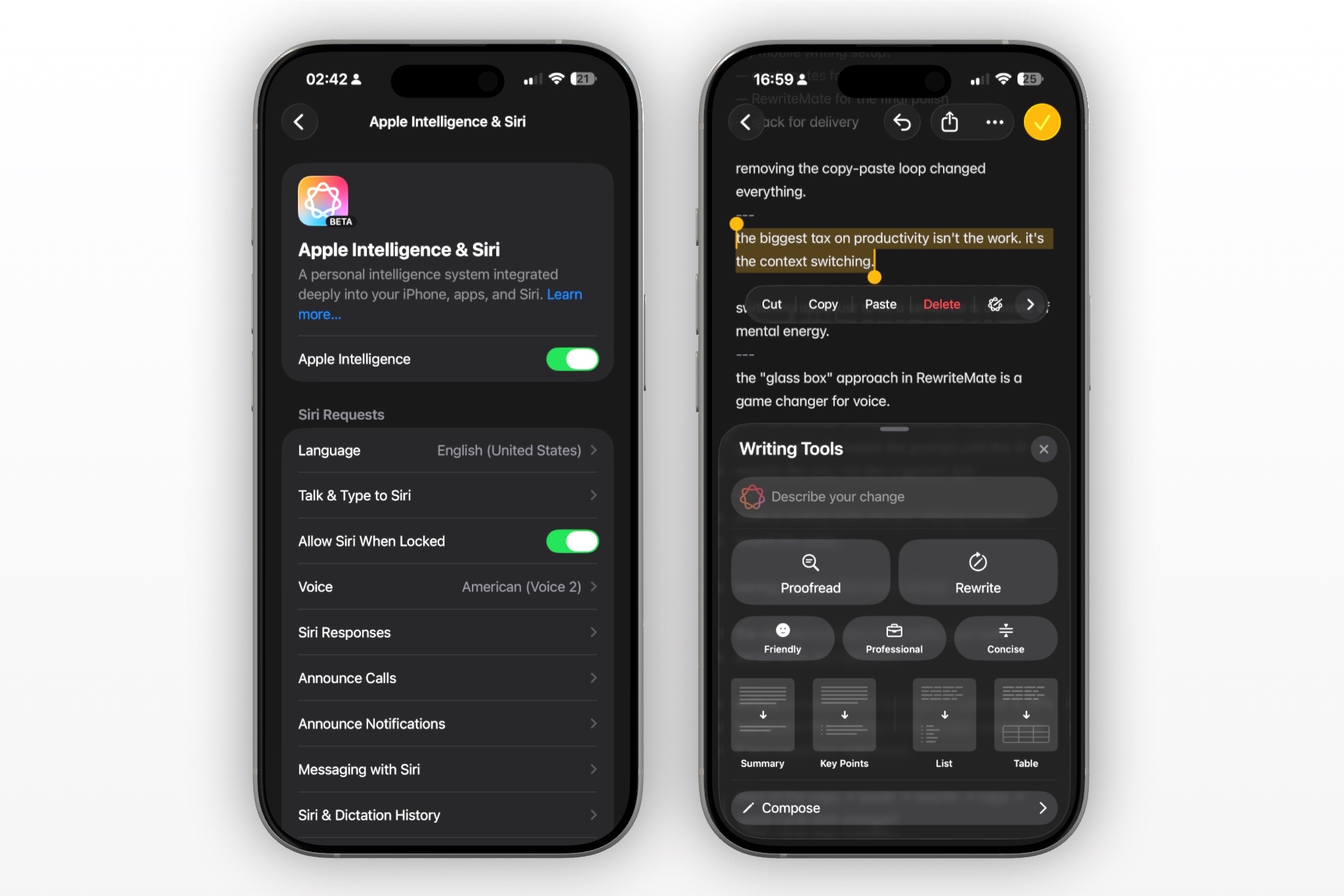
Apple Writing Tools are built into Apple Intelligence on eligible iPhones. Apple says Writing Tools can proofread text, create rewritten versions, summarize selected text, and change the tone to Friendly, Professional, or Concise. Apple’s Writing Tools support guide explains the currently available actions.
This may be a better option than a third-party keyboard if:
- Your iPhone supports Apple Intelligence.
- You prefer Apple’s built-in workflow.
- You mostly want basic proofreading or quick tone changes.
- You are comfortable selecting text before editing it.
- You do not need a separate keyboard-based AI workflow.
Writing Tools may not be available on every iPhone, in every language, region, or text field. Apple’s iPhone User Guide has the current availability information.
If your iPhone does not support Apple Intelligence, an AI keyboard such as RewriteMate can provide another way to get writing help while typing.
Choose Gboard if you need multilingual typing and search
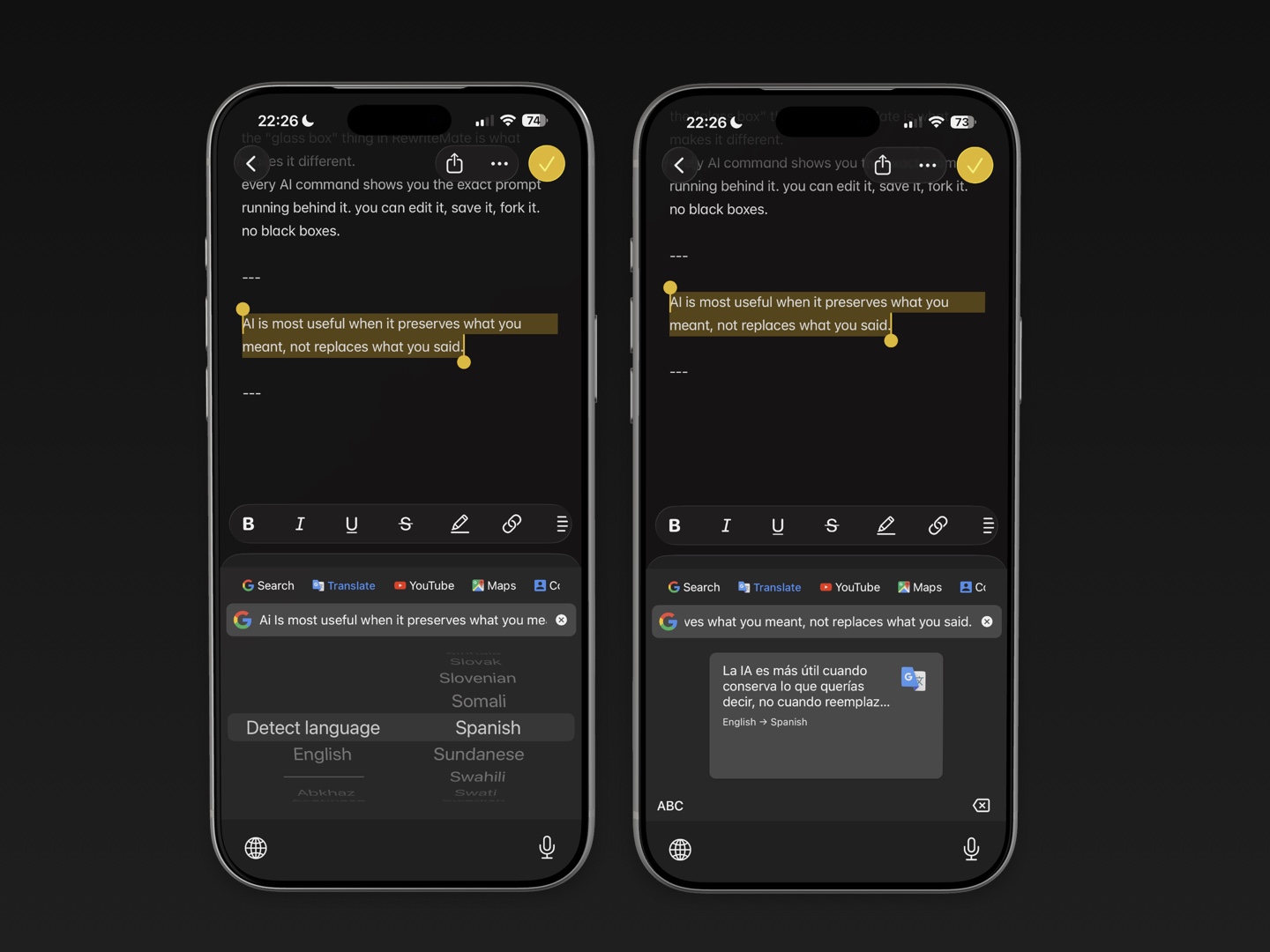
Gboard is a practical alternative when your priority is language switching, glide typing, Google search features, or Google’s typing ecosystem.
Google’s support documentation says Gboard on iPhone can provide suggestions and automatically correct spelling and grammar mistakes while you type. Google’s Gboard help page has the current feature instructions.
Gboard may suit you if you:
- Switch between languages often.
- Prefer Google’s keyboard layout and predictions.
- Want strong search and multilingual features.
- Need conventional keyboard functionality more than AI rewriting.
However, a general-purpose keyboard and an AI writing keyboard address different needs. Gboard can be useful for typing and language support, while RewriteMate is more focused on revising the writing itself.
Choose Grammarly Keyboard if grammar is your main concern
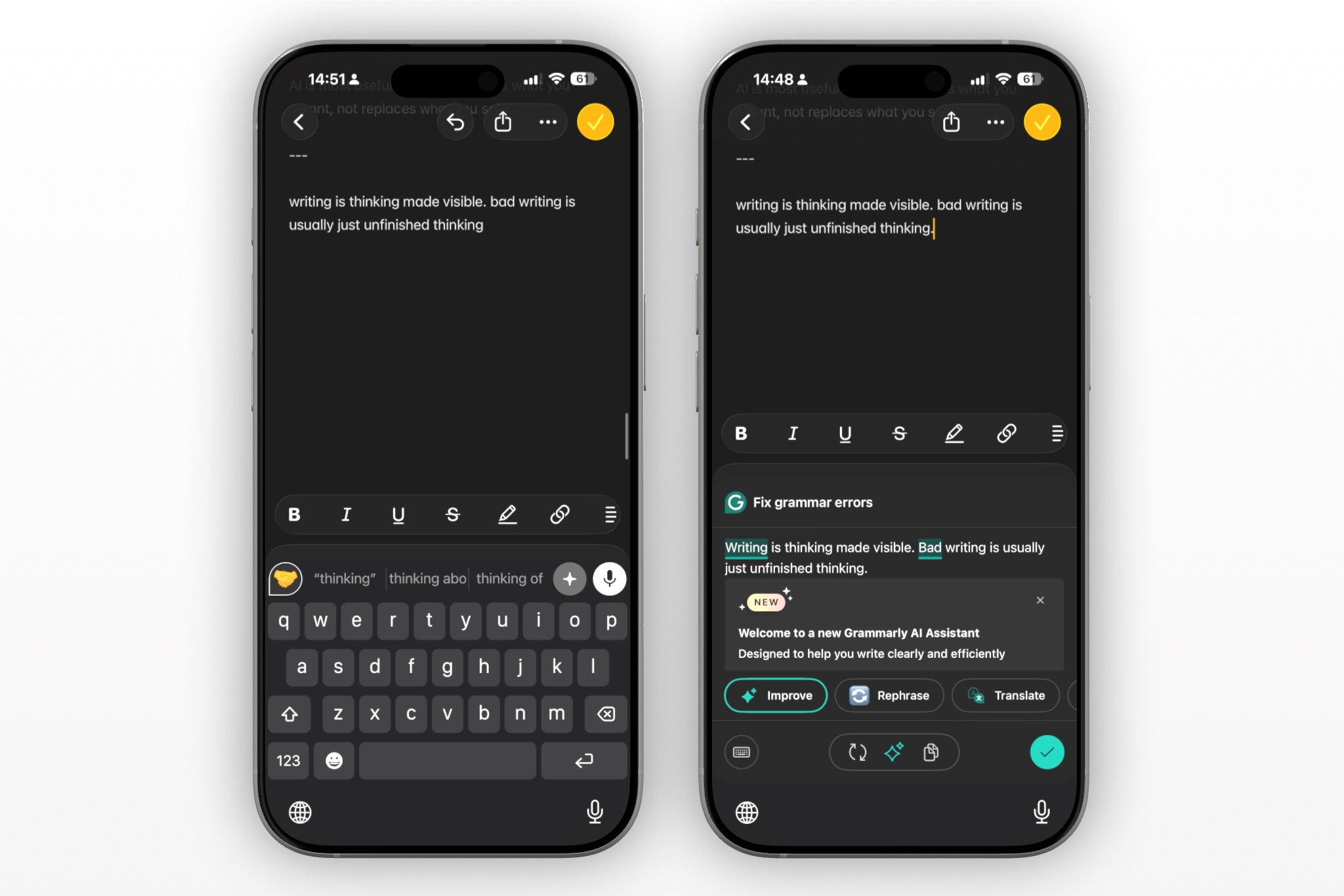
Grammarly can be a relevant alternative if your priority is grammar suggestions and proofreading rather than flexible AI rewriting.
It may suit writers who want:
- Grammar and spelling feedback
- Tone-related writing suggestions
- A familiar grammar-checking brand
- A writing assistant oriented around polished professional communication
However, grammar correction is not the same as rewriting. If your main need is to make a message shorter, change its tone, turn notes into a clear update, or preserve a particular personal voice, a keyboard with flexible rewrite instructions may be more useful.
Compare workflows, not feature checklists
Two keyboards can both claim grammar correction, AI rewriting, and tone adjustment but feel very different in daily use.
Use these questions to compare CleverType, RewriteMate, and other alternatives:
| Question | Why it matters |
|---|---|
| Can I edit text where I already write? | Avoids copy-and-paste between apps |
| Can I give a specific instruction? | Helps preserve your intent and tone |
| Does it support the apps I use most? | A feature is only useful where you can access it |
| How does it handle permissions? | Third-party keyboard access deserves careful review |
| Does it support my language needs? | Grammar and rewriting quality can vary by language |
| Can I easily switch back to Apple’s keyboard? | Useful for secure fields and everyday typing |
| Does it make my writing clearer without making it robotic? | This is the real quality test |
Do not choose a keyboard based solely on a long list of AI features. Test it with three or four messages you actually write: a work update, an email reply, a personal text, and a short request.
A fair way to test CleverType alternatives
Use the same drafts with each option. Do not judge a keyboard only by the first suggestion it gives.
Try these test prompts:
Test 1: Grammar only
I need you to proofread this but do not change my tone or the details.
Use a message with a few punctuation and sentence-structure issues. Check whether the tool fixes mistakes without rewriting the entire message.
Test 2: Tone change
Make this more professional and concise, but keep the deadline unchanged.
Use a work message. Check whether the result stays polite and accurate.
Test 3: Clarity
Rewrite this as a clear request with one next step.
Use a vague message. Check whether the new version makes the action obvious without sounding demanding.
Test 4: Personal voice
Make this friendlier, but keep it casual and do not use corporate language.
Use a text to a friend or teammate. Check whether the output still sounds natural.
After each test, ask:
- Did it preserve the facts?
- Did it add promises or details I did not provide?
- Would I actually send this?
- Was it faster than editing manually?
- Did I need to switch apps or copy text?
The winner is the tool that saves time without reducing your control.
Privacy and permissions matter
All third-party keyboards deserve a careful permission review. Some keyboard features may require Full Access or other permissions to provide their intended functionality.
Before enabling a keyboard:
- Read its App Store privacy information.
- Read the developer’s privacy policy.
- Check what Full Access enables for that keyboard.
- Decide whether the features are worth the permission level.
- Keep Apple’s built-in keyboard available for sensitive fields.
- Review or remove keyboards you no longer use.
Apple provides controls for adding and removing third-party keyboards from Settings > General > Keyboard > Keyboards. Its keyboard settings guide explains how to manage and switch enabled keyboards.
Avoid entering passwords, financial data, confidential employee information, or sensitive customer details into a third-party keyboard unless you understand the product’s data practices and your organization permits it.
How to switch from CleverType to RewriteMate
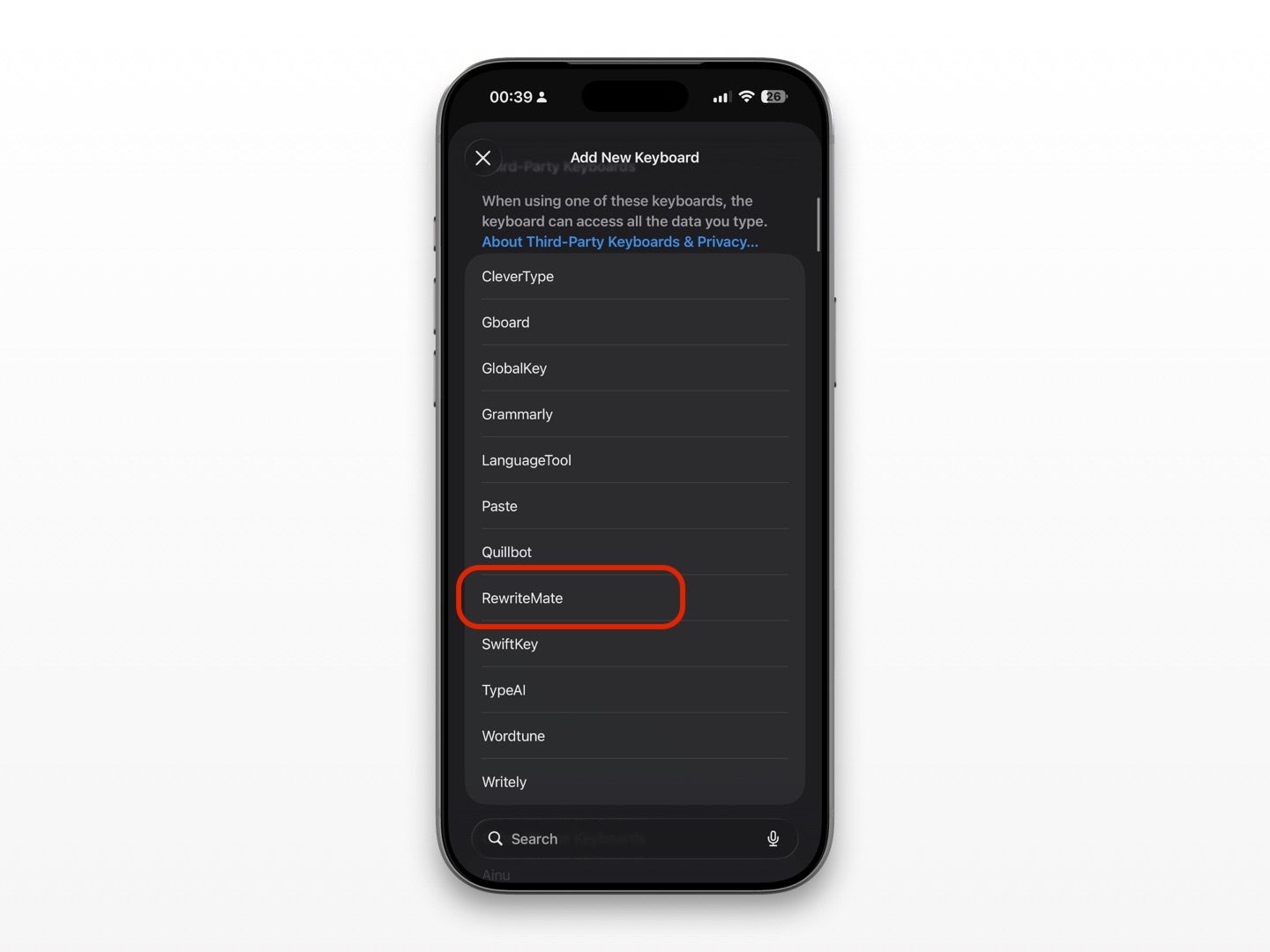
If you decide to try RewriteMate:
- Install RewriteMate from the App Store.
- Open Settings > General > Keyboard > Keyboards.
- Tap Add New Keyboard.
- Select RewriteMate.
- Complete its setup and review the requested permissions.
- Open an app where you type.
- Touch and hold the Globe or Emoji key.
- Select RewriteMate from the keyboard list.
- Test it with a few real drafts before removing CleverType.
You do not need to remove CleverType immediately. Keep both enabled briefly, compare the workflow, then keep the one you actually reach for.
Write better everywhere
Rewrite, rephrase, and refine text instantly without switching apps.
Frequently asked questions
What is the best CleverType alternative for iPhone?
RewriteMate is worth considering if you want an AI keyboard focused on grammar, rewrites, tone changes, and specific editing instructions while you type. Apple Writing Tools, Gboard, and Grammarly may suit different needs.
Is RewriteMate better than CleverType?
It depends on your workflow. RewriteMate may be a better fit if you value targeted rewrite instructions and keyboard-based editing. CleverType may suit people who prefer its specific tools and setup. Test both with the messages you actually write.
Can I use Apple Writing Tools instead of CleverType?
Yes, if you have a compatible iPhone with Apple Intelligence enabled. Apple Writing Tools can proofread and rewrite selected text, but availability depends on your device, language, region, and app.
Is there a free CleverType alternative?
Apple Writing Tools may be available at no additional cost on compatible devices. The Apple keyboard and Gboard also provide typing assistance, though their workflows and AI-writing features differ from a dedicated AI keyboard.
Can I have more than one AI keyboard on iPhone?
Yes. Enable the keyboards you want, then touch and hold the Globe or Emoji key while typing to choose one. Keep the list short so switching remains quick.
Are AI keyboards safe to use?
Safety depends on the app’s permissions, technical design, privacy policy, and how you use it. Review the keyboard’s privacy information and avoid entering sensitive data unless you are confident it is appropriate.
Choose the alternative that matches how you write
CleverType is not the only way to get AI writing help on iPhone. If you need built-in selected-text editing, Apple Writing Tools may be enough. If you need multilingual typing, Gboard may be a better complement. If you want focused grammar, rewriting, and tone help directly from a keyboard workflow, try RewriteMate.
The best option is the one that makes your real messages clearer while keeping your words, facts, and judgment in control.
Related articles
Keep reading

QuillBot vs RewriteMate for iPhone: Which AI Keyboard Fits Your Writing?
Compare QuillBot and RewriteMate on iPhone for paraphrasing, grammar, tone changes, translation, custom workflows, and everyday writing without app switching.
Grammarly Alternative iPhone: RewriteMate vs Grammarly
A head-to-head comparison of the best AI writing keyboards for iOS, highlighting why custom prompts beat locked presets.

RewriteMate vs Grammarly Keyboard: Which Is Better for Mobile Writing?
Compare RewriteMate vs Grammarly Keyboard to see which iPhone writing assistant fits your workflow. Learn the differences in AI rewriting, grammar checking, customization, pricing, and everyday mobile writing.

Felix Tran
RewriteMate Dev & Editorial Lead
Write about everyday workflows, systems that help ideas move faster, from first draft to finished work.