October 26, 2026
Can't Unsend a Green-Bubble Text on iPhone? Here's Why
If you sent a green-bubble text and cannot find Undo Send, that is expected: Apple’s current iPhone guide says a message can be unsent only when it was sent as an iMessage. SMS, MMS, and RCS messages cannot be unsent or edited with that control. Green bubbles can represent any of those three message types, so color alone does not tell you which one was used—but none of them supports Apple’s iMessage Undo Send feature. Apple’s iPhone guide documents the limitation.
The practical next step is usually to send a brief correction or clarification, not to delete the conversation from your phone. Deleting a message or thread on your own device does not remove the copy already delivered to the other person. If the text contained a sensitive detail, stop and use an appropriate direct channel to explain the mistake; do not assume another setting can pull it back.
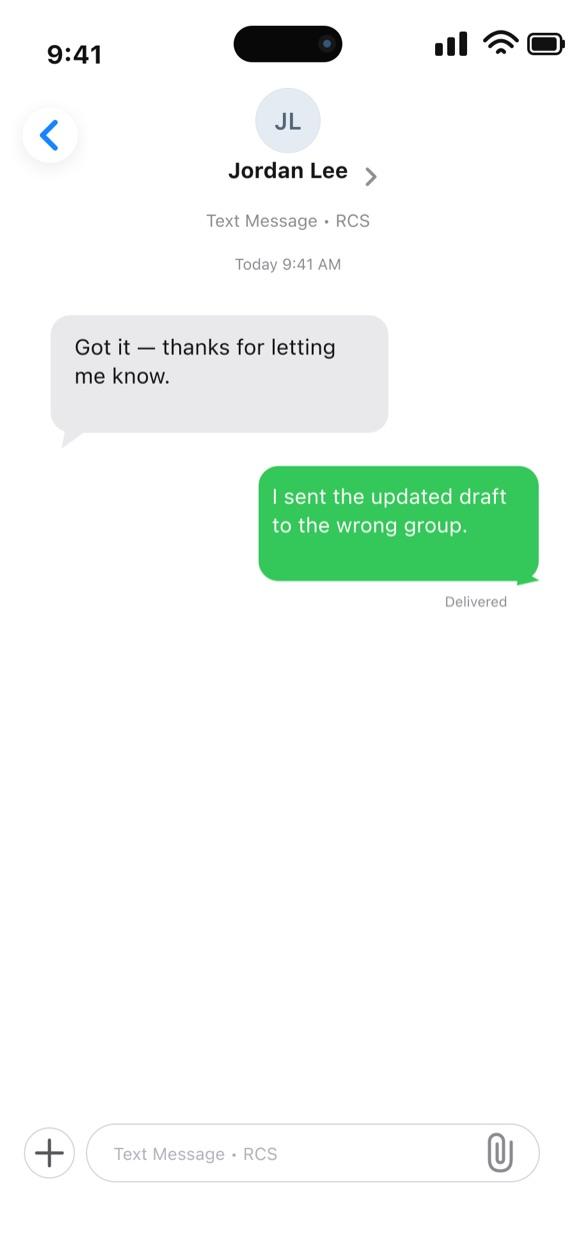
Recreated iPhone Messages screen with fictional content; green can mean RCS, SMS, or MMS.
Why a green-bubble message has no Undo Send option
Apple separates messages into different delivery types. Blue bubbles indicate iMessage. Green bubbles indicate RCS, SMS, or MMS. Apple’s help page explains that a conversation may use a green-bubble type when the other person does not use an Apple device, when iMessage is switched off on either device, or when iMessage is temporarily unavailable. Apple’s explanation of green bubbles and its comparison of iMessage, RCS, SMS, and MMS describe those distinctions.
The important part for a message already sent is not whether you prefer iMessage or whether your settings usually use it. It is the type used for that particular outgoing message. If it went out as RCS, SMS, or MMS, the iMessage recall control does not apply. Turning iMessage on afterward cannot change the transport type of a message that has already been delivered.
This is why tapping and holding a green bubble may show options such as reacting, copying, or replying without Undo Send. It is not necessarily a menu glitch. The send type determines whether Apple’s unsend action is available.
Check whether the message was actually sent as iMessage
If you are unsure about a message’s type, look at the conversation’s bubble color and the label in the compose field. Apple uses blue for iMessage and green for RCS, SMS, or MMS. A green bubble does not prove that it was specifically RCS: it may be SMS or MMS, too.
If the message is blue, Apple says you may be able to unsend it for up to two minutes after sending. Touch and hold the blue message, then tap Undo Send. The unsend behavior is limited to iMessage; Apple does not provide the same action for RCS, SMS, or MMS. See Apple’s current unsend instructions.
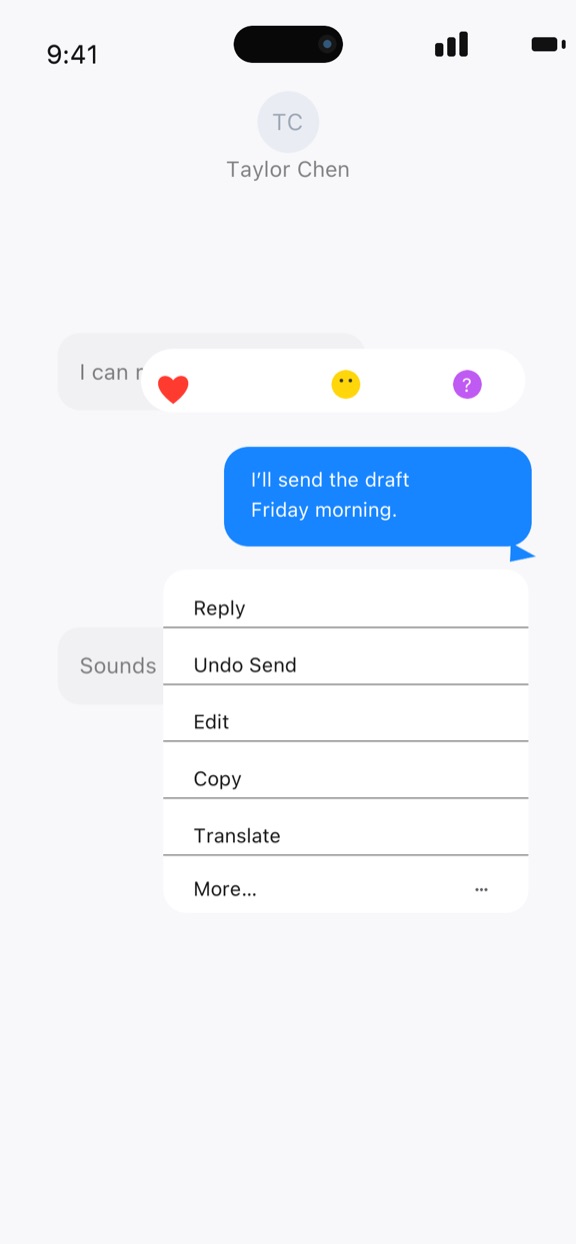
Recreated iMessage long-press menu; Undo Send applies to iMessage, not green-bubble types.
Do not treat the menu in this illustration as proof that your own message qualifies. The screenshot is a recreated mockup of the documented iMessage action, not a live capture from your phone. The two-minute window and message type still matter. Apple also notes that a recipient on older software may continue to see the original message even after you unsend it, so an unsend action is not a guarantee that nobody saw or retained the text.
What to do after sending the wrong green-bubble text
First decide whether the message needs a correction, an apology, or an urgent response. A useful follow-up states the correction plainly without repeating more sensitive information than necessary.
For example:
Correction: I sent the earlier time by mistake. The meeting is at 3:30 p.m., not 3:00 p.m. Sorry for the confusion.
Or, if you sent a message to the wrong group:
I sent that to the wrong conversation. Please disregard it; I’m sorry about the mix-up.
If the mistake is a typo that does not change the meaning, a short correction is usually clearer than a long explanation. If it changes a date, amount, commitment, or instruction, lead with the correct information. If the original contains confidential or personal information, avoid quoting it again in the correction; use a suitable direct channel and follow any workplace or legal reporting process that applies.
Before sending the follow-up, check the recipient or group, the corrected detail, and any dates or numbers. A second rushed message to the wrong conversation can compound the first mistake. For a high-impact error, verify the correction against the original source of truth rather than relying on memory.
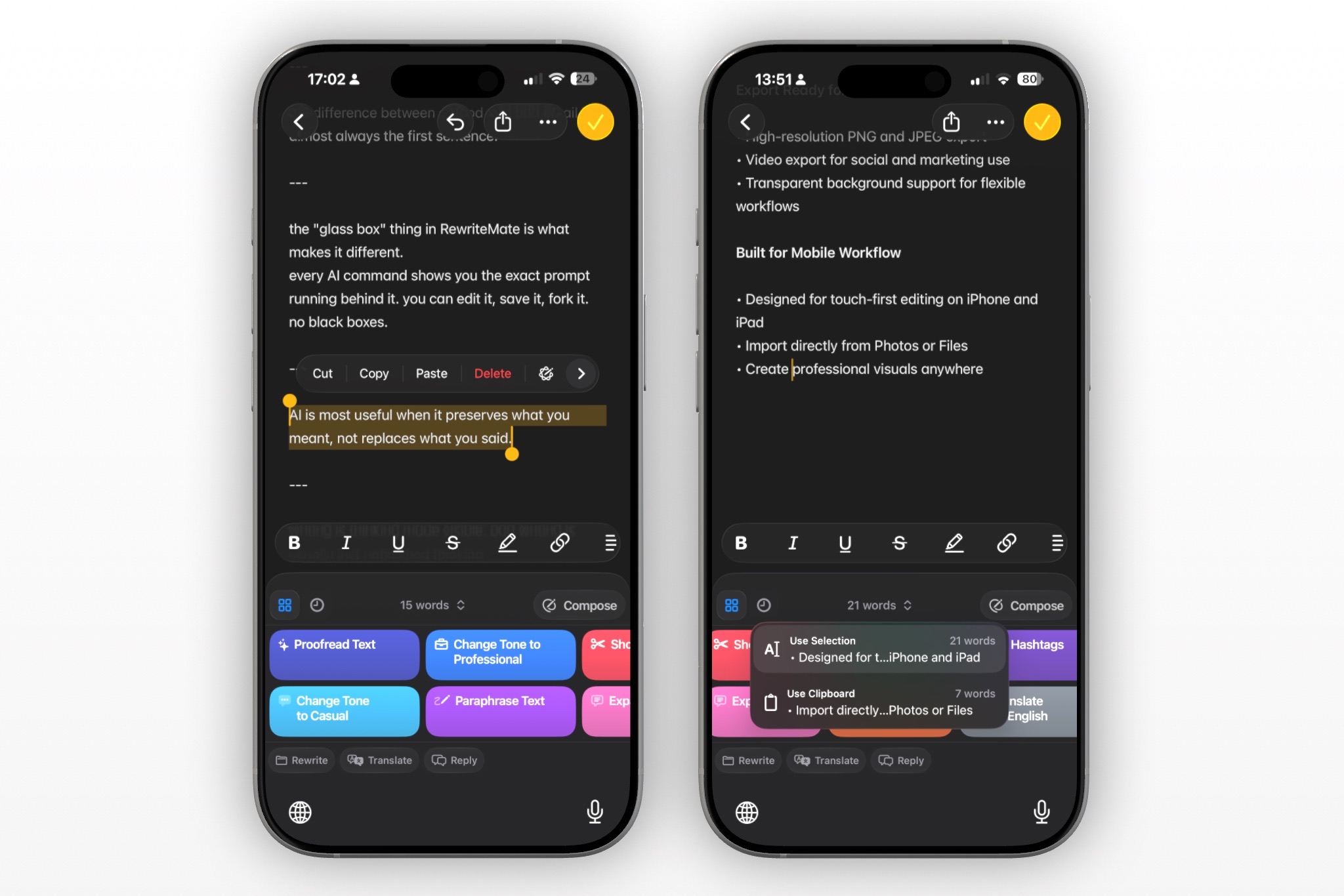
If you often notice errors only after tapping Send, build a short pre-send pause into the routine: check recipient, key facts, and tone. RewriteMate can help proofread or rephrase text before you send it, but it cannot recall a delivered message or determine which conversation you selected. Review its suggestions and verify names, dates, figures, and commitments yourself.
Does deleting the conversation remove the text for the other person?
No. Deleting a sent message or a conversation from your own Messages app is not the same as unsending it. Apple’s delete instructions say that deleting messages affects your own devices; it does not change what recipients see in their conversations. Apple’s guide to deleting messages explains the difference.
So, if you delete the thread because you regret a green-bubble message, do not assume the other person’s copy disappears. Deletion may help you tidy your own conversation list, but it is not a remote removal tool. Avoid deleting evidence if you need a record for work, safety, or an official report.
What if Undo Send is missing on a blue bubble?
If the bubble is blue, check the timing first: Apple’s documented Undo Send window is two minutes from sending. If more time has passed, the option may no longer be available. Confirm that you are pressing and holding the actual sent message rather than the compose field or a reply.
If the message was sent recently and the expected menu still does not appear, verify the message type and your software version against Apple’s current instructions. Be cautious about assuming the message has been removed simply because a menu changed or a notification appeared. When the consequence matters, send a follow-up clarification and assume the original may have been seen. Apple specifically warns that people using older software may still see the original after an iMessage is unsent.
For a different Messages issue—such as Send Later not appearing—check the separate eligibility steps in Send Later Not Showing on iPhone. Scheduling a future message and recalling a message already sent are different jobs, with different controls.
FAQs
Can I unsend an RCS message on iPhone?
No. Apple’s current guidance says RCS messages cannot be unsent or edited using iMessage’s Undo Send feature. Send a correction or clarification instead.
Can I unsend a green text if I turn on iMessage afterward?
No. Changing a setting afterward does not convert a message that was already sent as RCS, SMS, or MMS into an iMessage. Check the type of the sent message, then choose an appropriate follow-up.
Are all green bubbles RCS?
No. Apple says green bubbles can indicate RCS, SMS, or MMS. The color distinguishes those message types from blue iMessage, but it does not identify which green-bubble protocol was used by itself.
Can I delete a text from the recipient’s iPhone?
Deleting the conversation on your device does not remove it from the recipient’s device. Apple’s deletion instructions distinguish deleting your local copy from unsending an eligible iMessage.
How long do I have to unsend an iMessage?
Apple says Undo Send is available for up to two minutes after an iMessage is sent. Recipients on older software may still see the original, so use a follow-up when the correction is important.
What should I do if I sent private information to the wrong person?
Do not assume it can be recalled. Contact the recipient through an appropriate channel, explain only what is necessary, and follow the relevant workplace, account, or official process for the information involved. For urgent risk, contact the responsible organization or a qualified professional.
Can RewriteMate recall a text after I send it?
No. RewriteMate can help draft or transform text before it is sent; it does not control Apple Messages delivery or retract a delivered message. Check the recipient and final details before sending.
Related articles
Keep reading
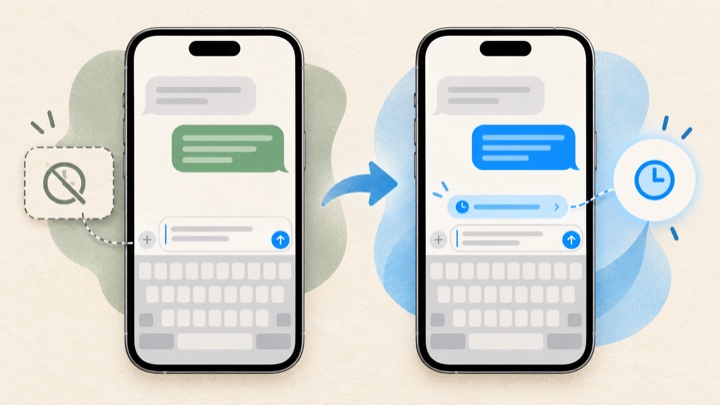
Send Later Not Showing on iPhone? 5 Checks for Messages
If Send Later is missing in iPhone Messages, first check that the conversation is using iMessage, then verify the feature path and iOS version. These source-backed checks help separate an eligibility issue from a possible software problem.
How to Rewrite a Text Message With AI on iPhone
Learn how to use AI to rewrite a text message on iPhone while keeping the facts, context, and voice that make the message yours.

Felix Tran
RewriteMate Dev & Editorial Lead
Write about everyday workflows, systems that help ideas move faster, from first draft to finished work.