October 20, 2026
Send Later Not Showing on iPhone? 5 Checks for Messages
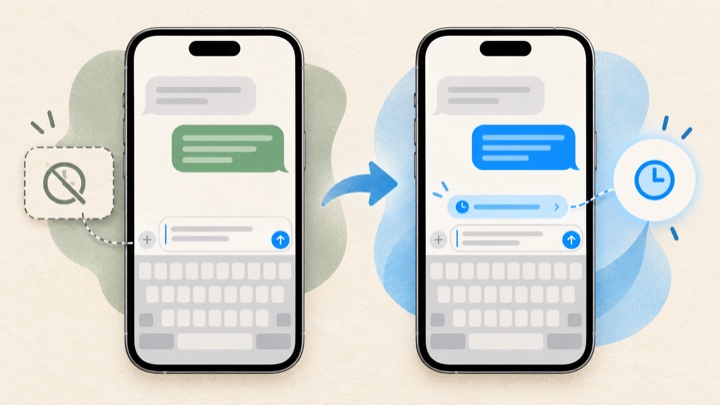
If Send Later is not showing on your iPhone, check the conversation type first: Apple says the feature requires iMessage. Then confirm your iPhone is running iOS 18 or later, open Messages, tap the Add (+) button beside the text field, and look for Send Later. A green bubble indicates the message is using RCS, SMS, or MMS rather than iMessage, so restarting your phone will not change that conversation into an eligible iMessage thread.
Apple’s current Send Later guide documents the requirement and the menu path. The checks below follow that guidance and avoid treating every missing option as a software bug.
1. Confirm the conversation is using iMessage
Send Later is for a message sent with iMessage. In an iMessage conversation, the message bubbles are blue. Apple says green bubbles mean a message is using RCS, SMS, or MMS instead of iMessage; possible reasons include iMessage being off on either device or temporarily unavailable. See Apple’s guide to green message bubbles.
Use the bubble color as a quick clue before you troubleshoot anything else. If the messages are green, Apple says that conversation is using RCS, SMS, or MMS rather than iMessage. The missing Send Later option may be an eligibility issue, not a broken menu. Apple’s documentation says the feature requires iMessage; it does not describe Send Later as a general scheduler for every SMS or RCS message.
If you are unsure, check a conversation with someone you know can use iMessage. Do not use a customer, work, or time-sensitive message as a test. The point is only to see whether the option appears in a clearly iMessage conversation.
2. Check that iMessage is enabled
If you expect to use iMessage but see green bubbles, check the setting Apple documents: open Settings > Apps > Messages and turn on iMessage. Apple also recommends checking Send & Receive if you need to choose whether new conversations start from your phone number or email address. These steps are from Apple’s current green-bubble troubleshooting guide.
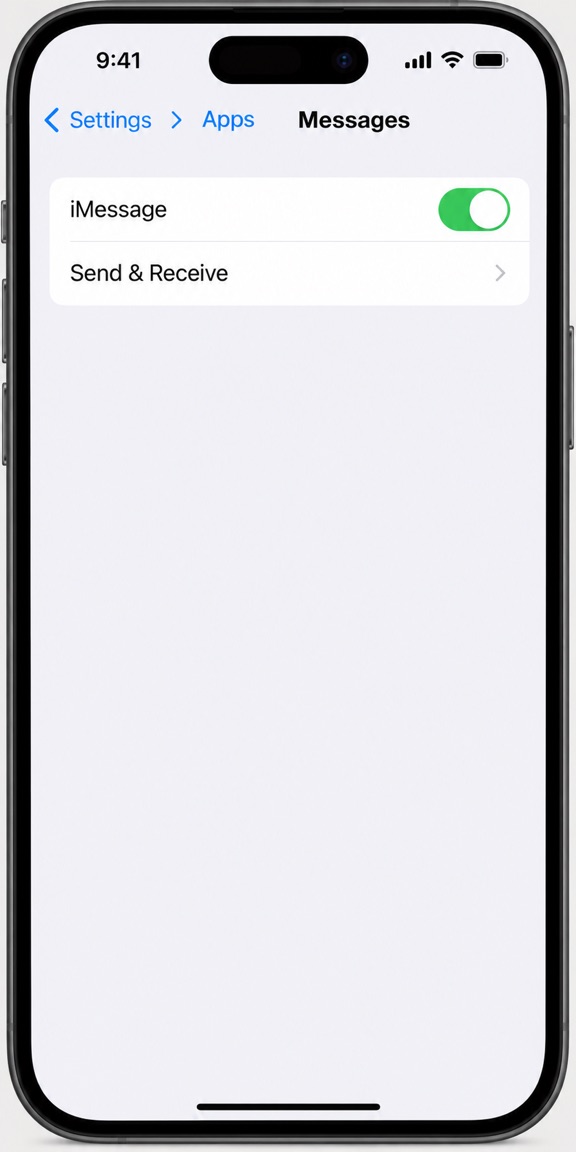
Recreated Settings mockup; your labels or layout may vary slightly by iOS version.
Turning the setting on does not guarantee every conversation immediately uses iMessage. Apple lists other reasons for green bubbles, including iMessage being unavailable on your device or the recipient’s device. Check the message type shown in the conversation rather than assuming the toggle alone proves the current thread is using iMessage.
3. Find Send Later in the documented menu
In Messages, open the conversation—or start an iMessage conversation—then tap the Add (+) button beside the text field and tap Send Later. Apple says you can choose a time up to 14 days ahead. The menu may be a scrollable list, so inspect the available options rather than expecting a separate clock button beside the keyboard.
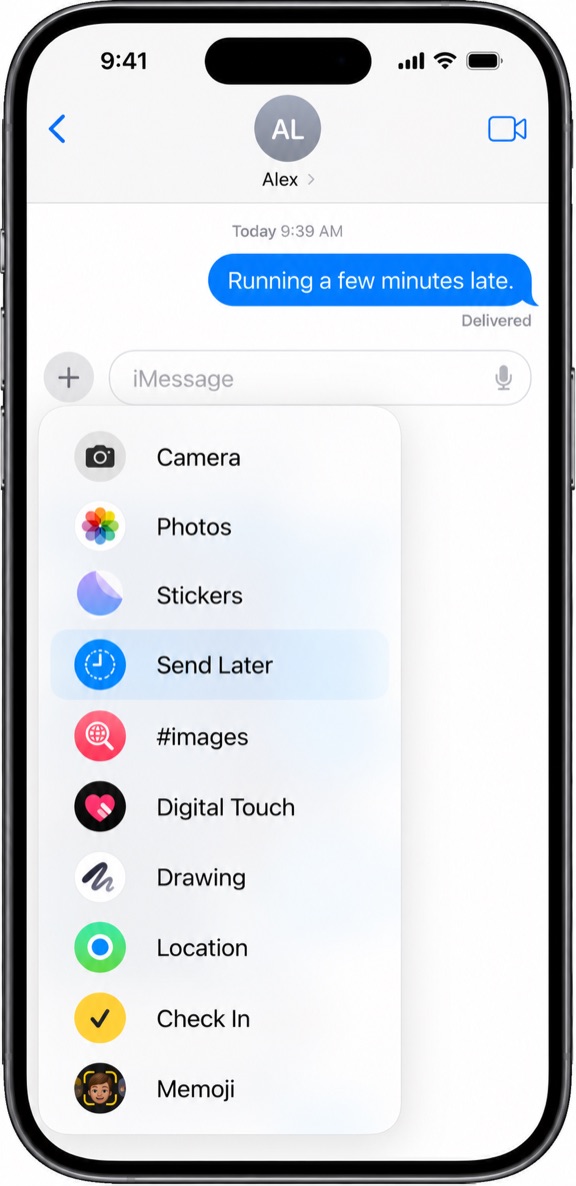
Recreated Messages mockup showing Apple’s documented Add > Send Later path.
Apple introduced Send Later in iOS 18 and continues to document it in its current iPhone guide. If the device is on an older iOS release, that is a meaningful compatibility check; if it is already on a supported version, do not assume that another update will fix the missing option. Apple also notes that availability of Messages features can depend on carrier, country, or region in its Messages guide.
Check the iOS version without changing settings
If you are not sure which version is installed, check the iPhone’s software version in Settings before considering resets or reinstalling anything. Apple’s iOS 18 feature list includes Send Later under Messages. This confirms the feature’s release family; it does not establish that every missing menu item is caused by the operating-system version.
4. Try a second eligible conversation, then reopen Messages
If the software is current and you have verified that you are composing an iMessage, compare the menu in another known iMessage conversation. Apple’s guide permits scheduling from an existing conversation or a new one. If Send Later appears in one thread but not another, note that difference; the comparison helps narrow where the problem occurs, but Apple does not publish a definitive diagnosis for every thread-specific case.
If it is absent in both, close and reopen Messages, then check again. This is a low-risk general refresh step, not an Apple-documented targeted fix for Send Later. If you recently updated iOS, give the device a normal restart only after confirming the iMessage requirement and menu path. Avoid jumping straight to Reset Network Settings, deleting conversations, or toggling unrelated settings: those actions are not established by Apple’s Send Later guide as fixes for a missing menu option.
If the option remains missing after the eligibility, version, and menu checks, contact Apple Support or use Apple’s support app. Include your iPhone model, iOS version, whether the conversation is iMessage or SMS/RCS, and the exact steps where the option disappears. That gives support a reproducible issue instead of a vague report that “Messages is broken.”
5. Verify that a message is scheduled—not just drafted
After choosing a time and tapping Send, look for the scheduled state in the conversation. Apple says the scheduled message appears with a dashed outline and its send time is shown. That visual state is more useful than assuming the message is queued because the time picker closed.
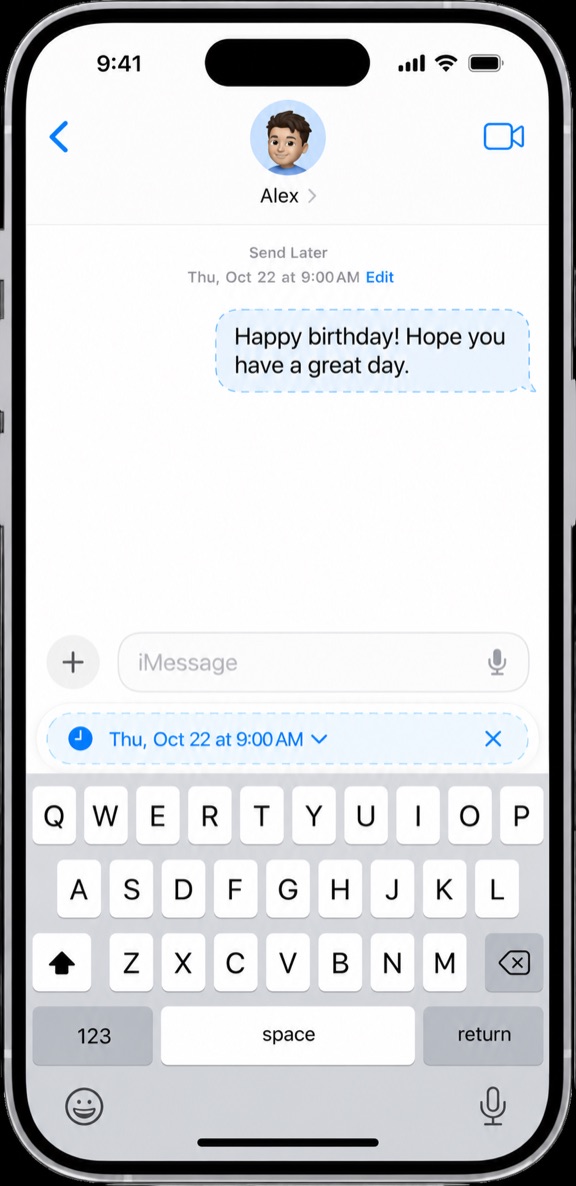
Recreated mockup of the dashed scheduled-message state described by Apple.
Apple says scheduled messages can be edited, deleted, or rescheduled before delivery. To find one that is not visible, scroll to the bottom of the conversation; Apple notes that scheduled messages may appear below sent messages. You need to be online to edit, reschedule, or delete a scheduled message. Apple also says the message is delivered even if all your devices are offline, and that the scheduled message is removed from Apple’s servers after it is sent. See the full Send Later instructions for the current controls.
For a safe check, schedule only a harmless message to someone you trust and choose a time you can verify. If you do not want it sent, delete it before that time using Apple’s documented cancellation steps. Do not test the feature with a customer commitment, private information, or an important deadline.
What to do if you need to send to a non-iMessage conversation
The built-in Send Later instructions require iMessage. If the current conversation is using SMS or RCS, do not keep searching the Add menu for a control Apple documents for iMessage. Choose another method that supports scheduling for that recipient, or set a reminder to send the message yourself. A reminder is not the same as automatic delivery, so make the distinction clear if the message is time-sensitive.
If the issue is the wording—not the scheduling control—you can draft or refine the message before returning to Messages. RewriteMate is an AI keyboard for transforming supplied text; it does not control Apple’s Send Later menu, schedule delivery, or confirm that a recipient can receive an iMessage. You remain responsible for selecting the right conversation and checking the date, time, recipient, and final wording.
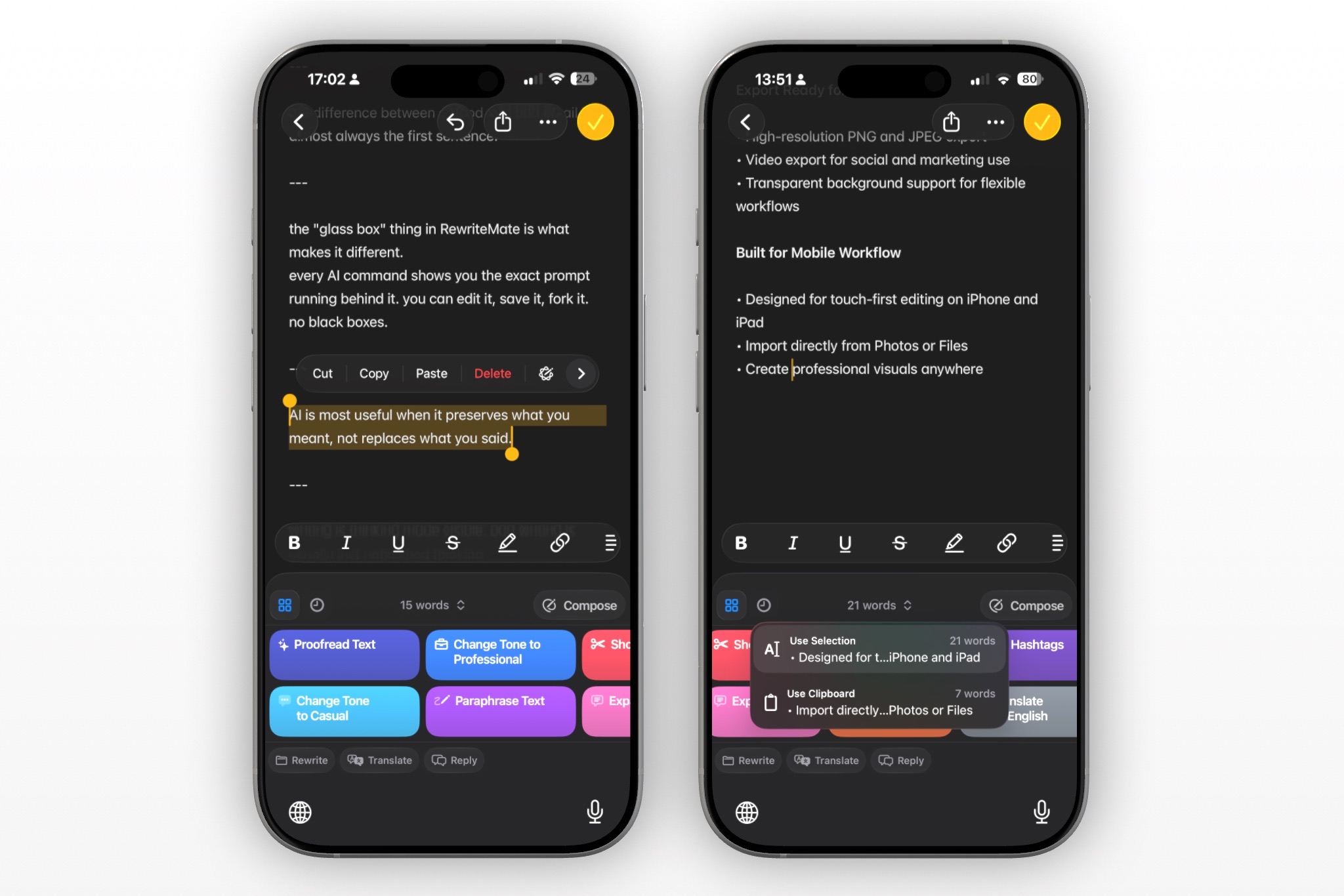
Use a writing tool only for the part it can help with: expressing the message clearly. Then schedule it manually in Messages and verify the dashed scheduled state before relying on it.
Quick checklist
- Is this conversation currently using iMessage, rather than SMS, MMS, or RCS?
- Is iMessage enabled under Settings > Apps > Messages?
- Is the iPhone on an iOS version that includes Send Later?
- Did you tap Add (+) beside the Messages text field and check the menu?
- Does the scheduled message show a dashed outline and the intended time?
- If the option is still missing, have you recorded the iOS version, device model, and the exact conversation type for support?
FAQs
Why is Send Later missing in iPhone Messages?
Apple says Send Later requires iMessage. First check whether the conversation is using iMessage; green bubbles indicate RCS, SMS, or MMS instead. If it is an iMessage conversation, confirm the software version and follow Add (+) > Send Later in Messages.
Does Send Later work with SMS or RCS?
Apple’s current instructions say you must be using iMessage. Apple identifies green bubbles as RCS, SMS, or MMS rather than iMessage, so the documented Send Later workflow does not apply to a conversation currently using those services.
What iOS version added Send Later?
Apple lists Send Later among the Messages features introduced with iOS 18. Check Apple’s current feature guide for the version and availability details that apply to your device and region.
How can I tell whether a message is actually scheduled?
Apple says a scheduled message appears with a dashed outline and displays the scheduled time. If you do not see it, scroll to the bottom of the conversation; scheduled messages may appear below sent messages.
Can I edit or cancel a scheduled iMessage?
Yes. Apple says you can edit, delete, or reschedule a message before delivery. You need to be online to make those changes. Follow Apple’s current instructions in the Send Later guide so you can confirm the change or cancellation.
Will RewriteMate make Send Later appear?
No. RewriteMate can help draft or transform text, but it does not enable Apple’s Messages controls or schedule delivery. Check iMessage eligibility and the Messages menu separately; use RewriteMate only if you also want help with the message wording.
If Send Later is missing, start with the requirement Apple documents—an iMessage conversation—then check the software version and the Add menu. If those checks pass and the option still does not appear, document the conditions and ask Apple Support rather than relying on unrelated resets. Once a message is scheduled, verify its displayed time and dashed outline before you trust the schedule.
Related articles
Keep reading
How to Rewrite a Text Message With AI on iPhone
Learn how to use AI to rewrite a text message on iPhone while keeping the facts, context, and voice that make the message yours.
How to Make Your iPhone Messages Sound More Professional Instantly
Stop sending awkward texts. Learn how to polish your iPhone messages in seconds with tone adjustment and smart rewriting.
How to Reschedule a Meeting Professionally From Your iPhone
Need to move a meeting without sounding flaky? Use these concise message examples, check the new time before sending, and keep the calendar invite in sync.

Felix Tran
RewriteMate Dev & Editorial Lead
Write about everyday workflows, systems that help ideas move faster, from first draft to finished work.