
August 10, 2026
Third-Party Keyboard Not Showing Up on iPhone? 8 Fixes That Work
If a third-party keyboard is not showing up on your iPhone, the quickest fix is usually to add it again in Settings > General > Keyboard > Keyboards, then switch to it with the globe key. If it is already listed but still will not appear, update the keyboard app and iOS, restart your iPhone, and remove and re-add the keyboard.
A missing keyboard is frustrating when you rely on it to correct grammar, translate, or rewrite a message without leaving the app you are using. The good news: it is often a setup issue, an app-specific problem, or a temporary iOS glitch—not necessarily a permanent fault with the keyboard app.
First, identify which problem you have
“Not showing up” can mean a few different things. The right fix depends on what you see.
| What happens | Most likely place to start |
|---|---|
| The keyboard app is not listed in iPhone Settings | Reinstall or update the app |
| It is listed in Settings but absent when typing | Add it again and switch with the globe key |
| It works in some apps but not another | Test and update the affected app |
| It appears, then immediately switches to Apple’s keyboard | Check the text field and re-add the keyboard |
| No keyboard appears at all | Restart the iPhone and test Apple’s built-in keyboard |
1. Confirm the keyboard is added in Settings
Installing a keyboard app does not always make it active automatically. You must add its keyboard extension in iPhone Settings.
- Open Settings.
- Tap General.
- Tap Keyboard.
- Tap Keyboards.
- Tap Add New Keyboard.
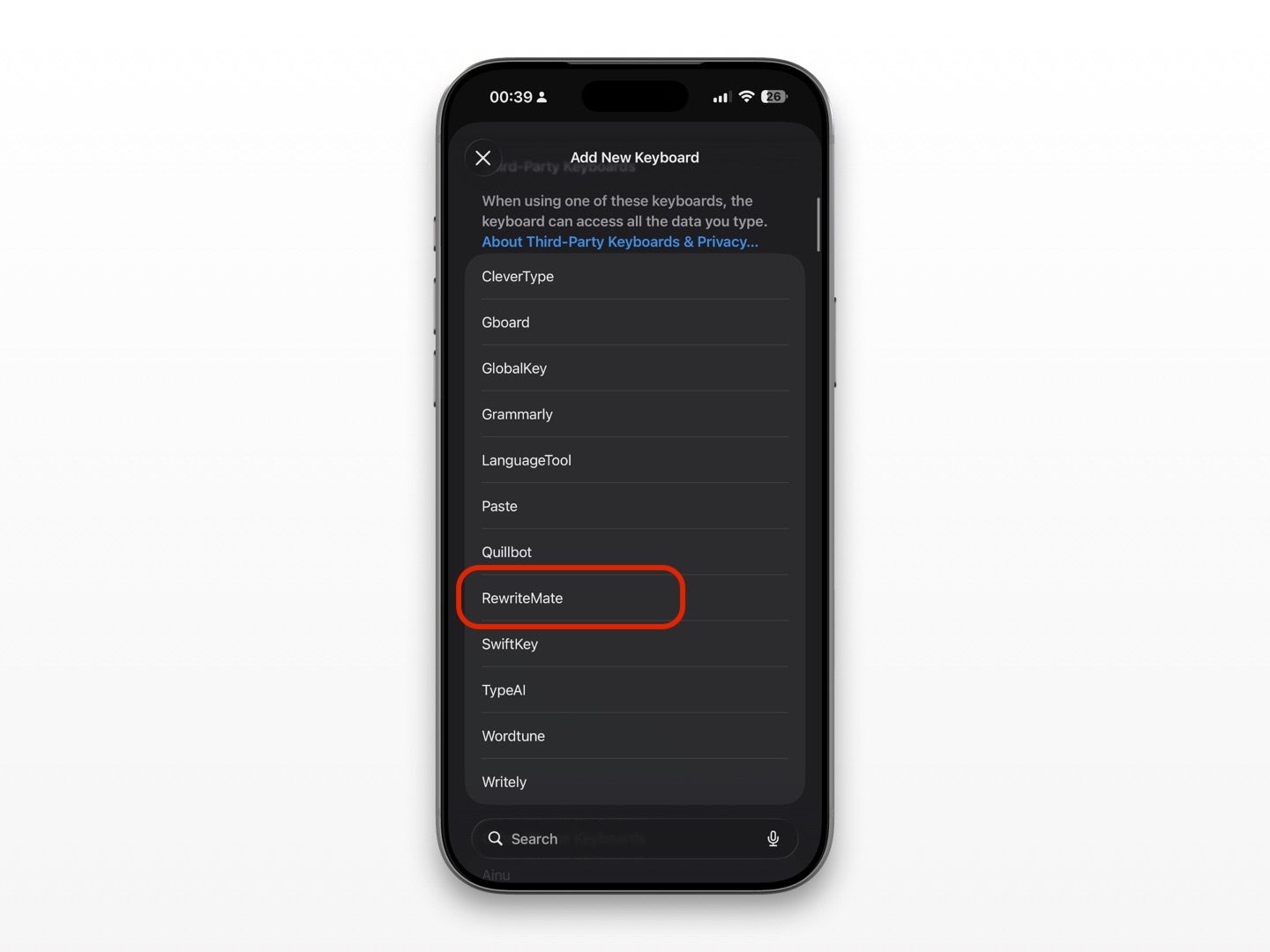
- Under Third-Party Keyboards, select the keyboard you installed.
Apple’s current iPhone guide uses this same Keyboard settings area to manage installed keyboards and layouts. See Apple’s keyboard instructions.
After adding it, open any app with a text field—such as Notes or Messages—and tap the globe key at the bottom of the keyboard to cycle through your available keyboards.
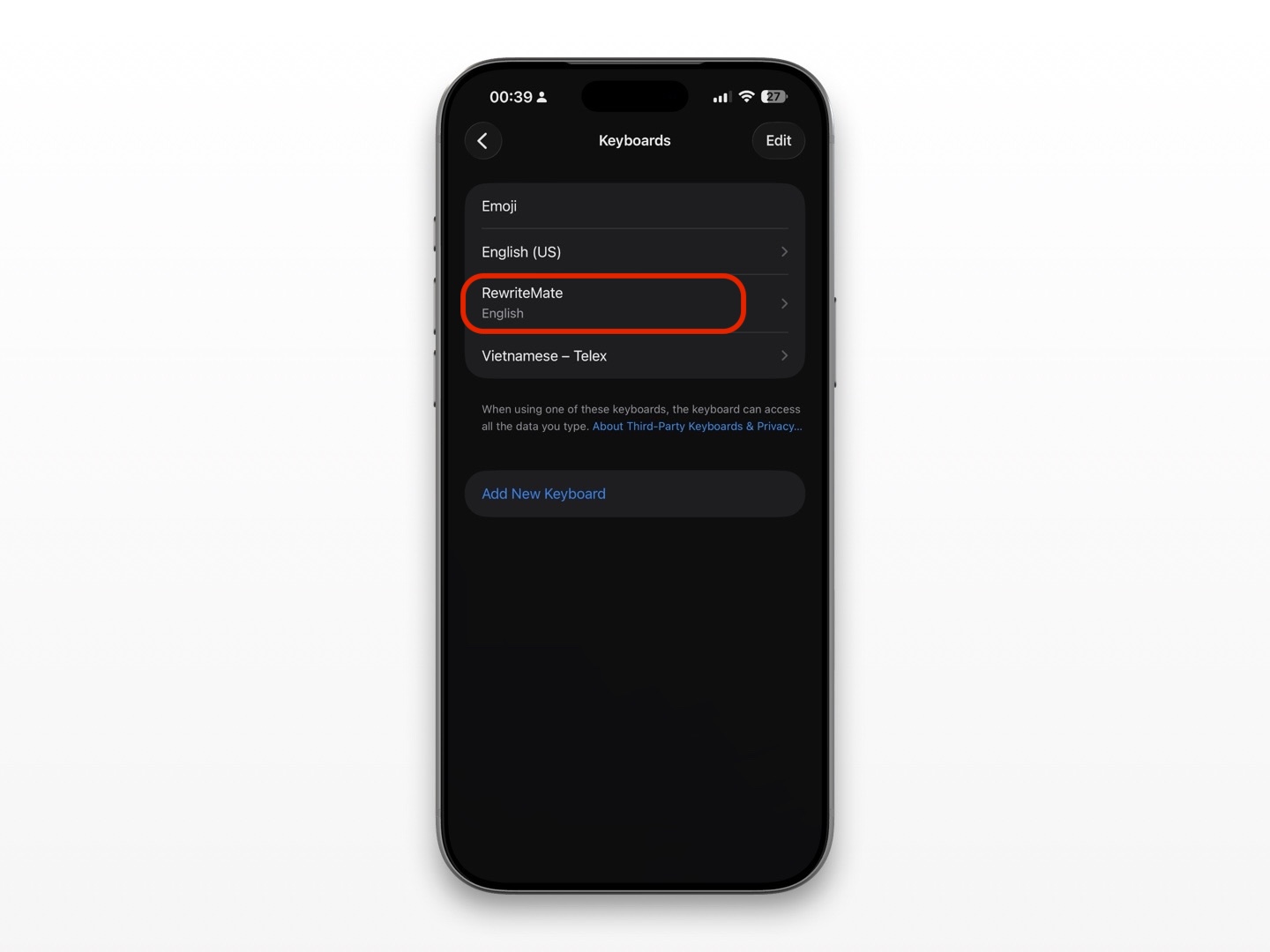
If the app is not in the “Add New Keyboard” list
Start by opening the keyboard app from your Home Screen. Some apps need you to complete onboarding before their keyboard extension becomes available.
If it still does not appear:
- Check the App Store for an update.
- Restart your iPhone.
- Delete and reinstall the keyboard app.
- Return to Settings > General > Keyboard > Keyboards > Add New Keyboard.
Reinstalling is a useful last setup step, but check whether the app stores any local data before deleting it.
2. Remove the keyboard and add it again
If the keyboard is listed but will not load, removing and re-adding it can refresh the connection between iOS and the keyboard extension.
- Go to Settings > General > Keyboard > Keyboards.
- Tap Edit.
- Tap the red minus button next to the affected keyboard, then choose Delete.
- Tap Add New Keyboard and add it again.
- Return to an app where you can type and use the globe key to select it.
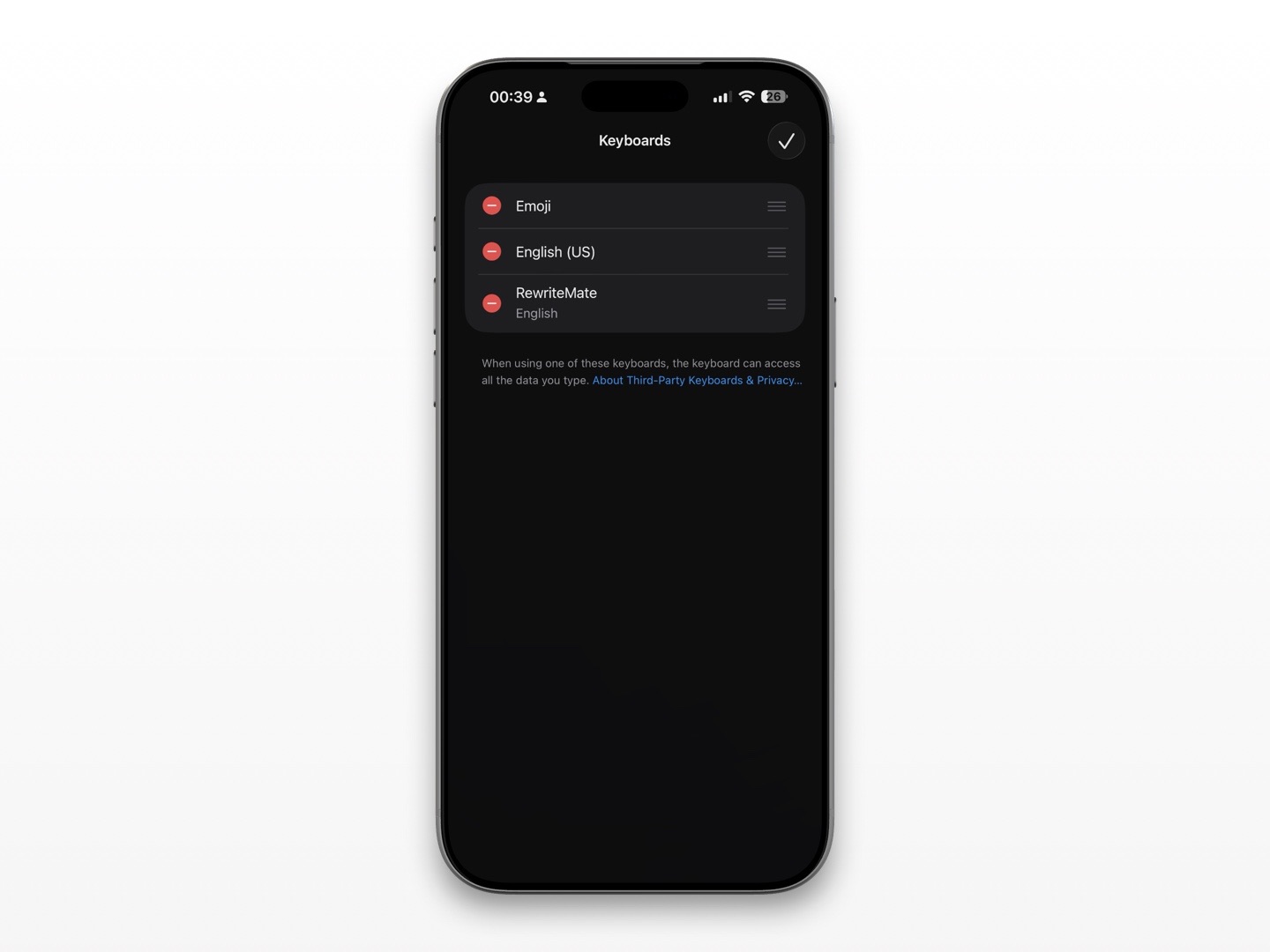
This is also a good fix when the keyboard shows a blank area, flashes briefly, or keeps returning you to the Apple keyboard.
3. Make sure you are trying it in a compatible text field
A third-party keyboard is not expected to appear everywhere. iPhone may show Apple’s built-in keyboard in sensitive fields, such as password entry, or where an app chooses a system-protected input experience.
That distinction matters:
- If the keyboard works in Notes but not in a banking, password, or secure sign-in field, your keyboard may be working normally.
- If it fails in Notes, Messages, Mail, and other ordinary text fields, continue with the steps below.
- If it fails in only one app, the problem may be with that app rather than the keyboard itself.
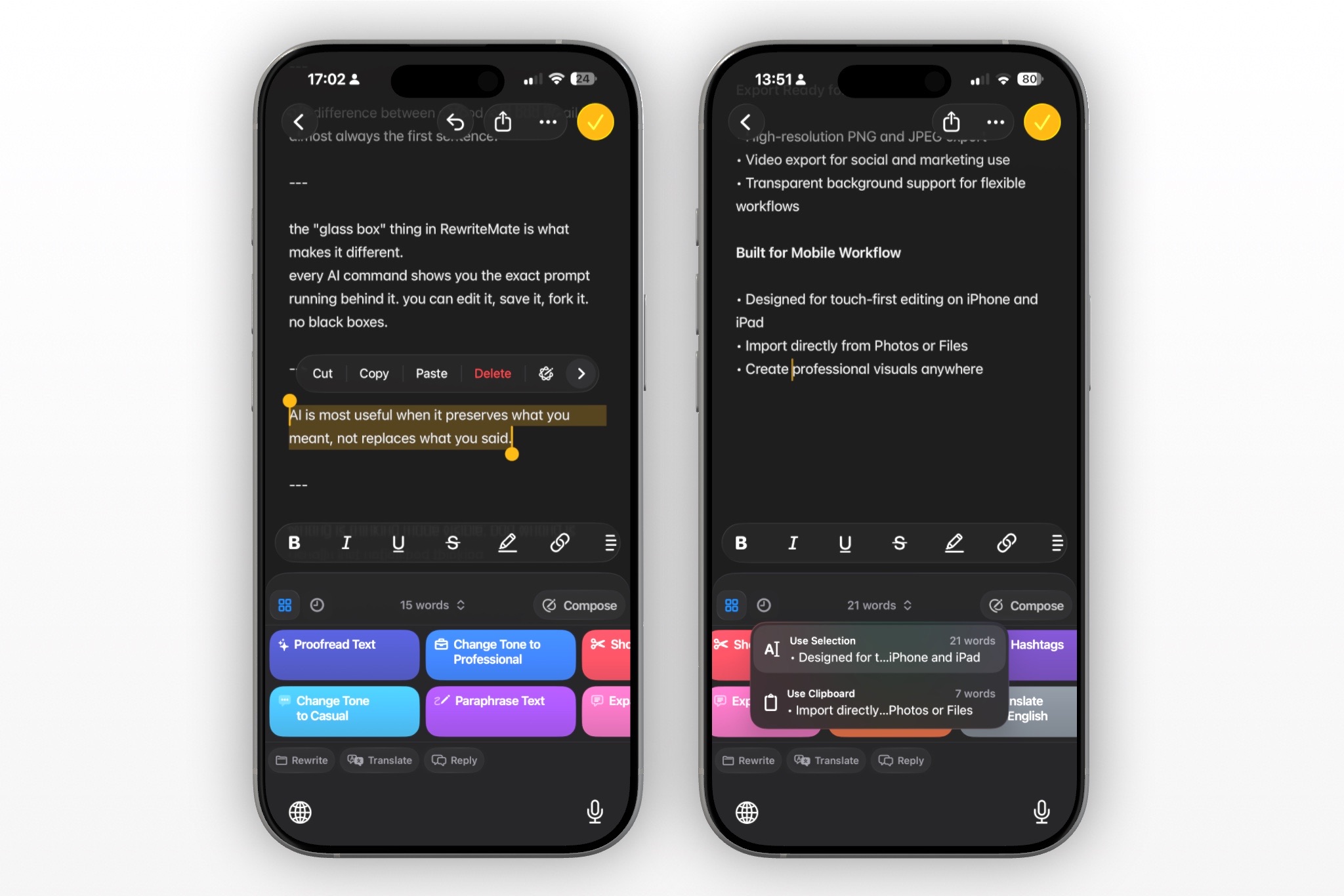
Test in Notes before spending time changing multiple settings. It is a simple way to separate a system-wide issue from an app-specific one.
4. Update both the keyboard app and iOS
Keyboard extensions depend on both their own app version and your iPhone’s software. An older version may behave unpredictably after an iOS update.
First, update the keyboard app:
- Open the App Store.
- Tap your profile picture.
- Look for the keyboard app under available updates.
- Tap Update.
Then check iOS:
- Open Settings.
- Tap General.
- Tap Software Update.
- Install an available update.
Apple says that iPhone software updates are checked and installed from Settings > General > Software Update. Read Apple’s update instructions.
If the issue began immediately after an update, make a note of your iOS version and the keyboard app version before contacting the app developer. That gives support a much clearer starting point.
5. Close the affected app and restart your iPhone
If a keyboard stops working in one app, close that app and open it again. Apple recommends closing and reopening an app, restarting the device, and checking for updates when an app is unresponsive or behaving unexpectedly. See Apple’s app troubleshooting guidance.
To close an app on an iPhone without a Home button:
- Swipe up from the bottom edge of the screen and pause.
- Find the affected app.
- Swipe up on its preview.
- Reopen the app and test the keyboard.
If that does not help, restart the iPhone normally. A restart clears temporary processes without deleting your apps, photos, or messages.
When a force restart makes sense
Use a force restart only if the iPhone is frozen or is not responding to a normal restart. Apple’s instructions for recent iPhone models are:
- Quickly press and release Volume Up.
- Quickly press and release Volume Down.
- Press and hold the Side button.
- Release it when the Apple logo appears.
Apple’s force-restart guide also includes instructions for older models.
6. Check whether Full Access is required
Some third-party keyboards work with basic typing features before Full Access is enabled. Others need Full Access for certain features, such as cloud-powered rewriting, translations, custom commands, or connected services.
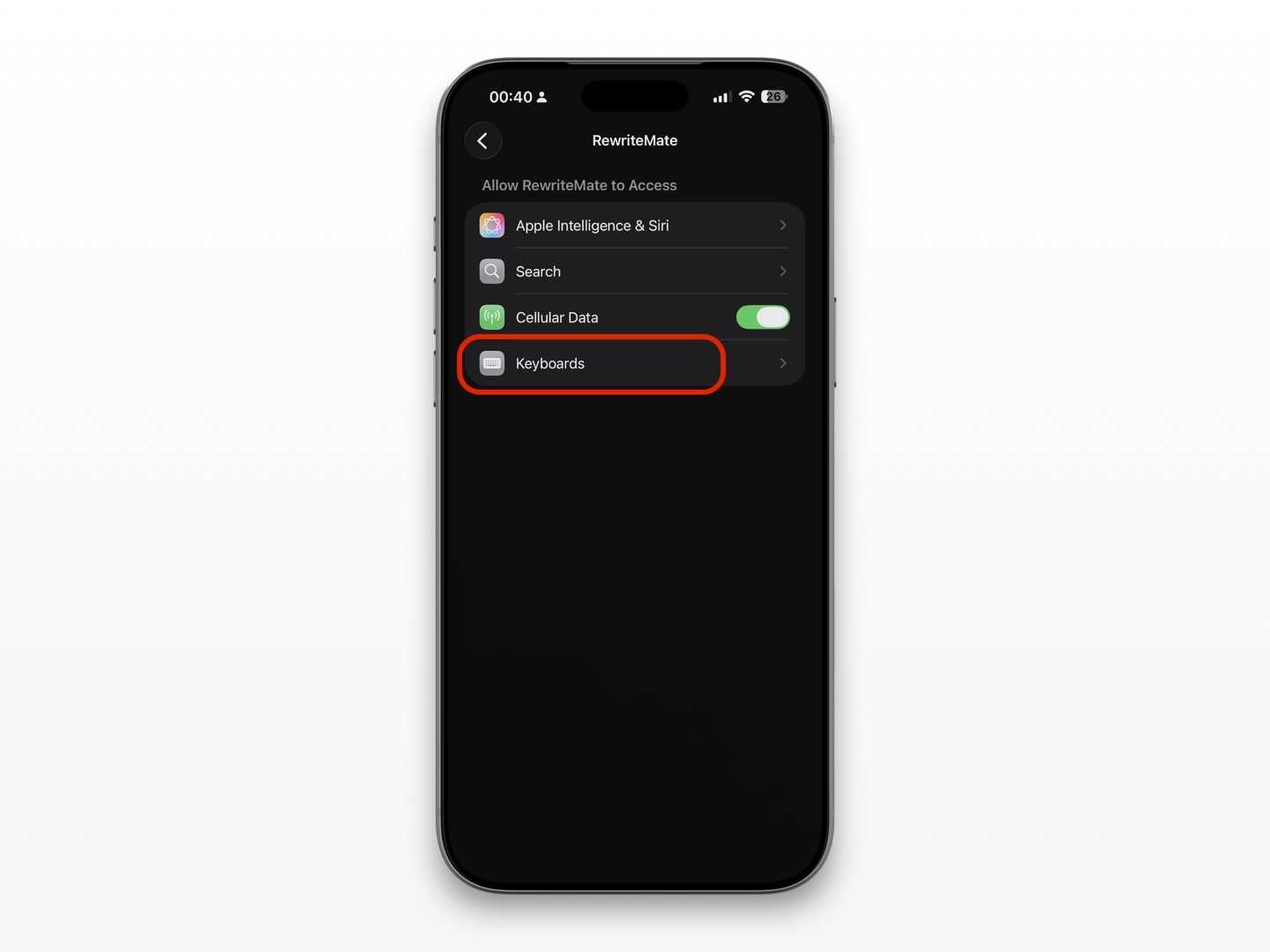
To review the setting:
- Go to Settings > General > Keyboard > Keyboards.
- Tap the keyboard’s name.
- Review the Allow Full Access option.
- Enable it only if you understand why the keyboard requests it and are comfortable with that choice.
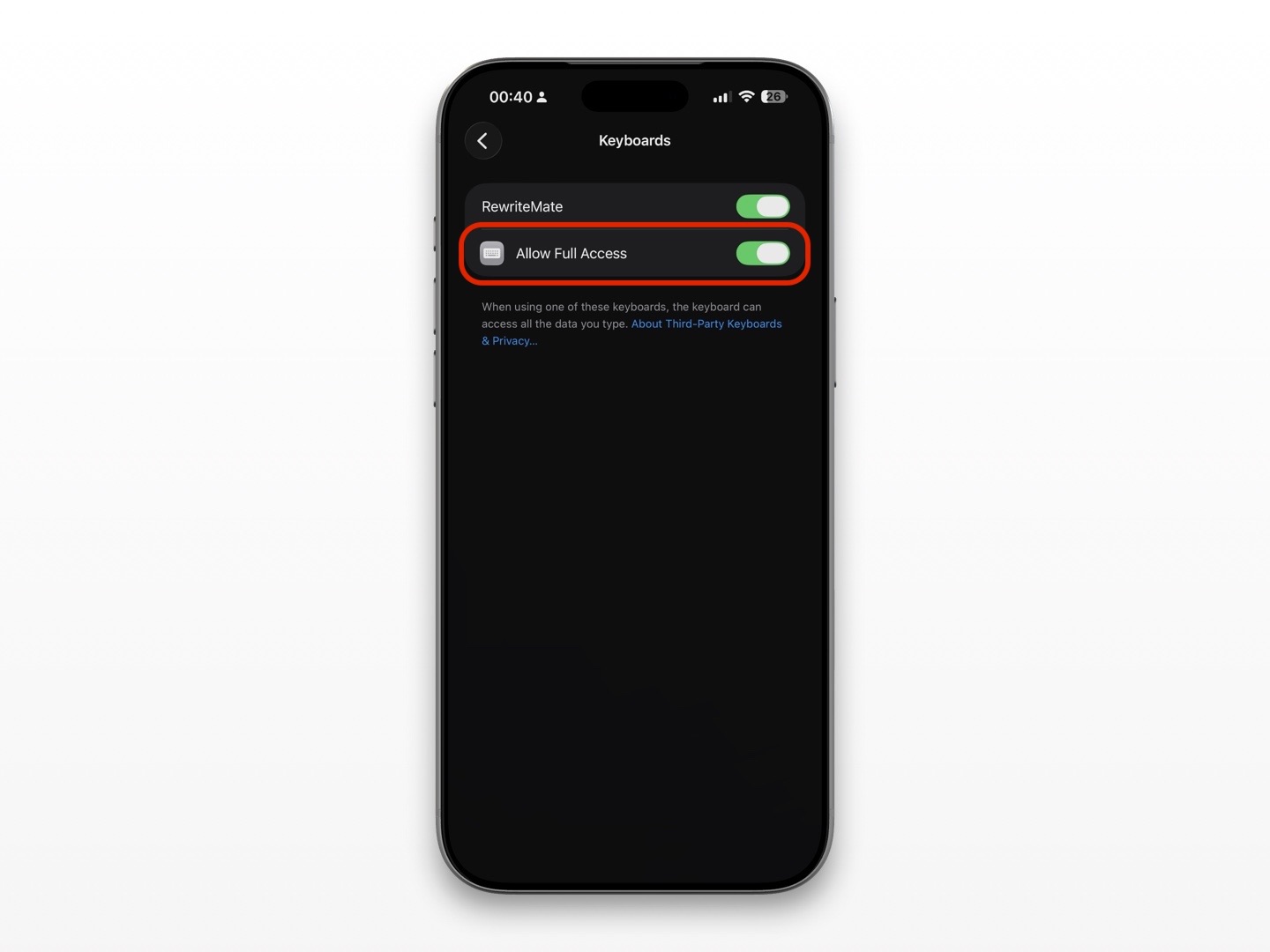
Full Access is a feature decision, not a universal fix for every keyboard issue. If the keyboard is missing entirely, add it first. If it appears but a specific AI feature is unavailable, the app’s own setup instructions should explain whether Full Access is needed.
For an AI keyboard such as RewriteMate, this is especially useful to check when the keyboard opens but its rewriting tools do not respond as expected. Read the permission prompt carefully and use only apps you trust.
7. Reduce confusion from multiple installed keyboards
If you have several language keyboards, emoji keyboards, and third-party keyboards installed, switching can feel inconsistent. It can also make it easy to mistake the wrong keyboard for a broken one.
Go to Settings > General > Keyboard > Keyboards and review the list.
Consider temporarily removing keyboards you no longer use. Then keep only:
- Your primary Apple language keyboard
- Emoji, if you use it
- The third-party keyboard you are testing
Return to Notes and use the globe key. With fewer options, it is easier to confirm whether your preferred keyboard is loading and whether it stays selected.
8. Reinstall the keyboard app, then contact support if needed
If the keyboard is still unavailable after re-adding it, updating it, and restarting your iPhone, reinstall the app.
Before deleting it:
- Check whether you need to sign in again afterward.
- Save any custom shortcuts, prompts, or settings that are not synced to an account.
- Confirm that you are downloading the official app from the App Store.
After reinstalling:
- Open the app and complete setup.
- Add the keyboard in iPhone Settings.
- Test it in Notes.
- If it works there, test it in the app where you first noticed the issue.
If it still fails, contact the keyboard developer with:
- Your iPhone model
- Your iOS version
- The keyboard app version
- The apps where the problem occurs
- Whether it works in Notes
- A screenshot or screen recording, if possible
That information helps the developer determine whether the issue is app-specific, device-specific, or related to iOS.
An AI keyboard that adapts to your writing style.
Create custom prompts and rewrite text your way—inside any app.
Why your iPhone keeps switching back to the Apple keyboard
Seeing Apple’s keyboard again does not always mean your third-party keyboard has been removed.
Your iPhone may switch back because:
- You are entering a password or other sensitive information.
- The current app does not support the third-party keyboard in that field.
- The keyboard extension has temporarily failed to load.
- You have multiple keyboards and accidentally cycled past it.
- The keyboard app needs an update or has been removed from Settings.
Try the globe key first. If your keyboard is no longer in the list, add it again through Settings > General > Keyboard > Keyboards.
How to prevent the issue from happening again
No troubleshooting guide can prevent every iOS or app update issue, but a few habits reduce the chance of an interruption.
Keep the keyboard app updated
Turn on automatic app updates or check manually after a major iOS release. Keyboard apps often release compatibility updates after Apple changes system behavior.
Keep iOS current
Software updates can include reliability fixes. Back up your iPhone before a major update, then install the update through Settings when you are ready.
Keep a fallback keyboard enabled
Leave at least one Apple keyboard installed. If a third-party keyboard is temporarily unavailable, you can still type and access Settings to troubleshoot.
Test a new keyboard in Notes first
After installing any new keyboard, test it in Notes before relying on it for an important message, email, or work chat.
When to use RewriteMate after the keyboard is working
Once an AI keyboard is active, the most useful workflow is usually simple: write your draft where you already communicate, then revise it without copying text into a separate writing app.
Use RewriteMate when you want to:
- Make an iMessage clearer or more polite
- Tighten a work email before sending it
- Check grammar while staying in the app you are using
- Adjust the tone of a Slack message
- Rewrite a sentence without losing the original point
The goal is not to make every message sound generic. It is to remove friction when you want a clearer, more confident version of what you already mean.
FAQs
Why is my third-party keyboard not showing up in iPhone Settings?
The keyboard app may need to be opened and set up first, it may need an App Store update, or the installation may have failed. Update or reinstall the app, then return to Settings > General > Keyboard > Keyboards > Add New Keyboard.
Why does my iPhone keep switching to the Apple keyboard?
Your iPhone may use Apple’s keyboard in secure fields, such as passwords. In regular text fields, try the globe key to switch back. If the keyboard is gone from the list, remove and add it again in Settings.
Do I need to enable Full Access for a third-party keyboard?
Not always. Some keyboards need Full Access only for specific features. Read the app’s explanation before enabling it, and turn it on only for a keyboard provider you trust.
Why does my AI keyboard work in Notes but not in another app?
That usually points to an app-specific text field or compatibility issue. Update the affected app, close and reopen it, and test again. If it only fails in one app, contact that app or the keyboard developer with the details.
Will deleting and reinstalling a keyboard app erase my settings?
It can. Some apps sync preferences through an account, while others keep settings only on your device. Check the app’s support documentation or save important custom settings before deleting it.
What should I do if no keyboard appears on my iPhone?
Test the Apple keyboard in several apps, restart the iPhone, and update iOS. If the issue affects all keyboards and persists after restarting, contact Apple Support.
Get back to writing without switching apps
A third-party keyboard that disappears on iPhone is usually recoverable: confirm it is added, test it in Notes, update the app and iOS, restart the phone, then remove and re-add the keyboard if necessary.
Once it is back, an AI keyboard can keep your writing flow in one place—whether you are polishing a quick text, replying to an email, or making a work message more direct. Try RewriteMate when you want that editing help where you already type.
Write better everywhere
Rewrite, rephrase, and refine text instantly without switching apps.
Related articles
Keep reading

How to Enable Allow Full Access for a Keyboard on iPhone
Learn how to turn on Allow Full Access for a third-party keyboard on iPhone, what the setting enables, and how to decide whether it is right for you.

Do AI Keyboards Read Everything You Type? What iPhone Users Should Know
AI keyboards can process text to provide writing help, but what they can access and send depends on iPhone permissions, the keyboard’s design, and the provider’s privacy practices.
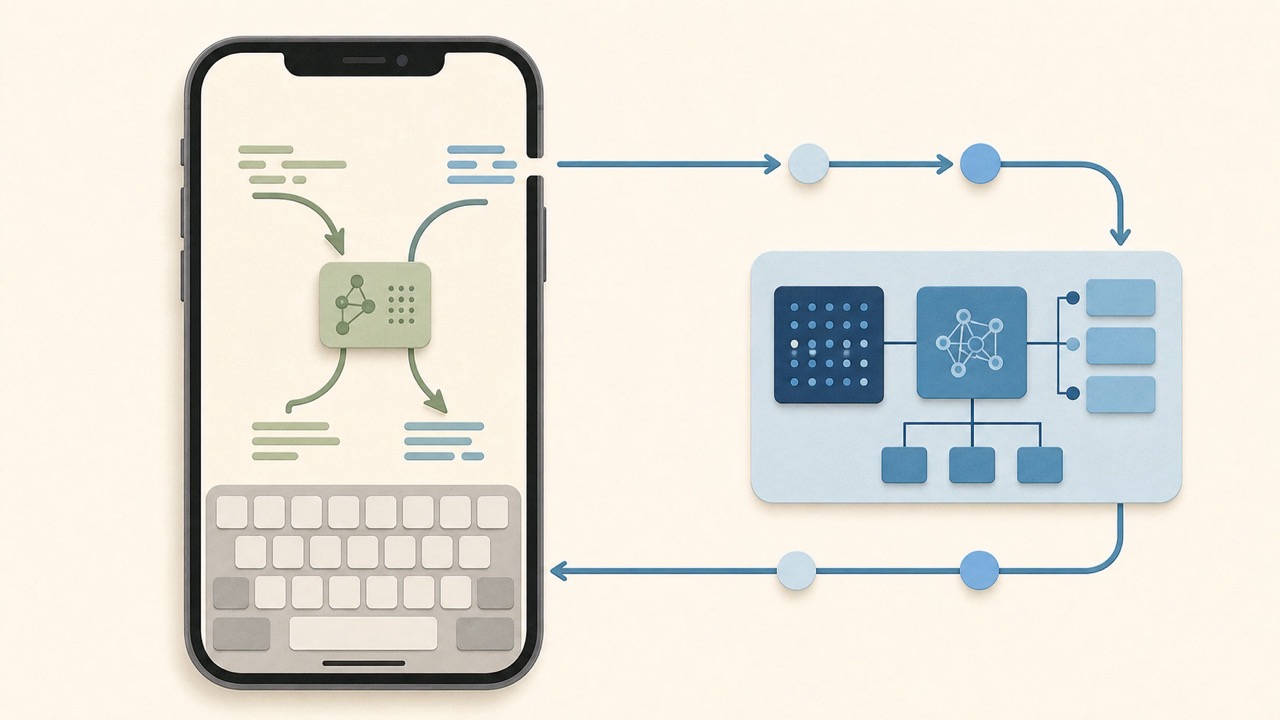
On-Device vs Cloud AI Keyboards: What’s the Difference?
Understand how on-device and cloud AI keyboards process text on iPhone, what the privacy and performance trade-offs are, and what to check before choosing one.

Felix Tran
RewriteMate Dev & Editorial Lead
Write about everyday workflows, systems that help ideas move faster, from first draft to finished work.