October 13, 2026
iPhone Text Replacement Not Working? Diagnose It Without Losing Shortcuts
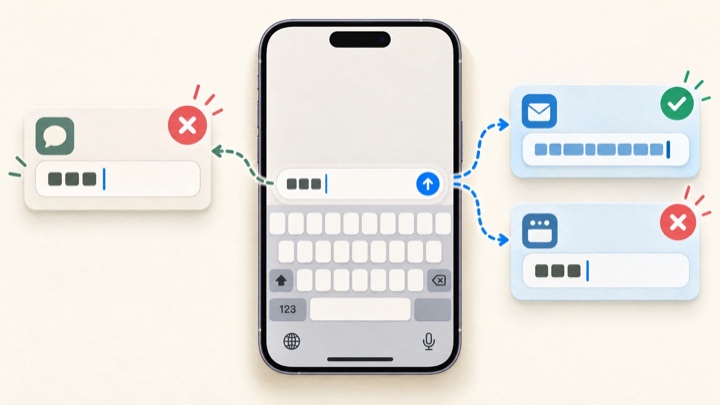
If iPhone Text Replacement stops expanding a shortcut, first test the same saved entry in a plain text field with Apple’s onscreen keyboard. Then compare that result with the app where it fails. This separates a missing or mismatched shortcut from a keyboard-specific or app-specific problem—and helps you avoid wiping all your saved keyboard words as a first step.
Apple’s Text Replacement is designed to replace a typed shortcut with a saved word or phrase. The settings path is Settings → General → Keyboard → Text Replacement. Apple also documents a keyboard-dictionary reset, but warns that it deletes all custom words and shortcuts, so troubleshoot the one entry before considering that broader reset. Apple’s guide to setting up text replacements explains both the feature and what a reset removes.
First, identify which keyboard problem you have
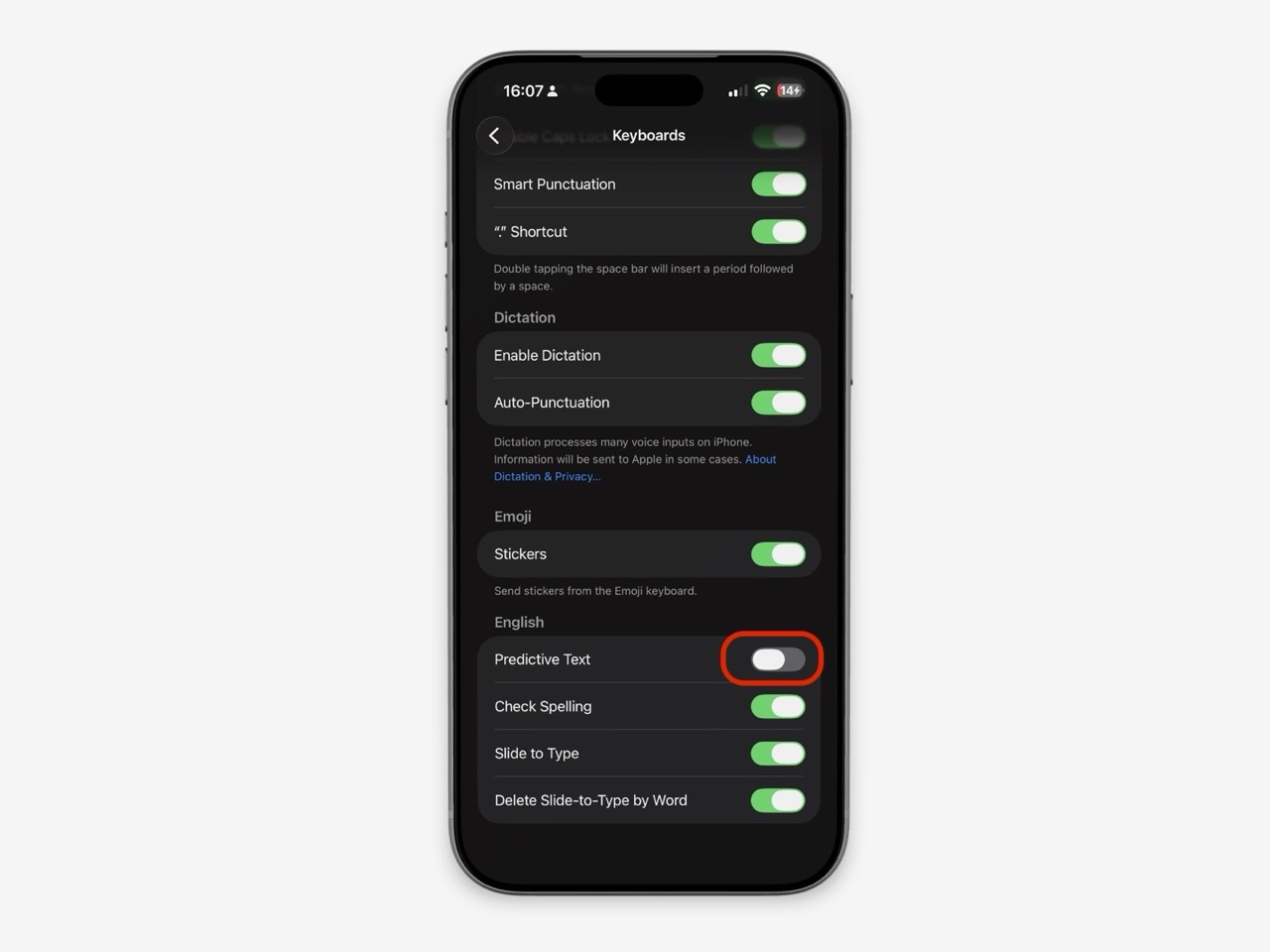
“The keyboard changed my text” can describe different behaviors. Text Replacement is a saved shortcut such as ;addr that expands into a longer phrase. Auto-Correction changes a word it thinks you misspelled, while predictive text offers suggested words or phrases as you type. Apple documents these as separate keyboard functions, so make sure the problem is actually a shortcut failing to expand before changing Auto-Correction or resetting the dictionary. Apple’s Auto-Correction and predictive text guide describes those separate controls.
If the issue is that one correct name keeps changing to another word, use a name-specific fix instead of this general expansion checklist. If your shortcut is visible in Settings but only fails inside one app, keep that detail: it is useful evidence and a reason not to make a system-wide change yet.
Run a safe three-part test
Before editing anything, write down or copy the exact shortcut and phrase somewhere safe. That way, if you decide to remove and recreate one entry, you do not have to reconstruct it from memory. Do not start by resetting the keyboard dictionary.
1. Confirm the entry is saved as intended
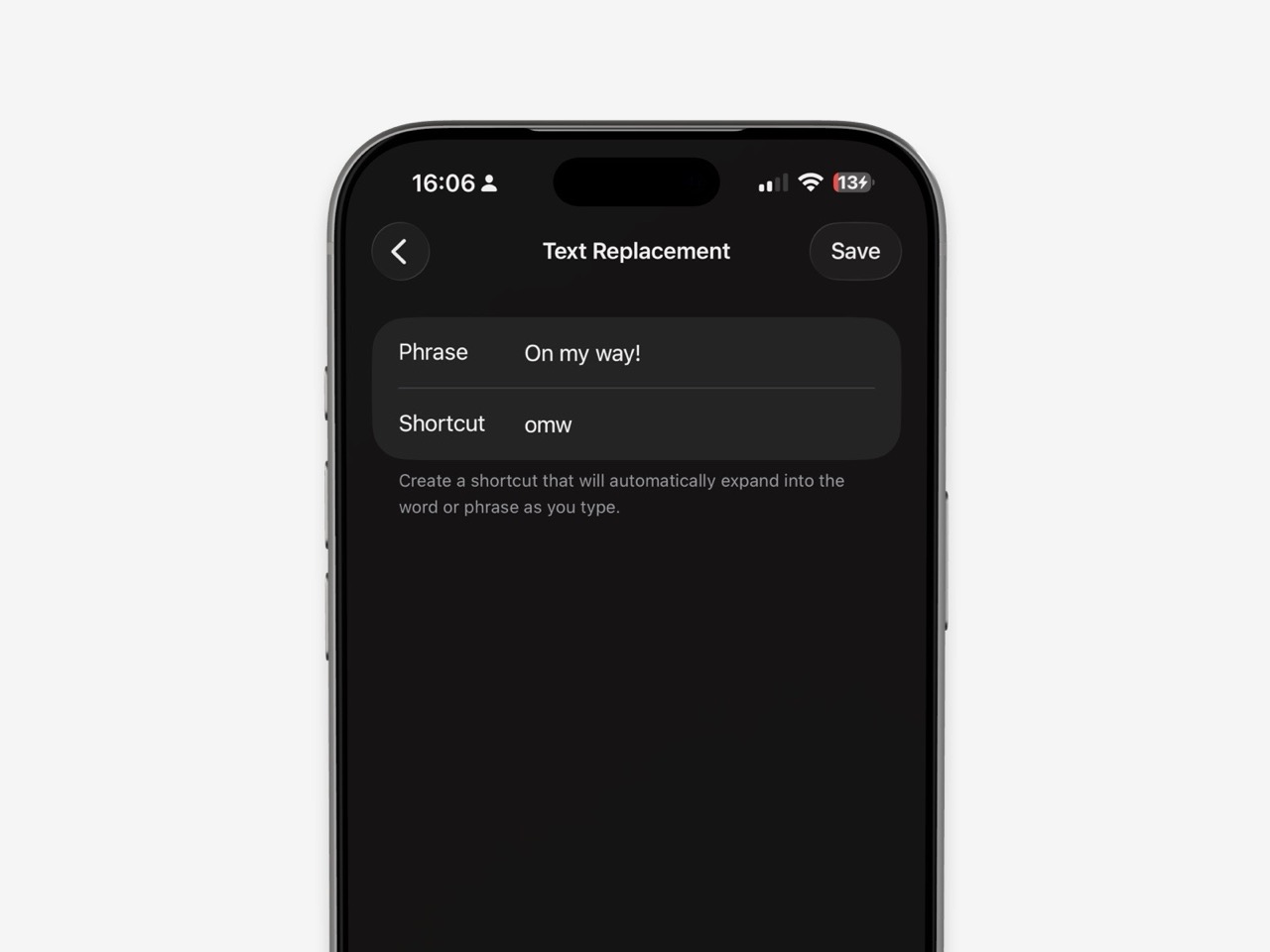
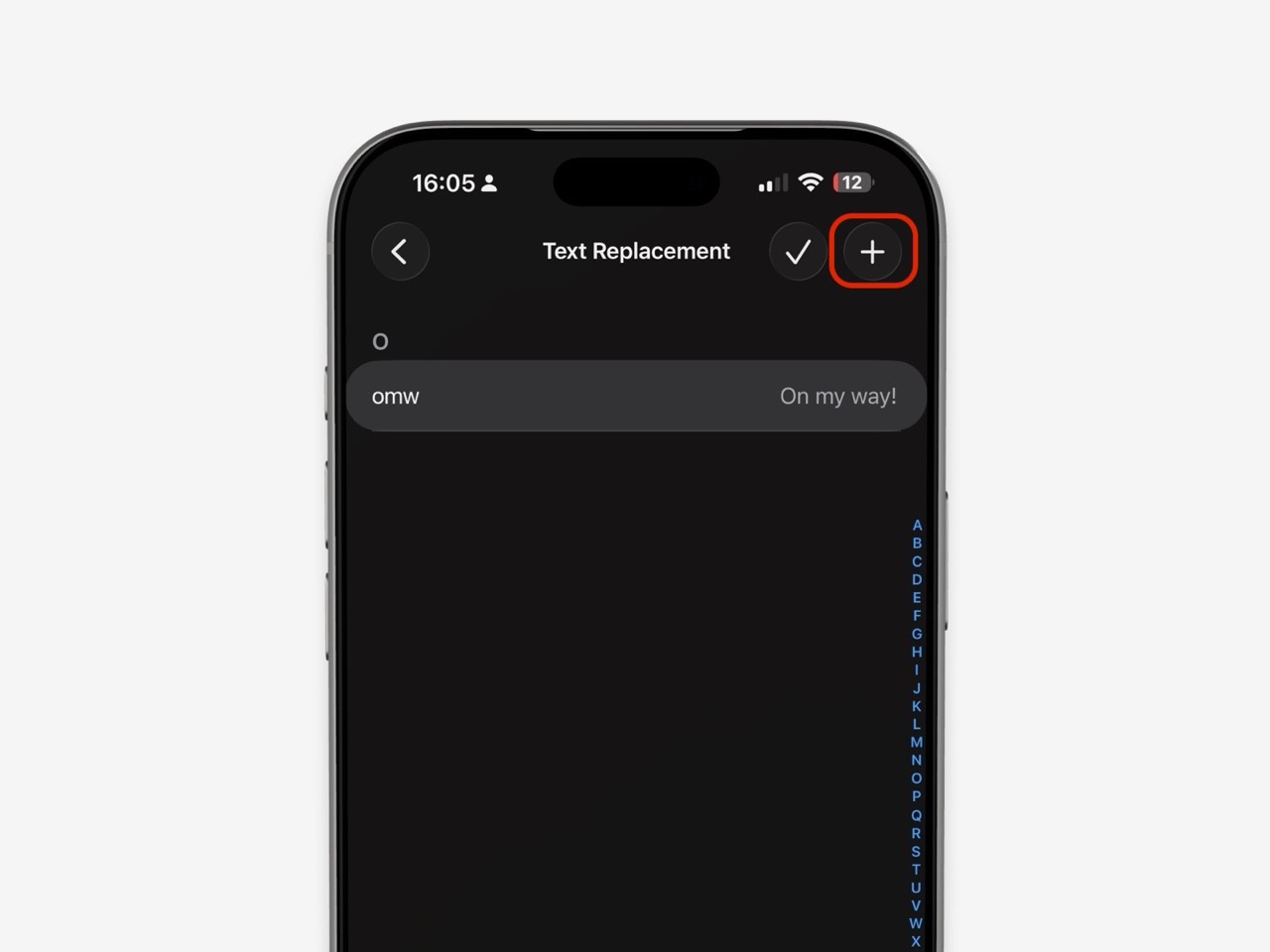
Open Settings → General → Keyboard → Text Replacement and locate the exact shortcut. Check for common entry mistakes:
- The shortcut is not the one you are typing.
- The saved phrase is blank or incomplete.
- The entry contains an unintended space or punctuation mark.
- A similar shortcut could be confusing your test.
Apple’s setup instructions use two fields: Phrase contains the replacement, and Shortcut contains the characters you type. If the entry is missing, add it again with a distinctive trigger and tap Save. Apple documents leaving the Shortcut field blank when you want to preserve a word from correction; that is a different use from expanding a typed shortcut.
2. Test in a neutral text field
Open a new note in Apple Notes or another ordinary text field. Use Apple’s onscreen keyboard, type only the shortcut, and complete the input in the same way you normally do. Do not send a message while testing. Apple describes the replacement as occurring when you enter the shortcut in a text field, but the exact interaction can look different across keyboard and app contexts; a neutral test gives you a baseline.
Try one known simple entry as well, such as Apple’s built-in omw example. If that expands but your custom shortcut does not, focus on the particular saved entry. If neither expands, record that result and continue to the keyboard comparison rather than repeatedly deleting shortcuts.
3. Compare the failing app and keyboard
Repeat the same test in the app where you first noticed the issue. If you have more than one keyboard enabled, compare the Apple keyboard with the other keyboard in the same text field. Apple notes that text substitutions depend on a supported keyboard; the comparison is a diagnostic check, not proof that every third-party keyboard handles the setting identically.
Use this result table to choose the next step:
| What you observe | What it tells you | Safer next step |
|---|---|---|
| The shortcut is not listed in Text Replacement | The saved entry may be absent or was not saved | Recreate that one entry from your backup and test it |
| It works in Notes but not one app | The entry can expand in at least one context | Keep the entry; check the app and keyboard used in the failing field |
| It works with Apple’s keyboard but not another keyboard | The shortcut exists and the keyboard choice changes the result | Check that keyboard’s own documentation or support before changing Apple settings |
| It fails with Apple’s keyboard in multiple ordinary fields | The issue is broader than one app’s text field | Recheck the exact entry, then try recreating only that shortcut |
| A word changes to another word without a saved phrase expansion | The symptom may be Auto-Correction, not Text Replacement | Review Auto-Correction and the specific word separately |
This test does not identify the internal cause of a failure. It narrows down where to investigate without assuming that every non-expansion is an iOS bug.
Fix the smallest thing your test isolated
If one entry appears incorrect
After saving its text elsewhere, edit or remove only that entry and recreate it. Choose a shortcut that is easy to remember but unlikely to appear in an ordinary sentence, such as a punctuation-prefixed trigger. Then test the new entry in a draft before relying on it in a real message.
For work phrases, keep the expansion short enough to recognize and review. A saved response containing a date, amount, recipient name, or promise can become unsafe if it is stale. Use placeholders such as [date] only if you will replace them before sending; iPhone does not automatically fill those values from the conversation.
If it fails only in one app
Leave the saved shortcut intact while you investigate. Test another text field in that app, then compare with Notes and a second app. Note the app name, keyboard, exact shortcut, and whether any suggestion appears. If the same entry works elsewhere, contact the app developer with those details; if it fails across apps and keyboards, contact Apple Support.
Avoid changing several settings at once. If the shortcut begins working after multiple changes, you will not know which change mattered, and you may make the next problem harder to diagnose.
If you use multiple keyboards or languages
Switch to Apple’s onscreen keyboard for the baseline test, then switch back and compare. For a language-specific shortcut, confirm that you are typing with the intended keyboard and input method. Apple’s guide notes that some word-and-input-pair replacements apply to particular Chinese and Japanese keyboards, which is a reminder that keyboard and language context can matter. Do not assume that a setting is broken until you have repeated the same test with a consistent keyboard and input.
If a keyboard itself is missing or cannot be selected, troubleshoot that separate setup issue before evaluating text expansion. A replacement cannot be tested reliably if the keyboard you intended to use is not active.
Be cautious with Reset Keyboard Dictionary
Resetting may sound like a general keyboard refresh, but it has a clear cost: Apple says Reset Keyboard Dictionary deletes all custom words and shortcuts and returns the dictionary to its default state. It is not a targeted repair for one phrase. Before using it, make sure you have copied any entries you cannot afford to lose and understand that you will need to add them again. See Apple’s instructions for resetting the personal dictionary.
If you rely on a long list of shortcuts for work, treat a full reset as a last resort, not the first troubleshooting step. Start with the exact entry, a neutral text field, and a keyboard comparison. If those checks do not isolate the issue, ask Apple Support before taking a broad action that removes all saved entries.
When a fixed shortcut is not the right tool
Text Replacement is useful when the same phrase should appear every time. It does not know which customer, order, date, or question is in the current conversation. For a reply that must change with context, a drafting or rewrite command is a different kind of workflow—not a repair for Apple’s Text Replacement.
RewriteMate can be used to create and run custom commands from its keyboard. For example, a user could make a command that turns rough notes into a concise reply while preserving names, dates, numbers, links, stated policies, and commitments. Review the output before sending; a writing assistant should not be treated as a source of facts or as an automatic fill-in for missing details. If the task is simply expanding an exact, stable phrase, Apple’s built-in shortcut remains the more direct fit.
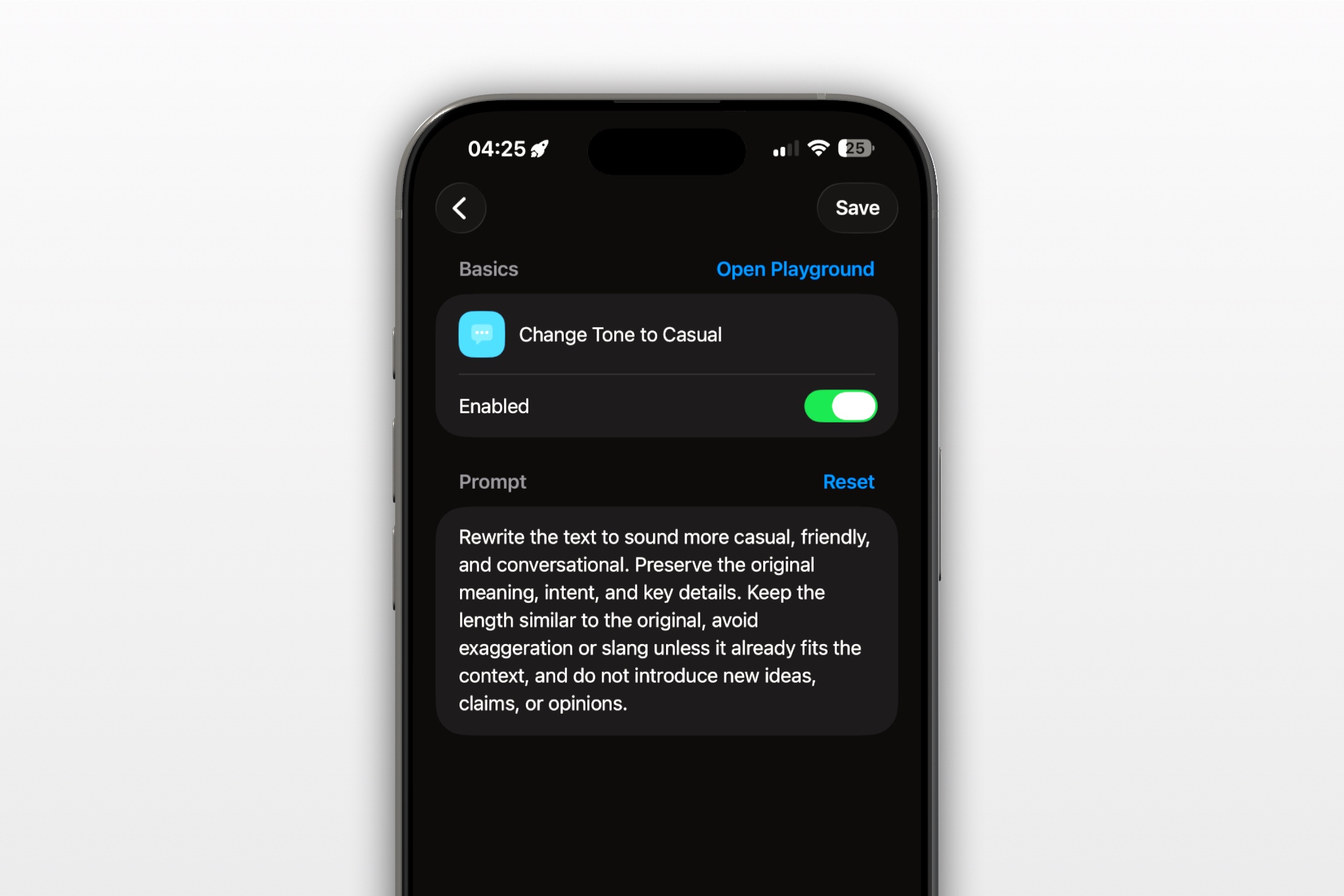
For a practical starting point, keep the command narrow: “Rewrite my notes as one clear, polite reply under 60 words. Do not add information. Preserve every name, date, number, link, policy, and commitment exactly. If a detail is missing, leave a placeholder instead of guessing.” Check every preserved detail against the original notes. Use this only when a context-aware rewrite is useful and RewriteMate is available in the app and keyboard setup you use.
Frequently asked questions
Why does Text Replacement work in Notes but not in one app?
That pattern shows the saved entry can expand in at least one text field. Compare the active keyboard and another field in the affected app, then contact that app’s support if the difference persists. Do not reset the dictionary just because one app behaves differently.
Should I reset the keyboard dictionary to fix one shortcut?
Usually, troubleshoot the single entry first. Apple says a dictionary reset deletes all custom words and shortcuts, so back up important entries and seek support before using it as a broad troubleshooting step.
Is Text Replacement the same as predictive text?
No. Text Replacement maps a shortcut you set to a saved word or phrase. Predictive text offers suggestions based on what you might type next. Apple documents the controls separately.
Does Text Replacement work with every keyboard?
Apple’s guidance describes substitutions with a supported keyboard. Because behavior may depend on the keyboard in use, compare with Apple’s onscreen keyboard and check the other keyboard’s own documentation rather than assuming universal support.
How do I keep my shortcuts on other Apple devices?
Apple documents using iCloud to keep the personal dictionary up to date across devices. Check the current iCloud Drive sync setting on your iPhone and consult Apple’s guide if your devices do not match; avoid deleting the entries while diagnosing a sync difference.
What should I send Apple Support if it still fails?
Share the iPhone model and iOS version, the exact shortcut and phrase (remove private text if necessary), the app and keyboard used, and the results of the Notes-versus-app test. State what you already checked and avoid sending customer or confidential content.
If a single reliable phrase is all you need, keep the fix small: verify the entry and test it before changing the whole dictionary. If the message changes every time, use a workflow designed for drafting from current context—and check every fact before you send.
Related articles
Keep reading
How to Create Email Templates on iPhone With Text Replacement
Stop retyping the same email lines on your iPhone. Set up reusable Text Replacement shortcuts, avoid accidental expansions, and learn when a fixed snippet is not flexible enough for the message you need to write.

How to Stop iPhone Autocorrect From Changing Names
Stop iPhone autocorrect from changing names, brands, slang, and unusual spellings with Text Replacement, keyboard settings, and a keyboard-dictionary reset when needed.

Third-Party Keyboard Not Showing Up on iPhone? 8 Fixes That Work
Fix a third-party keyboard that is missing, won't open, or keeps switching back to the Apple keyboard on iPhone with these practical troubleshooting steps.

Felix Tran
RewriteMate Dev & Editorial Lead
Write about everyday workflows, systems that help ideas move faster, from first draft to finished work.