October 14, 2026
Apple Notes Audio Transcript Not Showing on iPhone? Check These Requirements
If Apple Notes saves your recording but you can’t find its transcript, the first checks are your iPhone model and the language set for the device—not a keyboard setting. Apple says Notes audio transcription is available on iPhone 12 or later when the device language is one of its supported languages. If the Transcription button is absent, Apple says the iPhone either doesn’t meet the requirements or hasn’t detected a supported language. (Apple’s current Notes guide)
That diagnosis applies to an audio recording attached inside Notes. It is different from dictating directly into a message field, from a phone-call transcript, and from the Apple Intelligence summary that may appear above a transcript. This guide keeps those problems separate so you can check the right requirement before changing settings or repeating a recording.
First, identify which text is missing
“Transcript not showing” can describe three different things:
| What you did | What should appear | Main thing to check |
|---|---|---|
| Recorded audio in a Notes document | A transcript for the recording | iPhone model and detected audio language |
| Recorded an eligible Phone or FaceTime call | A call transcript in Notes | Call recording and transcript availability for your region/language; processing may still be underway |
| Opened a transcript and expected key points | An Apple Intelligence summary | Separate device, software, language, and region eligibility |
If you used the microphone on the iPhone keyboard and spoke into a text field, that is Dictation. Notes’ audio-recording transcript troubleshooting will not fix Dictation errors; it is a separate speech-to-text workflow. If you recorded a call, use Apple’s separate call recording and transcription guide, which explains that call transcription is available only in select regions and languages and may show as still in progress.
Check whether your iPhone and device language qualify
For audio recordings made in Notes, Apple lists iPhone 12 and later as supported. Its current guide lists these device languages for transcription: English, Spanish, Portuguese, Italian, French, German, Japanese, Korean, Simplified Chinese, and Traditional Chinese. The language of the device matters; adding a keyboard for another language is not the same as changing the device language.
Check the model you are using, then check the primary iPhone language at Settings → General → Language & Region. Apple’s language-setting instructions show where to view and change that setting. You do not need to change your everyday device language just to test a feature if doing so would make the phone inconvenient to use. Start by confirming what it is currently set to.
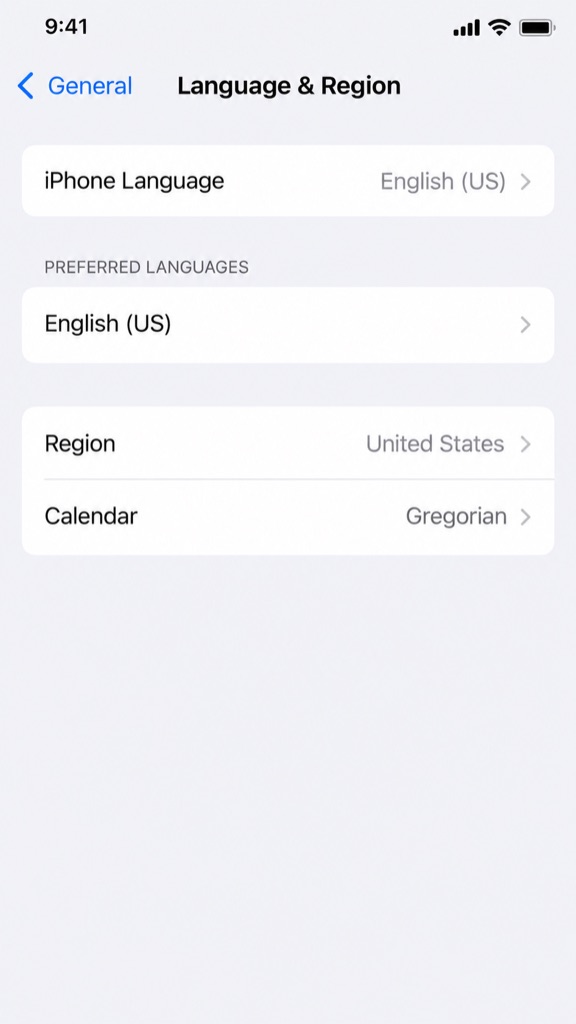
Original Settings UI recreation based on Apple’s guide.
If your device is older than iPhone 12, or its primary language is not in Apple’s supported list, the missing control may be expected rather than a fault you can repair with a toggle. Apple’s current troubleshooting note does not identify a separate transcription switch to turn on for Notes audio recordings.
Confirm you are opening the transcript for the recording
For an eligible iPhone and language, use this basic check with a new, short recording:
- Open Notes and create or open a note.
- Tap the Attachments button, then choose Record Audio.
- Record a short spoken test in a supported language and stop the recording.
- Tap the saved audio recording, then look for the Transcription control.
- If the transcript opens, tap a phrase while reviewing it to compare that point with the audio.
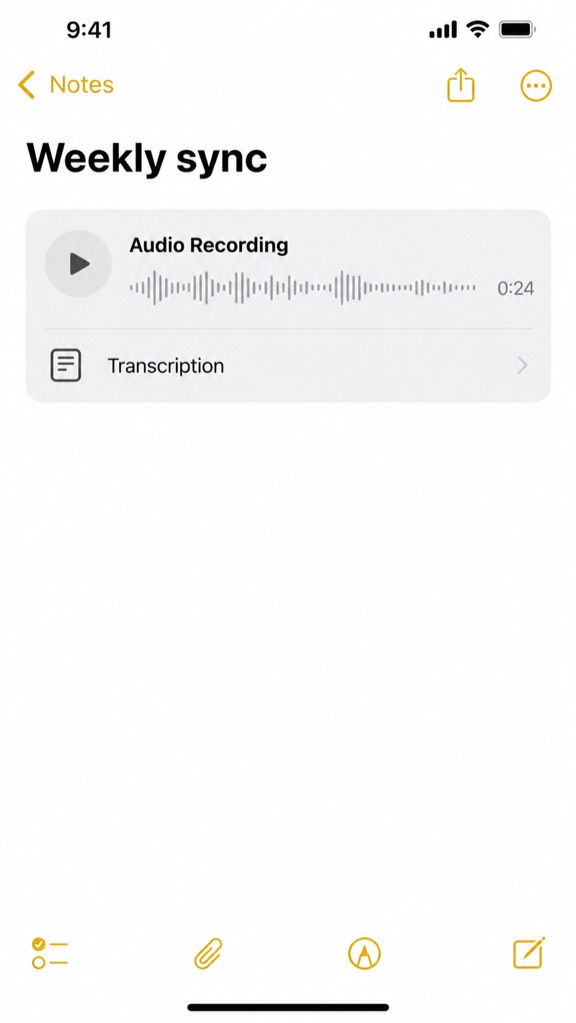
Original Notes UI recreation based on Apple’s guide.
Apple documents this path and says supported speech is transcribed automatically. It also says that if the button is missing, the iPhone does not meet the minimum requirements or does not detect a supported language. (Apple Notes audio guide)
The short test is a diagnostic, not a guarantee that every existing recording can be repaired. If a new supported-language test shows the same issue on a qualifying model, write down the iPhone model, iOS version, device language, and whether the control is missing or opens an empty transcript. That detail will make an Apple Support request more useful than trying unrelated keyboard resets.
Transcript missing, or only the summary missing?
An audio transcript and an AI-generated summary are different outputs. A transcript represents recognized spoken words. A summary is an additional Apple Intelligence feature that condenses the transcript. Apple lists Notes transcription summaries separately from basic audio transcription in its current Apple Intelligence availability guide, so check that feature’s own device, software, language, and regional requirements rather than assuming transcript support guarantees a summary.
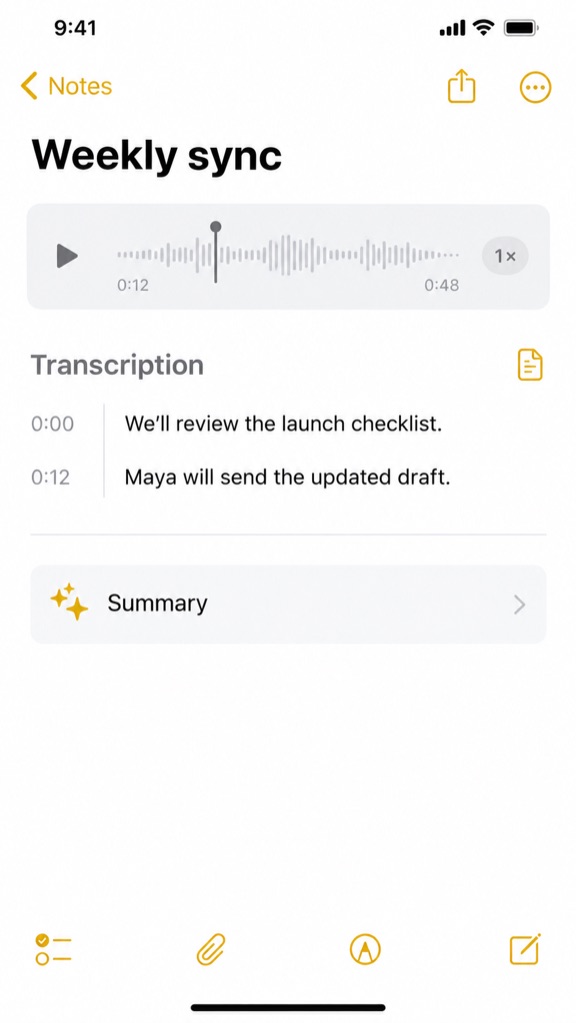
Original Notes UI recreation; transcript and summary are separate.
Use this quick distinction:
- No Transcription button at all: begin with the Notes transcription model and language requirements above.
- Transcript opens, but there is no Summary option: check Apple Intelligence device, software, language, and regional availability. A working transcript alone does not prove that summaries are available on that iPhone.
- Summary appears but gets a detail wrong: compare important names, dates, numbers, decisions, and commitments with the recording. Apple cautions that generative-model outputs can vary and important information should be checked for accuracy in its Notes guidance.
For setup steps, use Apple’s current Apple Intelligence requirements and setup guidance. Don’t change the device language or reset the keyboard dictionary to solve a summary-only issue; those actions do not address the separate feature gate.
If the transcript still does not appear
Work through these checks in order and stop when you find a clear eligibility mismatch:
- Confirm it is a Notes audio recording. A keyboard microphone, Voice Memos file, and call recording can follow different steps.
- Check the model. Apple’s Notes audio guide specifies iPhone 12 or later.
- Check the device language. Compare the primary language in Language & Region with Apple’s supported transcription list.
- Test a new short recording. Use clear speech in a supported language. This helps distinguish a problem with one saved recording from a broader missing control; it does not establish the cause by itself.
- Record what happens. Note whether the audio plays, whether a Transcription button exists, and whether the transcript is blank, incomplete, or simply unavailable.
- Ask Apple Support if the documented requirements are met. Avoid resetting the keyboard dictionary or deleting the audio as a first response. Apple notes that deleting an audio recording also deletes its transcript.
Do not assume that a transcript can always be forced to regenerate. Apple’s current user guide explains when transcription is supported and what a missing button indicates, but it does not document a universal manual “retranscribe” control for Notes recordings. If the recording is important, preserve the audio and seek Apple’s guidance before deleting it or experimenting with resets.
Turn an available transcript into a clear work update
Once you can copy a transcript, you may want to turn the rough spoken record into a message. First correct the transcript against the audio—especially speaker names, dates, amounts, decisions, and anything that could become a promise. A transcript is a starting point, not proof that every word was recognized correctly.
If you already use RewriteMate, you can paste or select the verified transcript text and use a saved custom command to shape it into a short update. RewriteMate can help transform text; it does not record audio, create Apple Notes transcripts, or restore a missing Transcription button. Keep the original transcript available until you have checked the result.
Example custom command: Meeting transcript to project update
Turn the supplied transcript into a concise project update with three sections: completed, next, and needs attention. Use only details explicitly stated in the source. Preserve names, dates, numbers, owners, links, and commitments exactly. If an owner, date, or decision is unclear, mark it as “confirm” instead of guessing. Do not add a deadline or promise.
Use the result as a draft. Compare each bullet with the transcript before sending it to a client or team. This is especially important when speech recognition has confused a name, amount, or who agreed to do what.
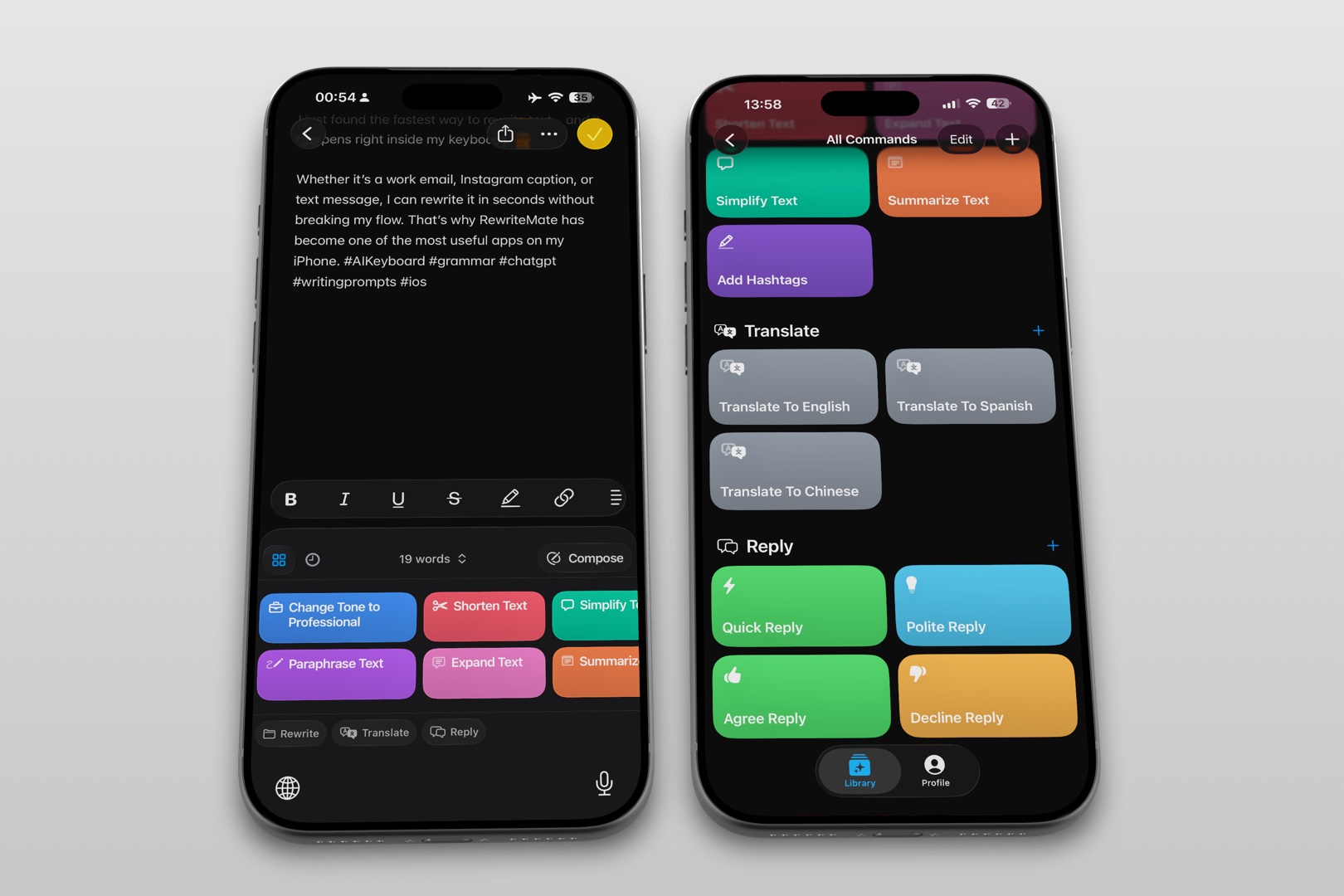
If you want an optional editing step after Apple’s native transcript works, try RewriteMate. The native Notes fix remains useful on its own; an AI rewrite is not a substitute for transcription or fact-checking.
Frequently asked questions
Why is the Transcription button missing in Apple Notes?
Apple says the iPhone may not meet the minimum requirements or may not detect a supported language. For Notes audio transcription, its current guide specifies iPhone 12 or later and a supported device language. Check those before looking for a keyboard setting.
Does Apple Notes transcribe audio on iPhone 11?
Apple’s current Notes guide says audio transcription is available on iPhone 12 and later. An iPhone 11 is below that listed model range, so the Notes transcription control may not be available on it.
Do I need Apple Intelligence to get a transcript?
Apple documents Notes audio transcription separately from the Apple Intelligence summary. A transcript may be available even when the summary feature is not. Check model and language for transcription; check Apple Intelligence requirements separately for summaries.
Does changing the keyboard language make Notes transcribe?
Apple’s Notes guide refers to the language set for the device. A keyboard layout and the primary device language are separate settings. Check Settings → General → Language & Region and compare the device language with Apple’s transcription list.
Can RewriteMate transcribe an Apple Notes recording?
No. RewriteMate is for transforming text after it exists; it does not create or repair an Apple Notes audio transcript. You can use it on copied transcript text, then verify the edited version against the audio.
Should I reset my iPhone keyboard dictionary if the transcript is missing?
No. A keyboard-dictionary reset is not an Apple-documented fix for a missing Notes transcription control. Diagnose the Notes model and language requirements first, and avoid deleting the audio because Apple says deleting the recording also deletes its transcript.
Related articles
Keep reading

How to Clean Up a Voice-Dictated Message on iPhone With AI
Learn how to dictate a message on iPhone, correct transcription mistakes quickly, and use AI to make the final text clearer without losing your voice.
How to Turn On Apple Intelligence and Writing Tools on iPhone
Learn how to enable Apple Intelligence and use Writing Tools on a compatible iPhone, plus what to check when the feature is missing and an alternative for unsupported devices.

Felix Tran
RewriteMate Dev & Editorial Lead
Write about everyday workflows, systems that help ideas move faster, from first draft to finished work.