September 11, 2026
How to Clean Up a Voice-Dictated Message on iPhone With AI
The fastest way to clean up a voice-dictated message on iPhone is to dictate your first draft, review names and facts manually, then use an AI writing tool to improve grammar, clarity, and tone. The key is to treat AI as an editor—not as someone who knows what you meant to say.
iPhone Dictation lets you speak text anywhere you can type, while keeping the keyboard open so you can switch between voice and touch editing. Apple’s iPhone User Guide also notes that Dictation is processed on-device in many languages.
That makes voice dictation useful when you are walking, commuting, cooking, or simply thinking faster than you can type. But a dictated message still needs a quick cleanup before you hit Send.
Start with Dictation on iPhone
First, make sure Dictation is enabled:
- Open Settings.
- Tap General.
- Tap Keyboard.
- Turn on Enable Dictation.
- Open Messages, Mail, Slack, Notes, or another app with a text field.
- Tap the microphone on the keyboard and begin speaking.

Apple says Dictation works anywhere you can type. Depending on your language and region, it can also add punctuation automatically and support spoken punctuation or editing commands. Check Apple’s Dictation guide for the features available on your device.
A useful habit: dictate in short thoughts instead of one long paragraph. It gives you cleaner sentence breaks and makes errors easier to spot.
The Best Workflow: Speak, Review, Polish
Voice dictation is great at getting words onto the screen. It is less reliable with context-sensitive details.
Use this three-part workflow:
- Speak naturally. Focus on getting the idea down.
- Review important details. Check names, dates, numbers, links, locations, and product names.
- Polish the draft. Use manual edits or AI to fix grammar, structure, and tone.
Do not ask an AI tool to “fix everything” and send the result without reading it. A writing assistant can improve a sentence, but it cannot verify whether you meant Tuesday or Thursday, 3 p.m. or 3:30 p.m., or Alex rather than Alexa.

What iPhone Dictation Often Gets Wrong
Most transcription mistakes are predictable. Knowing where to look makes your final review much faster.
| Common issue | Example | What to do |
|---|---|---|
| Names and brands | “Maya” becomes “Mia” | Correct it manually before polishing |
| Homophones | “their” instead of “there” | Use grammar review, then read the sentence in context |
| Numbers and dates | “fifteen” becomes “50” | Compare against the original information |
| Missing context | “the proposal” when there are several | Add the specific project or document name |
| Long, rambling sentences | One spoken thought becomes a paragraph | Split it into two or three shorter sentences |
| Wrong tone | A rushed note sounds abrupt | Ask AI to make it warmer, clearer, or more professional |
These errors are not a reason to avoid dictation. They are a reason to add a review step.
How to Use AI to Clean Up Dictated Text Without Losing Your Voice
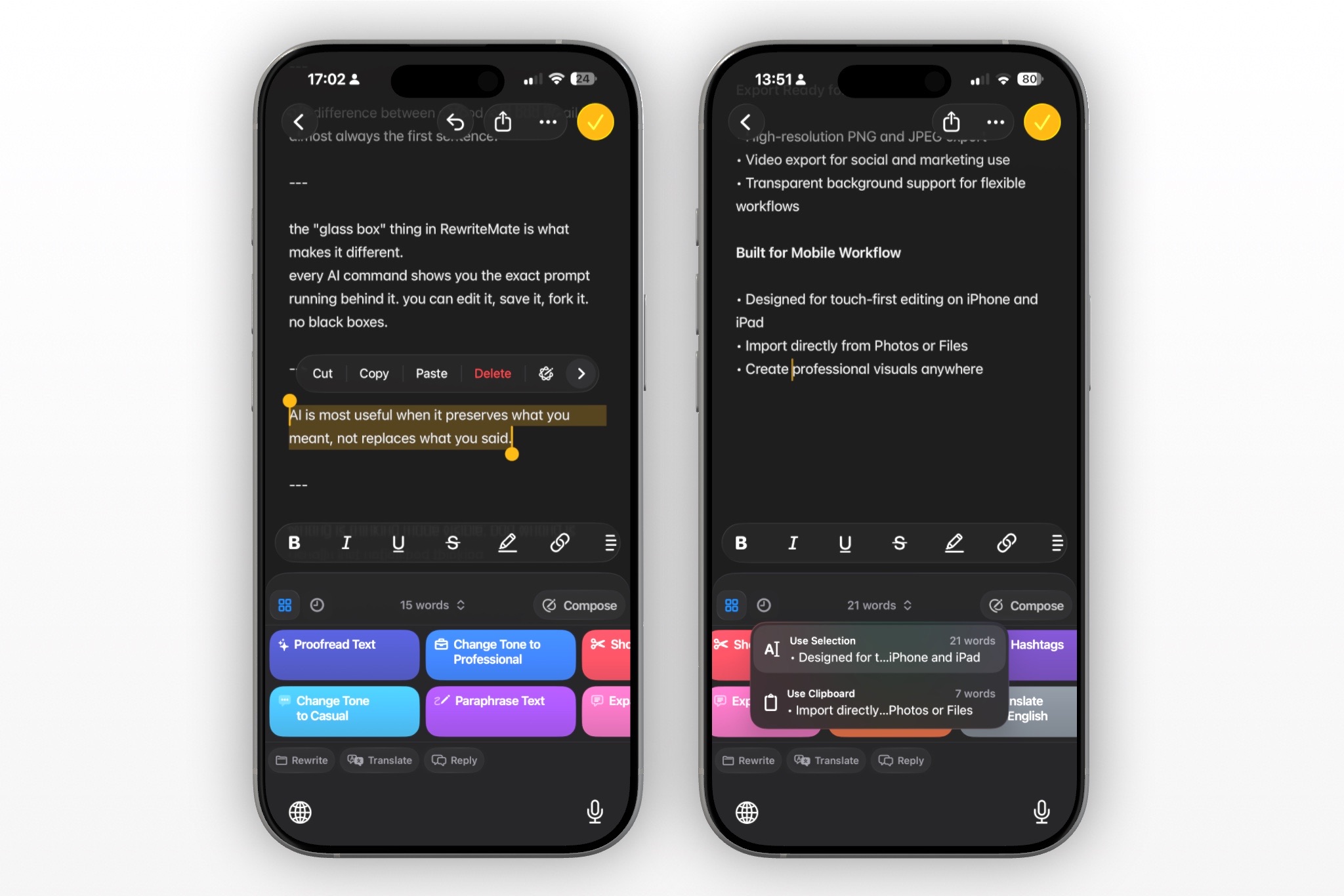
Once your facts are correct, AI can make a dictated draft easier to read. An AI keyboard such as RewriteMate can be helpful when you want to revise text directly in the app where you are writing instead of copying it into a separate editor.
The best requests are specific. Tell the tool what it may change and what it must preserve.
Try prompts like:
- “Fix transcription errors and grammar only. Keep my casual tone.”
- “Make this message more concise without changing names, dates, or numbers.”
- “Turn this dictated note into a polite work update. Do not add new facts.”
- “Improve clarity and punctuation, but keep it friendly and direct.”
- “Make this sound more confident, not more formal.”
Avoid vague instructions such as “make this better.” They leave too much room for the tool to make choices you may not want.
Example: Cleaning Up a Casual Text
Here is a typical dictated draft:
hey sorry i just saw this i can do thursday after 3 but maybe not until 330 if the client call runs long let me know if that still works
A light cleanup could become:
Hey, sorry—I just saw this. I’m available Thursday after 3 p.m., although it may be closer to 3:30 if my client call runs long. Let me know if that still works for you.
The facts stay the same. The message is simply easier to understand.
Example: Cleaning Up a Work Message
Dictated draft:
hi team quick update i finished the homepage copy and sent the revised brief to maya i still need to check the mobile sections and i should have that done tomorrow morning
Polished version:
Hi team, quick update: I finished the homepage copy and sent the revised brief to Maya. I still need to review the mobile sections, and I expect to have that completed tomorrow morning.
For a professional message, the best AI edit is usually conservative. It should clarify the update, not inflate it with unnecessary business language.
Keep Control of the Facts
Before sending a cleaned-up dictated message, check these items yourself:
- Names and pronouns
- Dates, times, prices, and quantities
- Links, addresses, and meeting details
- Promises, deadlines, and commitments
- Private or sensitive information
- The intended recipient and tone
If you dictate a message while driving, wait until you are safely stopped before reviewing and sending it. Dictation can help capture a thought, but it is not a substitute for attention.
Write better everywhere
Rewrite, rephrase, and refine text instantly without switching apps.
Use Shorter Sentences for Better Results
A simple way to make both Dictation and AI editing work better is to speak in short chunks.
Instead of saying:
I wanted to follow up because I think the project is going well but I am not sure whether we should launch on Friday because there are still a few things that we need to check.
Try:
I wanted to follow up on the project. It is going well, but I do not think we should launch on Friday yet. We still have a few items to check.
This approach gives Dictation clearer sentence boundaries. It also makes your original intent easier for an AI editor to preserve.
When to Edit Manually Instead of Using AI
AI is not necessary for every dictated message. Manual editing is often faster when you only need to:
- Correct one name or number
- Add a missing word
- Delete a repeated phrase
- Change one sentence
- Fix obvious punctuation
Use AI when the draft needs a broader cleanup: clearer structure, more professional tone, shorter wording, or a more readable version of a long voice-to-text message.
The goal is not to automate every message. It is to remove friction when the message needs more than a quick typo fix.
Privacy Tips for Voice Dictation and AI Editing
Think about both where you dictate and what you paste into an AI tool.
Avoid dictating sensitive details where others can hear you, such as passwords, financial information, medical information, private customer data, or confidential work plans. Review a keyboard or writing tool’s privacy documentation before using it for sensitive content.
Apple provides Dictation and privacy information in the Dictation settings area and explains that availability and processing can vary by language and feature. Apple’s guide is the right place to check the current behavior for your device.
For professional work, follow your company’s policies about customer information, internal documents, and approved AI tools.
A 30-Second Dictation Cleanup Checklist
Before you send a voice-dictated message, take half a minute to check:
- Is the recipient correct?
- Are names, dates, and numbers accurate?
- Did Dictation misunderstand any important words?
- Is the tone right for this person and situation?
- Did the AI edit preserve your meaning?
- Can you make the message shorter?
- Would you be comfortable if the message were forwarded?
That small pause prevents most avoidable mistakes.
Make Dictation Faster Without Sending Messy Messages
Dictation is most useful when it helps you capture a thought quickly and still gives you time to communicate clearly. Use your voice for the first draft, your eyes for fact-checking, and an AI editor for the final polish.
If you regularly dictate messages, emails, or work updates on iPhone, try RewriteMate to clean up wording, adjust tone, and make your draft easier to read without leaving the app where you are writing.
Frequently Asked Questions
Can I use iPhone Dictation in any app?
You can use Dictation anywhere you can type on iPhone, according to Apple’s documentation. Individual apps may still handle text fields differently.
Can I type while Dictation is running?
Yes. Apple says the keyboard stays open during Dictation, so you can switch between speaking and typing as you edit.
Can AI fix voice-to-text mistakes?
AI can help identify grammar issues, awkward phrasing, and likely transcription mistakes. You should still manually verify names, dates, numbers, and anything with real-world consequences.
How do I stop Dictation from changing a person’s name?
Correct the name manually before using AI to polish the rest of the message. For names you type often, you can also create a Text Replacement shortcut on iPhone.
Will AI make my dictated message sound robotic?
It can if you use a broad rewrite request. Ask for a light edit, specify the tone you want, and review the result before sending.
Should I use AI for sensitive dictated messages?
Only if the tool is appropriate for the information and your privacy or workplace policies allow it. Avoid including highly sensitive information unless you understand how the service handles it.
Related articles
Keep reading
How to Rewrite a Text Message With AI on iPhone
Learn how to use AI to rewrite a text message on iPhone while keeping the facts, context, and voice that make the message yours.

Best AI Keyboard for Online Dating: Better Tinder and Hinge Messages
Use an AI keyboard to write more natural Tinder and Hinge openers, improve replies, and keep your voice intact without copying chats into another app.

Best AI Keyboard for Non-Native English Speakers on iPhone
An AI keyboard can help non-native English speakers write clearer messages on iPhone without leaving the app they are using. Here is what to look for and how to use one well.

Felix Tran
RewriteMate Dev & Editorial Lead
Write about everyday workflows, systems that help ideas move faster, from first draft to finished work.