October 23, 2026
iPhone Dictation Keeps Adding Punctuation? Check This Setting First
If iPhone Dictation keeps inserting commas, periods, or question marks you did not mean to add, check Auto-Punctuation first. Apple’s current iPhone guide says that Dictation automatically adds some punctuation in supported languages and documents a switch at Settings → General → Keyboard → Auto-Punctuation. Turn it off, then try the same short test sentence again. Apple’s Dictate text guide also notes that Dictation features vary by language and availability, so the exact controls or behavior may not match every setup.
The goal is to change one relevant setting and compare a harmless test—not to reset the keyboard or turn off Dictation entirely. If the switch is missing or the test looks unchanged, use the checks below before making broader changes.
First, identify which punctuation is appearing
Two different things can look like the same problem:
- Automatic punctuation: Dictation inserts punctuation while you speak. Apple says supported languages can automatically receive commas, periods, and question marks.
- A spoken punctuation command: If you say “comma,” “period,” or another punctuation name, Dictation may insert that mark as text. Apple lists spoken punctuation commands separately from automatic punctuation in its Dictation commands guide.
For a clean test, dictate a sentence without saying punctuation names. For example: “The revised file is ready please review it before noon.” If a mark appears between “ready” and “please,” repeat the same sentence after checking Auto-Punctuation. This comparison is a practical test, not proof of a particular software defect: speech recognition can interpret spoken words differently, and a single test cannot identify every cause.
Turn off Auto-Punctuation
On iPhone, open Settings, tap General, tap Keyboard, then turn off Auto-Punctuation. Apple documents that route in its current Dictation guide. The switch controls automatic punctuation; it is not the same as disabling Dictation itself.

This reference screen highlights Enable Dictation; Auto-Punctuation is the row immediately below it.
After changing the switch, return to a text field and repeat the same short test. Keep the wording, speaking pace, language, and app the same so the comparison is useful. If the result is better, continue with the setting off and add punctuation by typing or using a spoken command when you want a specific mark. If it is not better, move to the next checks rather than toggling unrelated settings.
Check these details if punctuation still appears
Confirm the switch and test the same input
Reopen Settings → General → Keyboard and check that Auto-Punctuation is still off. Then dictate the same short sentence in a simple text field. Do not use private or sensitive text for troubleshooting; a made-up sentence is enough to see whether the output changes.
If the mark appears only in one app, try a second ordinary text field before concluding the setting has failed. That comparison can help you describe the problem accurately, but it does not establish that the app is responsible. Note the app, iOS version, device model, Dictation language, and whether the switch was visible. Those details make a support request more specific.
Separate automatic marks from words you say aloud
Apple’s command guide lists spoken punctuation such as “comma,” “period,” and “question mark.” During the test, avoid saying those terms as instructions. If the text contains the literal word you spoke rather than a punctuation character, edit that result as a recognition error. If an unexpected mark appears even though you did not speak a punctuation name, compare again with Auto-Punctuation off.
Check language and feature availability
Apple says Dictation may not be available in every language or region and that features can vary. It also notes that, in iOS 27, an Apple Intelligence-enabled Dictation model improves spelling, punctuation, and capitalization in English on specified newer iPhone models. That documentation describes availability and behavior; it does not say that the newer model overrides Auto-Punctuation or explain every unexpected mark.
So check the language you are actually dictating in, along with your device model and iOS version. If the Auto-Punctuation control is absent, do not assume that a similarly named typing option is an equivalent control, and do not erase the keyboard dictionary as a first response. Consult Apple’s current guide for your configuration or contact Apple Support with the details you noted.
Avoid fixes that target a different problem
Unwanted punctuation during voice input is not automatically a keyboard-dictionary problem. Before trying a broad reset or disabling Dictation, verify the specific Auto-Punctuation control, use the same short test, and check whether the issue changes across text fields. A keyboard-dictionary reset is not the targeted Auto-Punctuation control, so leave it out of the first-line checklist.
Likewise, turning off Enable Dictation removes voice input rather than selectively changing automatic punctuation; Apple lists it separately from Auto-Punctuation in its Dictate text guide. Only do that if you want Dictation unavailable—not as a workaround for one punctuation symptom. If a setting behaves inconsistently across an update or device, preserve the exact observations and ask Apple Support instead of relying on unsourced reset recipes.
Review dictated text before sending it
Even when the punctuation setting behaves as expected, read the result before sending. Check sentence boundaries, names, dates, numbers, links, and any phrase where a comma or question mark could change the meaning. For an important message, compare the draft with what you intended to say and correct the text manually where needed.
If you want help polishing a dictated draft after that review, RewriteMate can help transform text with writing commands; its official custom-command guide explains how saved writing instructions work. RewriteMate does not control iPhone Dictation or diagnose the Auto-Punctuation setting. Treat any rewrite as a draft and verify that it preserves your meaning. For a step-by-step editing workflow, see how to clean up a voice-dictated message on iPhone.
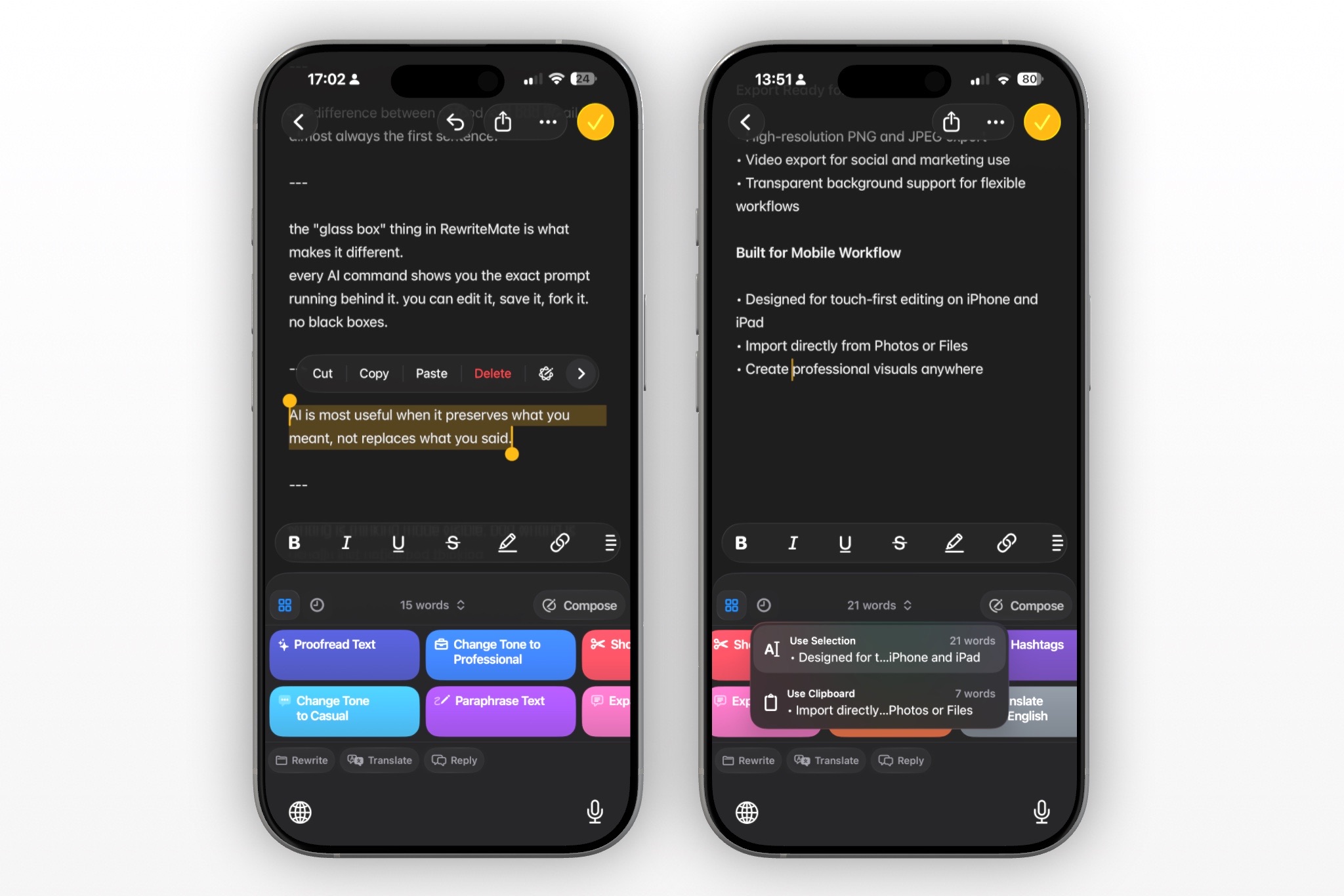
Use a narrow instruction if you choose an editing command, such as: “Improve readability and correct obvious transcription errors. Do not add facts or change names, dates, numbers, or commitments.” Then inspect every edit yourself, especially punctuation that may alter the relationship between clauses. RewriteMate can help draft or transform text, but it cannot know which pauses or marks you intended unless you check the result.
A quick decision guide
| What you see | What to try next |
|---|---|
| Commas or periods appear during speech | Check Auto-Punctuation and repeat a short, consistent test. |
| You said “comma” or “period” aloud | Try again without spoken punctuation words, or edit the recognized command. |
| The Auto-Punctuation switch is missing | Check the current Apple guide for your language, device, and iOS version; avoid unrelated resets. |
| The same test differs by app | Compare one other text field and record where each result occurs before contacting support. |
| Dictation text is correct but hard to read | Edit manually or use a writing tool cautiously, then verify the final message. |
The key distinction is simple: Auto-Punctuation is the first relevant setting to check, but not every unexpected mark proves that the setting caused it. Test one change at a time and keep the final review in your workflow.
FAQs
How do I stop iPhone Dictation from adding commas?
Open Settings → General → Keyboard and turn off Auto-Punctuation, then compare a short test sentence. Apple documents automatic commas, periods, and question marks for supported languages; availability can vary.
Does turning off Auto-Punctuation turn off Dictation?
No. Apple lists Auto-Punctuation separately from Enable Dictation in its guide. Turning off the punctuation option is the targeted check; disabling Dictation turns voice input off.
Why does my iPhone still add a period after I turn it off?
First confirm the switch remains off and repeat the same test without saying punctuation words. Check the dictation language and compare one other text field. Apple says Dictation features vary; if the control is missing or the result remains inconsistent, note your iPhone model and iOS version and ask Apple Support.
Is “Smart Punctuation” the same as Auto-Punctuation?
Do not assume that a similarly named setting controls spoken Dictation. Apple’s current Dictation instructions identify Auto-Punctuation under Settings → General → Keyboard for automatic marks during Dictation. Follow the control named in the Dictation guide rather than changing unrelated typing settings.
Can I tell Dictation where to put punctuation by speaking?
Apple documents spoken commands such as “comma,” “period,” and “question mark.” Those are distinct from automatic punctuation, which Apple says can be added in some languages. Review the result to ensure a spoken command was interpreted as intended.
Can RewriteMate fix punctuation added by Dictation?
RewriteMate can help transform text, but it cannot change iPhone Dictation settings or determine exactly what you meant to say. Correct the native setting if appropriate, review the dictated text, and verify any rewrite before sending.
Related articles
Keep reading

How to Clean Up a Voice-Dictated Message on iPhone With AI
Learn how to dictate a message on iPhone, correct transcription mistakes quickly, and use AI to make the final text clearer without losing your voice.
How to Make Your iPhone Messages Sound More Professional Instantly
Stop sending awkward texts. Learn how to polish your iPhone messages in seconds with tone adjustment and smart rewriting.

Felix Tran
RewriteMate Dev & Editorial Lead
Write about everyday workflows, systems that help ideas move faster, from first draft to finished work.