October 17, 2026
How to Turn Meeting Notes Into a Clear Follow-Up Email on iPhone
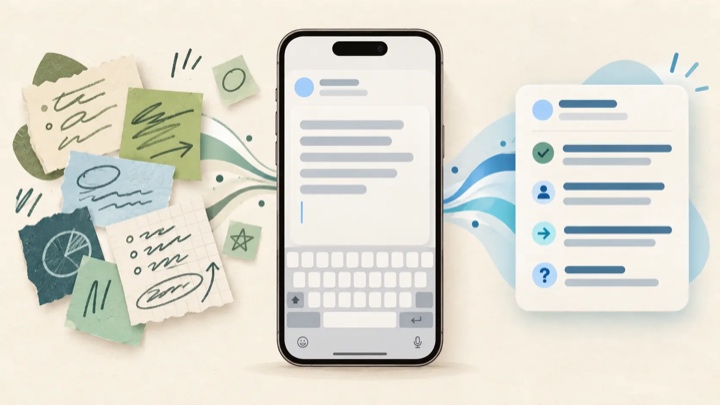
To turn meeting notes into a clear follow-up email on iPhone, first separate what was decided from what was only discussed. Then list each confirmed action with its owner and date, keep unresolved items as questions, and draft a short message that makes the next step obvious. If a name, deadline, or commitment is missing, leave a placeholder and confirm it—don’t let a polished draft turn a guess into an agreement.
This is useful when you have rough notes in Apple Notes, a dictated outline, or a few bullets captured during a call and need to send a recap from your phone. The goal isn’t to reproduce the whole conversation. It’s to give recipients an accurate, scannable record of decisions and follow-through.
The 5-minute workflow
1. Keep the source notes and the email separate
Use your notes as the source of truth; treat the email as a concise summary. Apple describes Notes as a place to quickly capture thoughts and organize details, including with checklists. Mail on iPhone lets you compose and send an email from an account you’ve added. These are separate jobs: the note can stay complete while the message contains only what recipients need next. Apple’s Notes guide and Mail guide cover those built-in workflows.
Before drafting, remove unrelated reminders and mark uncertainty in the notes themselves. For example, write “launch date — confirm” rather than leaving a question mark that might disappear when you rewrite the sentence.
2. Sort the notes into four buckets
Make a quick pass and label each useful detail:
| Bucket | Include when… | Example note |
|---|---|---|
| Decision | The group explicitly agreed or approved it | “Use the existing onboarding flow for the pilot” |
| Action | Someone accepted a concrete task | “Maya to send revised copy by Thursday” |
| Open question | The group did not settle an issue | “Confirm whether legal review is needed” |
| Context | A brief explanation helps a recipient understand the above | “Pilot starts after the support team briefing” |
Be careful with shorthand. “Maya? copy Thurs?” does not prove that Maya accepted the task or that Thursday is a final deadline. If the notes don’t settle it, mark it for confirmation instead of silently converting it into a commitment.
3. Draft only the parts recipients need
A useful recap usually has a specific subject, a short opening, confirmed decisions, action items, open questions, and the next step. An institutional meeting follow-up template from the University of Toronto uses a similar structure, including topics, action items, responsible members, timelines, and the upcoming meeting. Use that as a practical format, not a rule that every meeting needs a formal recap. University of Toronto meeting follow-up template.
Keep the message shorter than the source notes. If someone needs the full discussion record, link or share the approved notes separately; don’t bury the actual ask in a transcript-sized email.
Copy-and-adapt templates
Replace every bracketed item before sending. If you cannot confirm a detail, leave it as a question or remove it.
Team meeting recap
Subject: [Project or meeting] — decisions and next steps
Hi team,
Thanks for the discussion. Here’s my recap of what we confirmed:
- Decision: [confirmed decision]
- [Owner]: [task] by [confirmed date]
- [Owner]: [task] by [confirmed date]
- Open question: [question] — [who will confirm, if agreed]
Our next check-in is [date/time, if confirmed]. Please reply if I’ve misstated a decision or missed an action.
Thanks,
[Your name]
Client or partner recap
Subject: [Project] — recap and agreed next steps
Hi [name],
Thanks for meeting today. To make sure I captured the discussion correctly:
- We agreed to [confirmed decision or scope].
- [Your team / named owner] will [confirmed action] by [date].
- [Client / named owner] will [confirmed action] by [date].
- We still need to confirm [open question].
Please let me know if any part of this recap doesn’t match your understanding. [Next step, only if agreed.]
Best,
[Your name]
When the meeting ended without a decision
Subject: [Topic] — open question after today’s meeting
Hi [name/team],
We discussed [topic], but I don’t think we made a final decision. The question still to resolve is [specific question]. [Person or group, only if agreed] will confirm [what] by [date, only if agreed].
Until then, I’ll leave [dependent action] unconfirmed. Please correct me if I missed a decision.
Thanks,
[Your name]
That last template is especially useful when the notes contain “maybe,” “could,” or “let’s revisit.” A clear open question is more trustworthy than an invented resolution.
A realistic example: rough notes to a sendable recap
Suppose your fictional notes say:
Pilot call. Keep invites opt-in. Maya revise welcome copy by Thurs. Launch date? Jordan to check with ops. Maybe include new pricing page—not decided. Next check-in Tue, time not set.
The email should preserve the confirmed decision and task, while marking the unsettled parts. It should not say the launch is Thursday, claim that Jordan accepted a deadline, or announce that the pricing page is included.
Subject: Pilot call — decision and open items
Hi team,
Thanks for the pilot discussion. Here’s what I captured:
- Decision: Pilot invitations will remain opt-in.
- Maya: Revise the welcome copy by Thursday.
- Open question: Jordan is checking the launch date with Operations; the date is not confirmed yet.
- Open question: We did not decide whether to include the new pricing page.
- Next check-in: Tuesday; please confirm the time.
Please reply if I’ve missed or misstated anything.
This example uses fictional names and details. In a real recap, preserve the wording and dates from the meeting record, and confirm the message goes to the right people before sending.
Write it on iPhone without losing the details
-
Open the note and select only the meeting details relevant to the recipients. Keep private side notes and unrelated personal reminders out of the email.
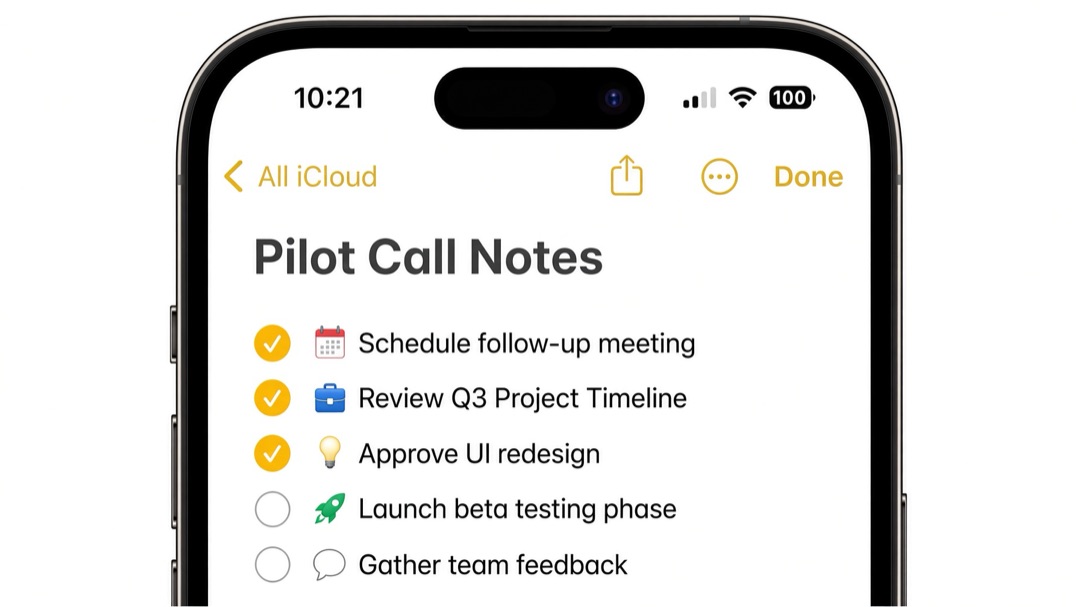
Illustrative UI mockup with fictional meeting details, not a live iPhone capture.
-
Start a new message in Mail, or use the email app your team has approved. Apple’s Mail instructions for iPhone show how to compose, add recipients, and format a message.
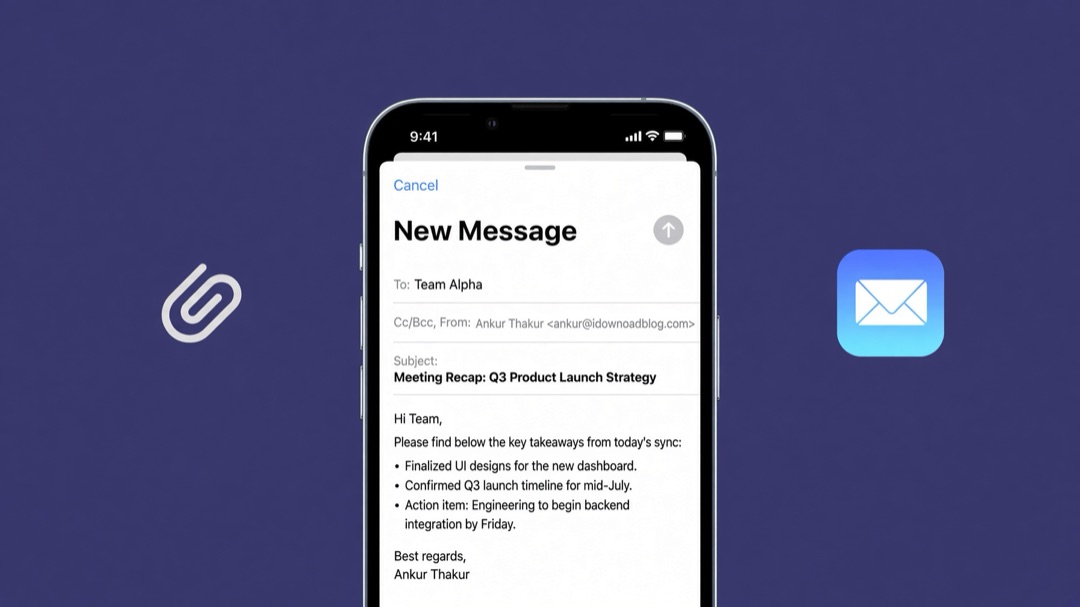
Illustrative email mockup with fictional content, not a live iPhone capture.
-
Draft the recap using the four buckets above. If you use an AI writing tool, provide the notes and the structure you want; do not ask it to decide what the meeting agreed.
-
Compare the draft against the source note. Check every name, date, number, owner, decision, and promise. Resolve or preserve every question mark.
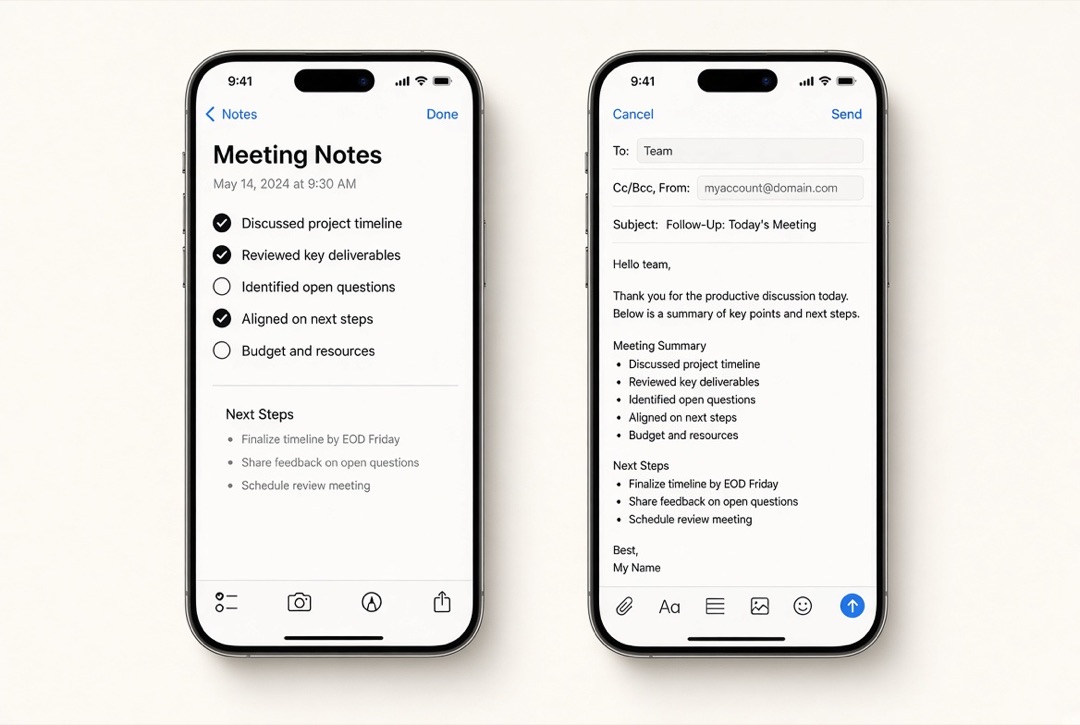
Illustrative comparison with fictional content; verify against your own source note.
-
Check recipients, subject, attachments, and links. Send only after the recap is accurate and appropriate to share.
If the meeting note itself needs to remain a shared working document, that is a different choice from emailing a recap. Apple Notes supports sending a copy of a note or inviting people to collaborate on an iCloud note; choose the option that fits the audience and access needed. Apple’s sharing guide explains the distinction.
Use a reusable command for recurring recaps
If you write this kind of follow-up often, a saved instruction can help you start from the same structure each time. RewriteMate’s custom-command guide explains how a saved prompt appears as a keyboard command and includes a “Raw Notes → Bullet Points” example for meeting notes and brain dumps. See the official custom-command recipes.
One possible command prompt is:
Turn these meeting notes into a concise, professional follow-up email. Use only information stated in the notes. Organize it as: subject, brief greeting, confirmed decisions, action items with owner and due date, open questions, and next step. Preserve names, dates, numbers, links, and commitments exactly. Do not turn tentative language into a decision. If an owner, date, or decision is unclear, keep a
[CONFIRM: detail]placeholder instead of guessing. Do not invent deadlines, attachments, promises, or approvals. Keep sensitive details that are not needed for the recap out of the draft.
Use it as a drafting aid, not an approval step. An AI-generated email can still misread shorthand or smooth uncertainty into confident-sounding prose. Review it against the original notes before you copy, insert, or send anything. Do not put confidential or regulated meeting content into a tool unless its use is allowed by your organization and the applicable product terms.
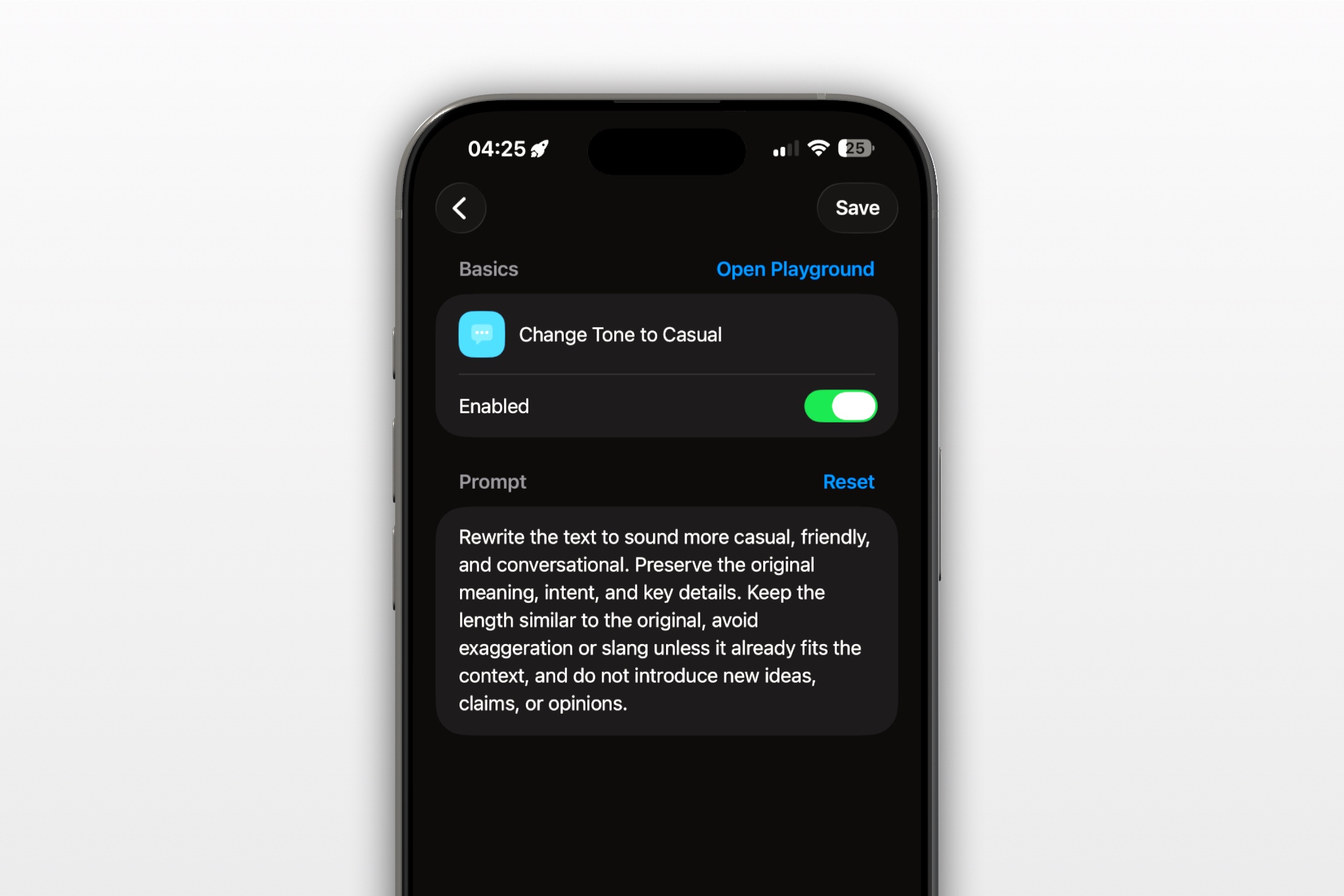
RewriteMate can help transform text with a reusable instruction; it cannot verify what participants agreed. Keep the final fact check with the sender, especially for decisions, owners, dates, budgets, and commitments.
Common mistakes that make a recap less useful
- Turning a possibility into a promise. “Could send next week” is not the same as “will send by Tuesday.”
- Giving an action to a group instead of an owner. If nobody accepted responsibility, list it as unassigned or ask who owns it.
- Adding a date that wasn’t agreed. Use “[date to confirm]” or ask the responsible person; don’t infer a deadline from when the email is being written.
- Including every discussion point. Keep the email focused on decisions, actions, and unresolved questions. Link to the longer record only when appropriate.
- Sending to everyone by default. Check who needs the information and whether any details should be shared privately.
- Trusting a polished AI draft without comparison. Fluency is not evidence that a recap is accurate.
FAQs
What should a meeting follow-up email include?
Include the meeting or project in the subject, a brief context line, decisions that were actually made, actions with confirmed owners and dates, unresolved questions, and the next step if one was agreed.
How soon should I send a meeting recap?
Send it while the details are still easy to verify, taking the meeting’s agreed process and urgency into account. There is no universal deadline that fits every team; if you need time to confirm an owner or decision, verify it rather than sending a fast but inaccurate recap.
Should I send the full meeting notes or a summary?
Usually send a concise summary when recipients need decisions and next steps. Share the fuller note separately only when the audience is authorized to see it and the complete discussion is genuinely useful. For sensitive topics, follow your organization’s sharing rules.
What if I’m not sure whether the group made a decision?
Label it as an open question and ask for confirmation. Don’t write “we agreed” unless the notes or participants support that wording.
Can AI turn rough meeting notes into an email?
It can draft a structure from text you provide, but you must check whether it preserved the facts and uncertainty. Keep placeholders where details are missing, and verify the finished email against the original notes before sending.
Can I make a meeting recap from iPhone Notes?
Yes. You can use a note as the source, select or copy the relevant details into your drafting workflow, and write the follow-up in Mail or another approved email app. Apple’s Notes and Mail guides explain the built-in note and email workflows; the important part is checking the recap against the original note.
A final check before you tap Send
Read the draft once as the recipient. Can they tell what was decided, who owns each confirmed action, which dates are real, and what remains unresolved? If not, clarify the note or keep the uncertainty visible. A short, accurate recap is more useful than a polished email that promises something the meeting never settled.
Related articles
Keep reading
How to Reply to an Email Professionally From Your iPhone
Write clear, professional email replies from your iPhone with a simple structure, practical examples, and AI-assisted editing tips that keep your message accurate.
How to Ask for Approval Without Sounding Demanding
Request a decision clearly in email, Slack, or text without vague follow-ups, unnecessary apologies, or pressure disguised as politeness.

Felix Tran
RewriteMate Dev & Editorial Lead
Write about everyday workflows, systems that help ideas move faster, from first draft to finished work.