June 30, 2026
The 6 Best AI Keyboards for iPhone in June 2026, Ranked
Typing on an iPhone is easy. Writing well on an iPhone is a different problem.
Most of the time, the friction isn’t coming from the keyboard itself. It’s coming from everything that happens after the first draft: fixing grammar, rewriting an awkward message, changing the tone of an email, translating a reply, or making something sound more natural before you hit send.
That’s where AI keyboards have started to matter.
A good AI keyboard doesn’t just catch typos. It helps you rewrite, proofread, paraphrase, translate, and refine text inside the app where you’re already typing. That might be a work email, a Slack reply, a support message, a note, or an Instagram caption. The point is the same: less app-switching, less copy-pasting, and less friction between “I know what I want to say” and “this is ready to send.”
I spent time comparing the top AI keyboard options on iPhone to see which ones actually improve that workflow, and which ones mostly add more buttons.
Some are built around grammar correction. Some focus on general typing and prediction. A few are closer to full mobile writing assistants, with tone controls, translation, and reusable AI commands. And one of them, in my view, gets the balance right.
The best AI keyboards for iPhone in 2026
Here’s the shortlist:
- RewriteMate — best overall AI keyboard for rewriting, grammar, and custom commands
- Apple Writing Tools — best built-in option for quick cleanup on supported iPhones
- Grammarly Keyboard — best for grammar correction and proofreading
- Microsoft SwiftKey — best for multilingual typing and general keyboard comfort
- Writely AI Keyboard — best for prompt-driven drafting and social content workflows
- CleverType — best for users who want a large built-in AI toolkit inside the keyboard
1. RewriteMate AI Keyboard
If you want an AI keyboard that actually changes how writing feels on iPhone, RewriteMate is the one I’d start with.
What makes it different isn’t just that it can proofread, paraphrase, shorten, expand, translate, and change tone. Plenty of AI keyboards can do some version of that now. The difference is that RewriteMate is built around editing text directly where you’re already typing, with a level of control most keyboards still don’t offer.
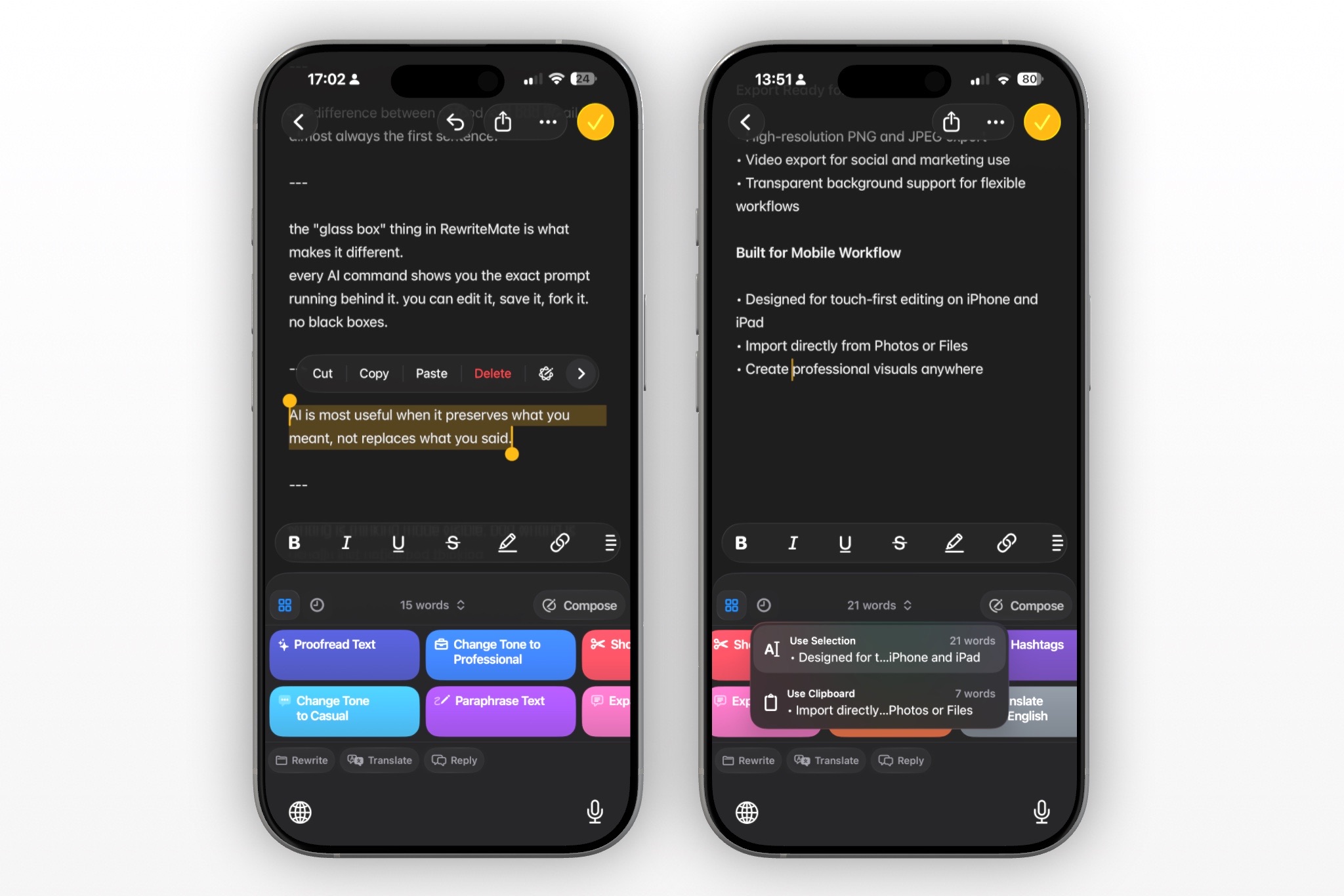
Instead of forcing you into a generic “Professional” or “Friendly” button, RewriteMate lets you edit the prompt behind the command itself. That means the keyboard can adapt to how you write, not just how the app’s default AI thinks a professional message should sound.
If you want “make this sound professional” to also mean “keep it short, remove exclamation points, and avoid sounding stiff,” you can save that as your own version of the command and reuse it whenever you want.
That changes the product from a writing assistant into something closer to a programmable writing layer for your keyboard.
What RewriteMate does well
- Rewrites text directly inside the app you’re using
- Fixes grammar, clarity, and phrasing without sending you into a separate workflow
- Lets you create custom AI commands for recurring writing tasks
- Includes built-in commands for proofreading, paraphrasing, shortening, expanding, translating, and tone changes
- Supports more flexible workflows for email, work chat, notes, messages, and social writing
- Gives you more control over how the rewrite behaves, rather than locking you into generic presets
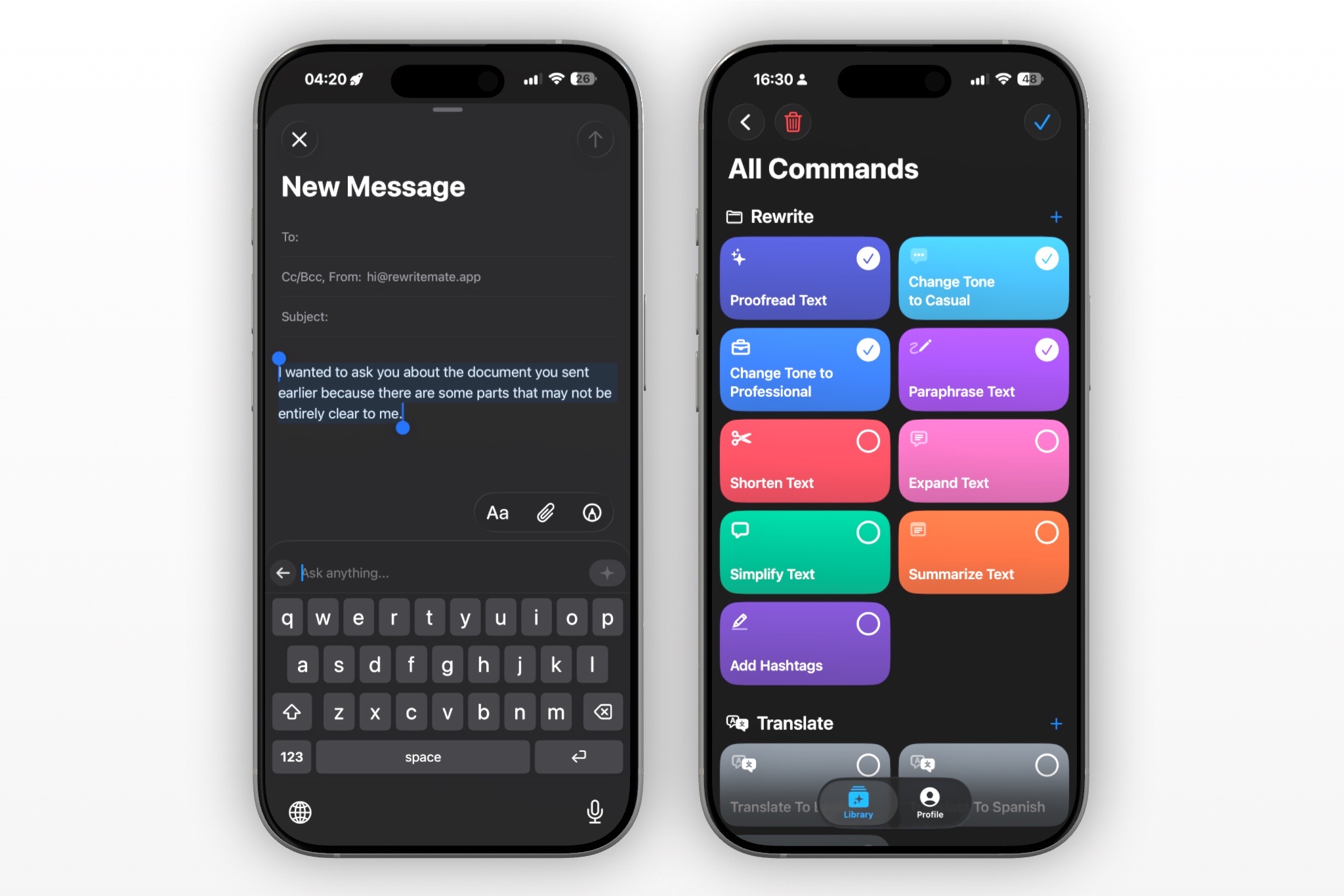
Custom commands are especially useful if you write in repeated contexts. A support rep can create a “calm, concise ticket reply” command. A founder can save a “clear investor update” command. A creator can build a caption punch-up command. All of those can live directly on the keyboard instead of inside a separate notes doc or prompt library.
There’s also a Prompt Playground for testing commands before saving them, plus an “Ask anything” field for one-off requests that don’t deserve a permanent shortcut.
Where RewriteMate fits best
RewriteMate is the best fit if you:
- write frequently on iPhone across email, messages, notes, or social apps
- want a keyboard that does more than grammar correction
- care about sounding like yourself, not just sounding cleaner
- want reusable prompt logic for repetitive writing tasks
- are tired of copy-pasting into ChatGPT every time a sentence feels off
Best for: all-around AI writing on iPhone, custom commands, in-place rewriting, multilingual rewriting workflows
Download RewriteMate AI Keyboard on App Store
2. Apple Intelligence (Writing Tools)
If you already have a supported iPhone and don’t want to install a third-party keyboard, Apple Writing Tools are the easiest place to start.
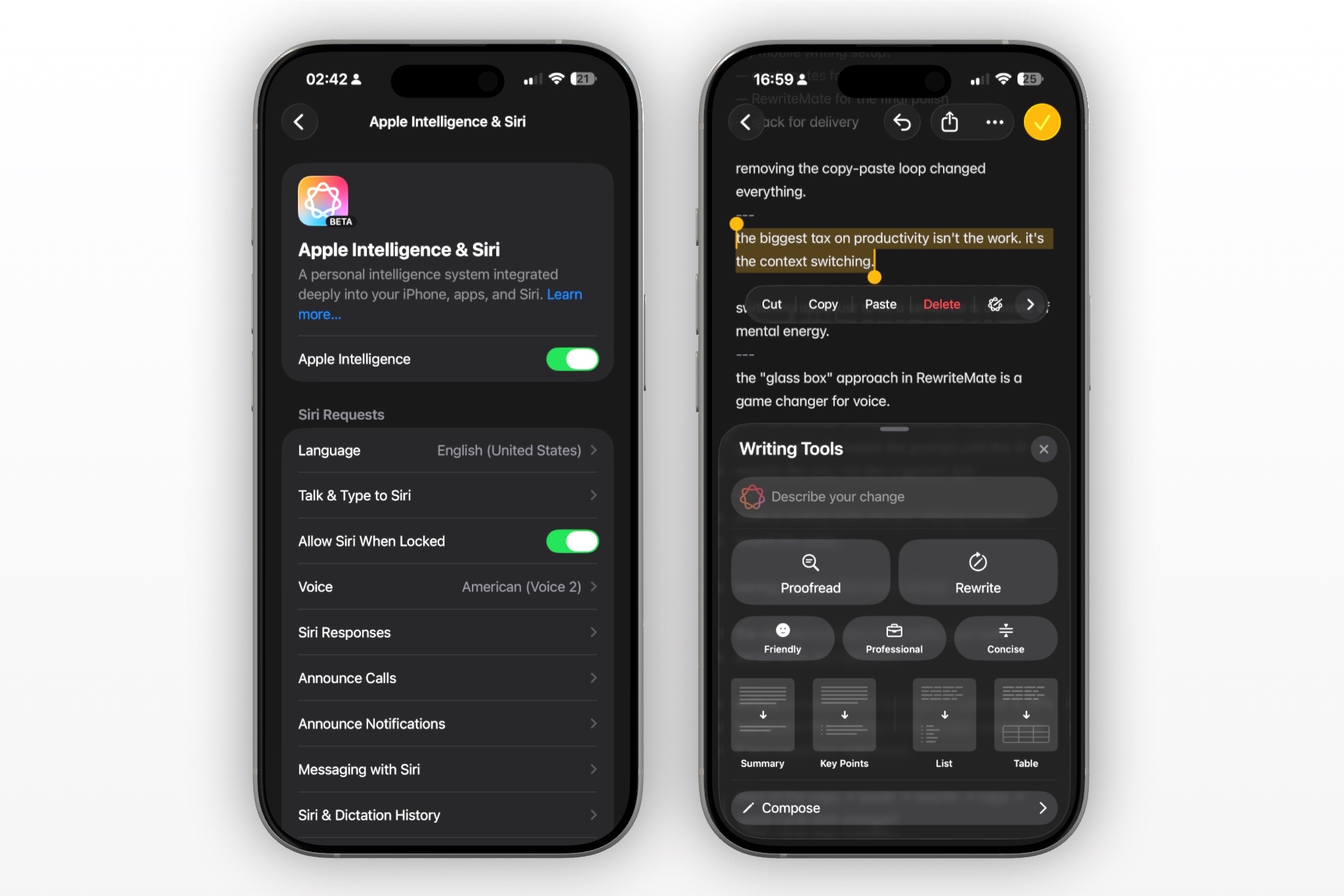
The main advantage is convenience. There’s nothing to set up, and in supported contexts you can select text and quickly access tools like Proofread, Summarize, and tone-based rewrites. For quick cleanup, that’s genuinely useful.
If your needs are light — polishing a text, tightening a paragraph in Notes, or checking an email before sending — Apple’s built-in tools can be enough.
The catch is that they’re still fairly constrained.
First, there’s the hardware requirement. Apple Intelligence features are limited to newer supported devices, so they’re not an option for every iPhone user. Second, the writing controls are preset-based. You can choose from Apple’s rewrite styles, but you can’t really shape the behavior beyond those lanes. There’s no real equivalent to a custom command system, reusable prompt logic, or keyboard-level writing workflow.
That makes Apple Writing Tools a strong convenience feature, but not a full replacement for a dedicated AI keyboard if writing is something you do heavily on your phone.
Apple Writing Tools are a good fit if you:
- already have a compatible iPhone
- want lightweight built-in rewriting and proofreading
- prefer Apple-native tools over installing a third-party keyboard
They’re less ideal if you:
- want reusable custom AI commands
- write heavily across lots of apps every day
- need more control over tone, voice, or rewrite behavior
3. Grammarly Keyboard
Grammarly is still the most obvious reference point in this category, and if your main concern is grammar accuracy, it remains a strong option.
Its biggest strength is still correction. Grammarly is good at catching obvious grammar issues, awkward phrasing, punctuation problems, and clarity mistakes that standard autocorrect won’t touch. If your goal is simply to send cleaner emails and fewer error-filled messages, it still earns its place on the list.
It has also expanded beyond pure correction into more AI-assisted rewriting. You can now generate alternative phrasings and adjust text more actively than the old “red underline” version of Grammarly ever allowed.
But Grammarly still feels strongest as a grammar layer, not a deeply customizable mobile writing workflow.
You’re mostly choosing from Grammarly’s own set of rewrite options and tone suggestions. That works well if you want polished, standardized output. It’s less compelling if you want the keyboard to follow your own prompt logic or support highly specific repeated writing tasks.
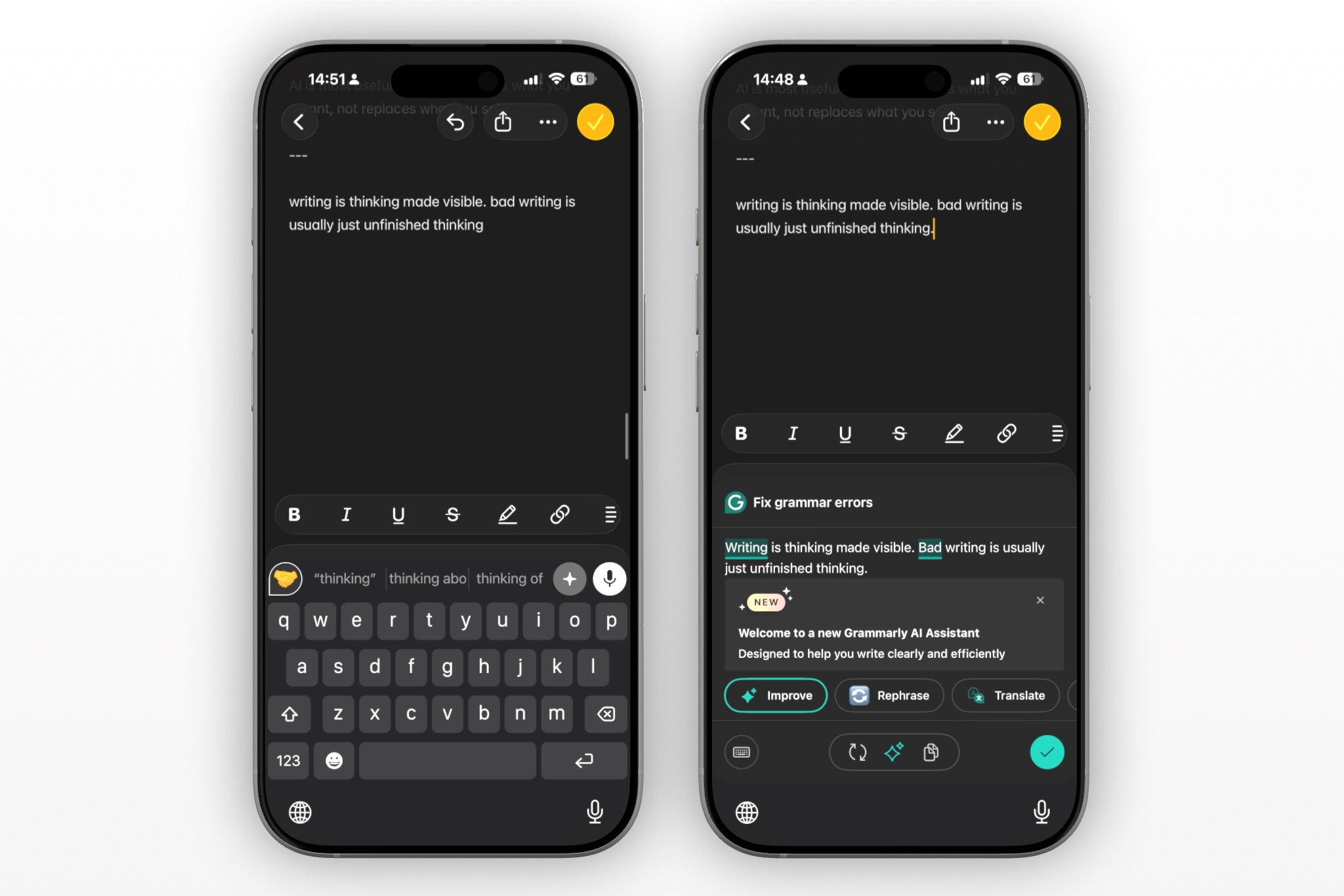
Grammarly is a good fit if you:
- mainly want grammar correction and proofreading
- already use Grammarly on desktop and want continuity on iPhone
- care more about correctness than customization
Grammarly is less ideal if you:
- want reusable prompt-based writing commands
- need more flexible rewrite workflows inside the keyboard
- care a lot about preserving a specific personal voice
Best for: grammar-focused writing help, proofreading, polished work writing
If Grammarly is on your shortlist, it’s also worth reading our comparison of RewriteMate vs Grammarly to see which workflow fits better.
Download Grammarly on App Store
4. Microsoft SwiftKey AI Keyboard
SwiftKey has been around longer than most AI keyboards, and it still does one thing extremely well: typing.
It remains one of the best third-party keyboards on iPhone for prediction, swipe typing, multilingual support, and general typing comfort. If you type in multiple languages or care a lot about keyboard feel, SwiftKey is still one of the strongest options in the App Store.
The AI layer comes from Microsoft’s broader Copilot ecosystem. Depending on the current version, that can include rewriting help, chat-style assistance, and other AI features alongside the keyboard.
The upside is range. The downside is focus.
SwiftKey can feel less like a writing-first AI keyboard and more like a general-purpose smart keyboard with extra Microsoft tools attached. If your main goal is to rewrite messages, change tone, or run repeatable writing workflows, it’s not as purpose-built as RewriteMate or even some of the more AI-native tools below.
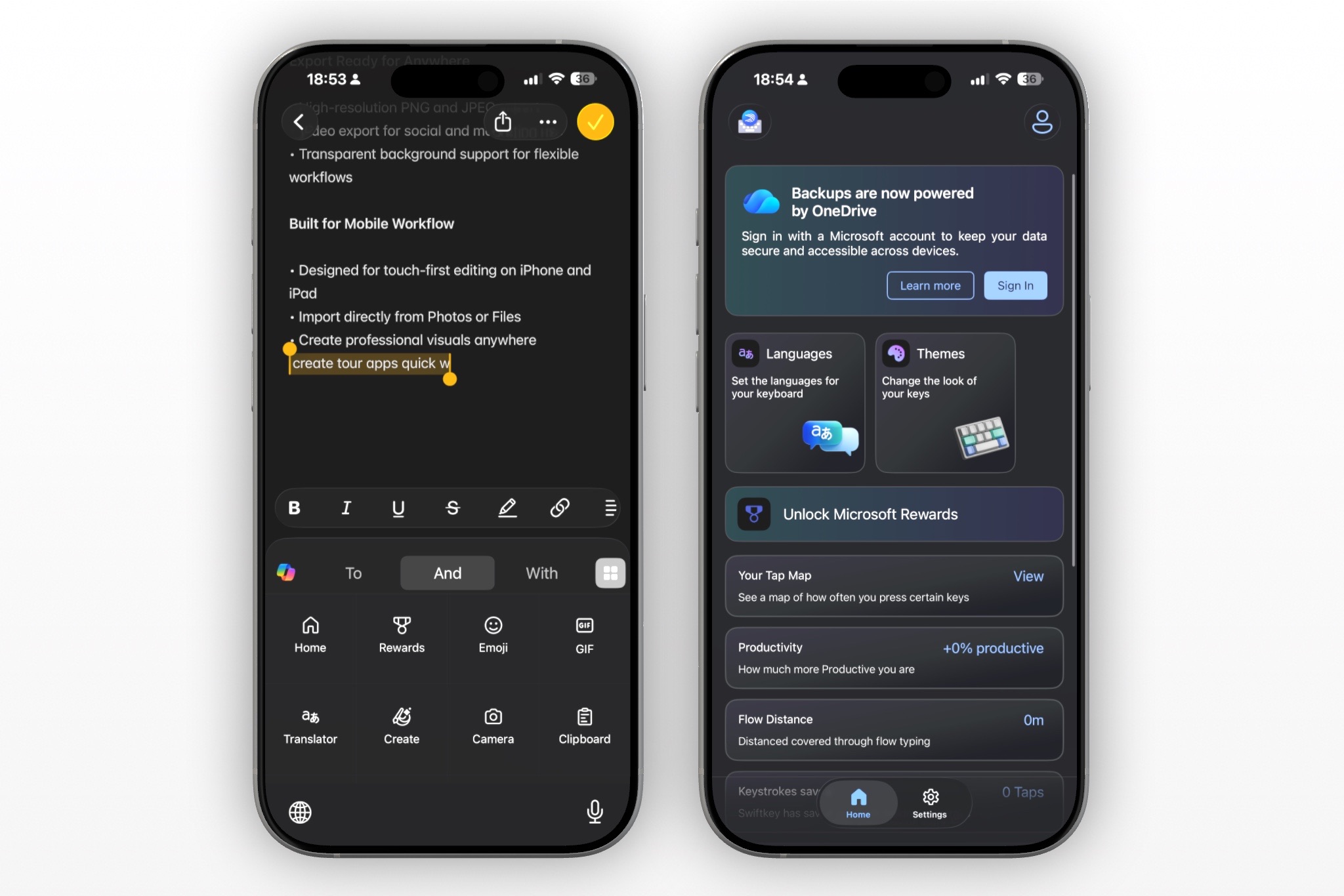
SwiftKey is a good fit if you:
- type in multiple languages often
- care a lot about prediction and keyboard comfort
- want a mainstream keyboard with AI-adjacent features
SwiftKey is less ideal if you:
- want a keyboard built specifically around rewriting and editing text
- need custom prompt workflows
- prefer a simpler, more writing-focused interface
Best for: multilingual typing, prediction, swipe typing, general keyboard comfort
Download Microsoft SwiftKey on App Store
5. Writely AI Keyboard
Writely takes a slightly different angle from the other keyboards here.
Instead of focusing mainly on correction or quick rewrites, it leans more heavily into prompt-based generation and structured drafting. That makes it feel closer to a lightweight mobile writing assistant than a pure “fix my sentence” tool.
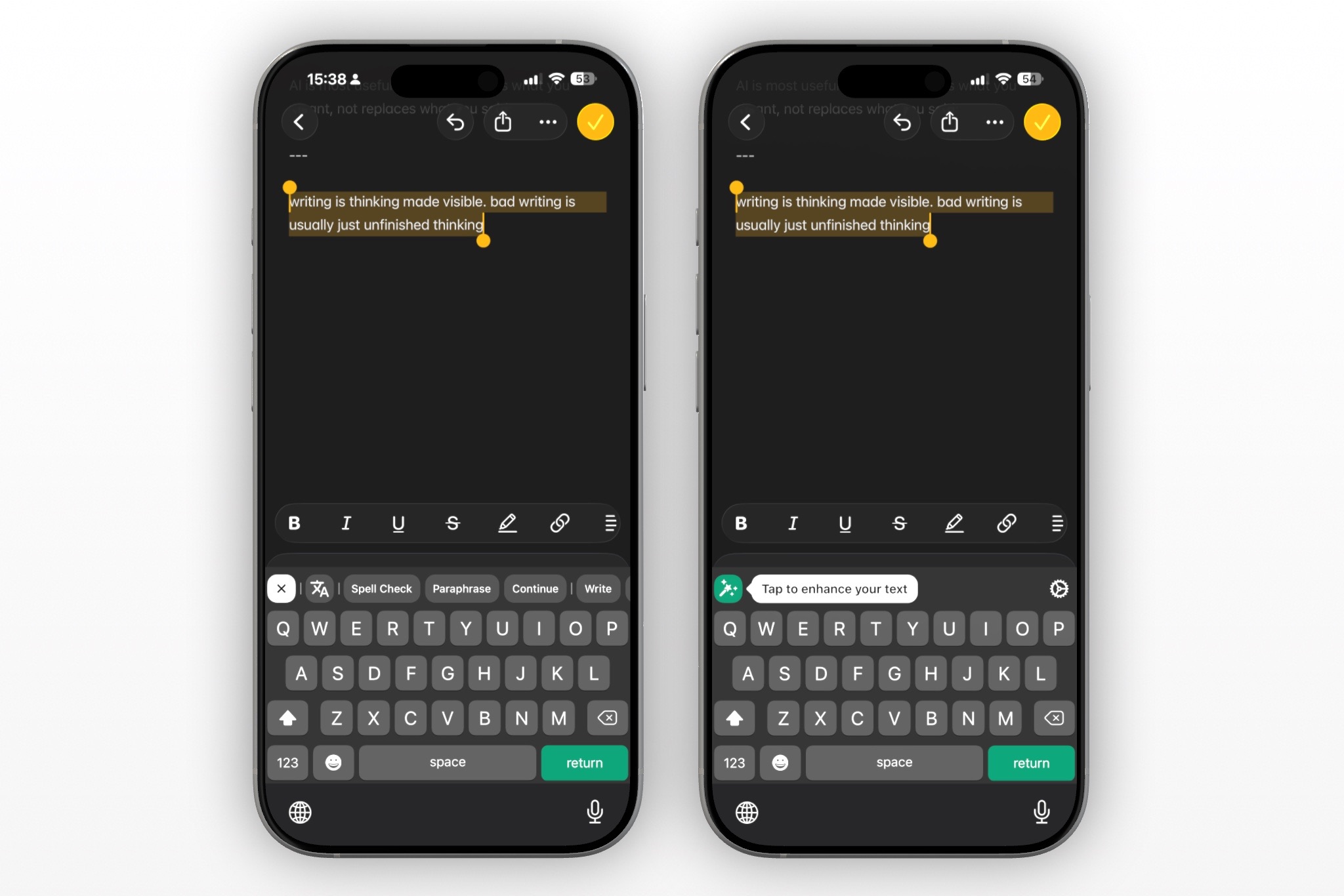
If you’re a creator, social media manager, or someone who frequently uses templates to generate captions, ideas, or message drafts, Writely’s structure may appeal to you. It offers a library of writing prompts and categories for different contexts, which can be useful when you want help generating something from scratch rather than only editing text you’ve already written.
That said, it can feel heavier than the cleaner keyboard-first options.
Because Writely tries to be both a keyboard and a broader AI writing environment, it doesn’t always feel as lightweight or invisible in daily use. If you mostly want a fast keyboard that can clean up a message in one tap, Writely may feel like more interface than you need.
Writely is a good fit if you:
- want prompt-driven drafting tools inside the keyboard
- write captions, social copy, or idea-driven content on your phone
- like having structured templates for different writing tasks
Writely is less ideal if you:
- mainly want a lightweight rewrite/proofread tool
- don’t want a more template-heavy interface
- want the keyboard to disappear into the background when you’re not using AI
Download Writely on App Store
6. CleverType AI Keyboard
CleverType is one of the more interesting options in this category because it clearly wants to be an AI writing keyboard, not just a typing tool with a few smart buttons added later.
It offers grammar fixes, rewriting, translation, and a large menu of built-in writing actions. It also supports custom assistants, which makes it more relevant to power users than something like Gboard or SwiftKey.
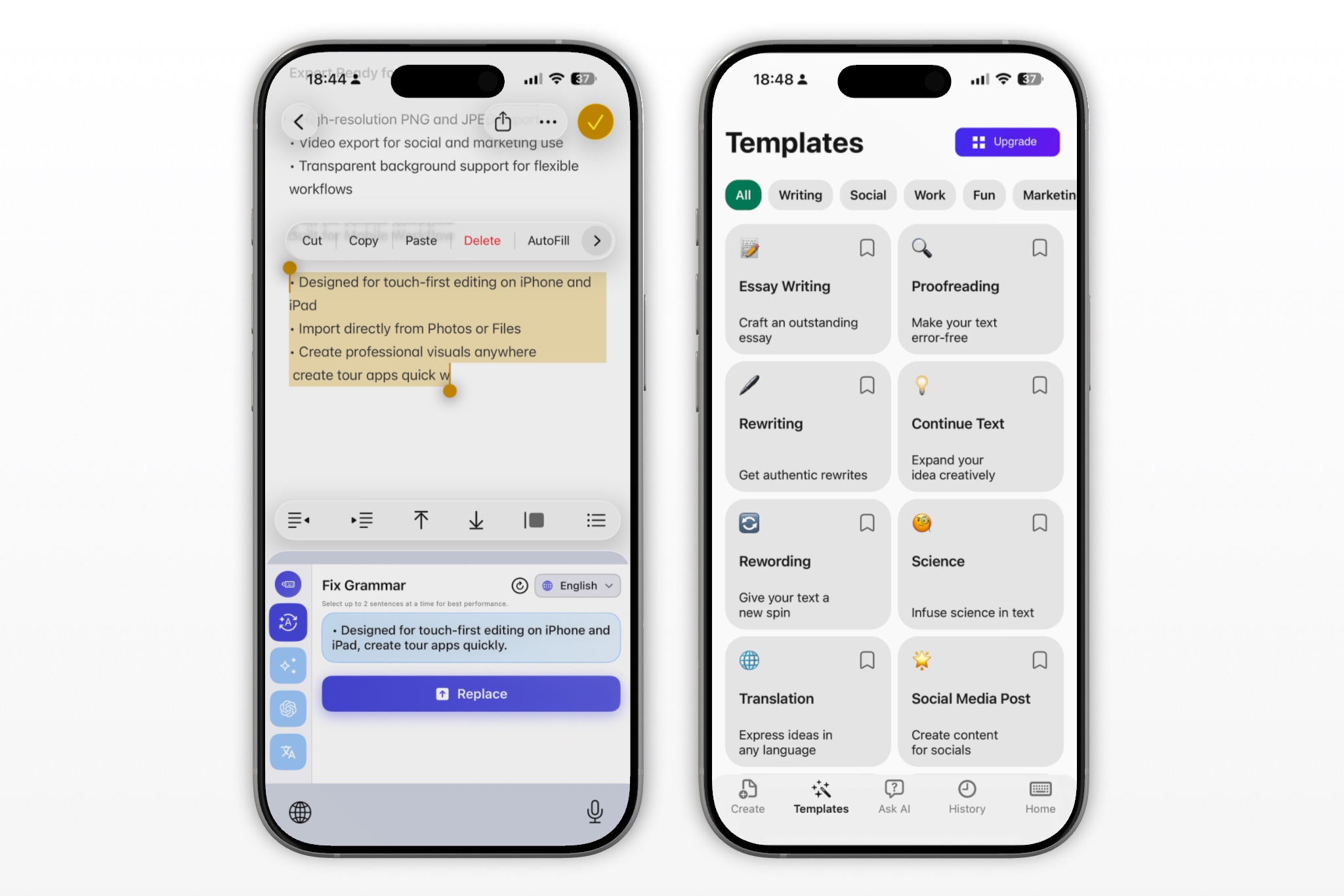
That breadth is CleverType’s biggest strength. If you like the idea of having a lot of AI actions available directly above the keyboard, it’s worth a look.
The tradeoff is that it can feel a little crowded, and the customization model still feels more constrained than RewriteMate’s. CleverType gives you useful AI tools, but RewriteMate still feels more deliberate if your goal is to build your own repeatable writing workflows rather than browse a big menu of actions.
CleverType is a good fit if you:
- want a feature-rich AI keyboard with lots of built-in tools
- like having grammar, rewriting, and translation in one place
- want some customization without building a more advanced workflow system
CleverType is less ideal if you:
- want a cleaner, more focused interface
- care deeply about custom command design and prompt control
- want the keyboard to reflect a very specific personal workflow
Download CleverType on App Store
What actually makes a good AI keyboard on iPhone?
Write better everywhere
Rewrite, rephrase, and refine text instantly without switching apps.
Not every AI keyboard is solving the same problem, so the best choice depends on what you want the keyboard to do.
But in general, the best AI keyboard for iPhone should do five things well:
1. It should work where you already write
- The whole point is reducing friction. A good AI keyboard should help inside Messages, Mail, Notes, Slack, social apps, and forms, not push you into a separate workflow every time you need to fix a sentence.
2. It should improve text, not just correct it
Autocorrect is table stakes. A real AI writing keyboard should be able to:
- make a message sound more natural
- shorten or expand text without losing meaning
- change tone for different contexts
- clean up awkward phrasing
- help with translation and multilingual writing
3. It should save time instead of creating more steps
If the AI workflow feels like a mini project, you stop using it. Good mobile writing tools remove friction. They don’t just add more capability.
4. It should let you keep your voice
This matters more than most comparison posts admit. The best AI keyboard doesn’t flatten everything into generic “AI writing.” It helps you say what you meant more clearly while still sounding like you.
5. It should give you some control
Some people just want grammar fixes. Others want reusable prompt logic, tone control, and repeatable writing commands. The category is splitting around that difference, and it’s one of the main reasons RewriteMate stands out.
Related articles
Keep reading
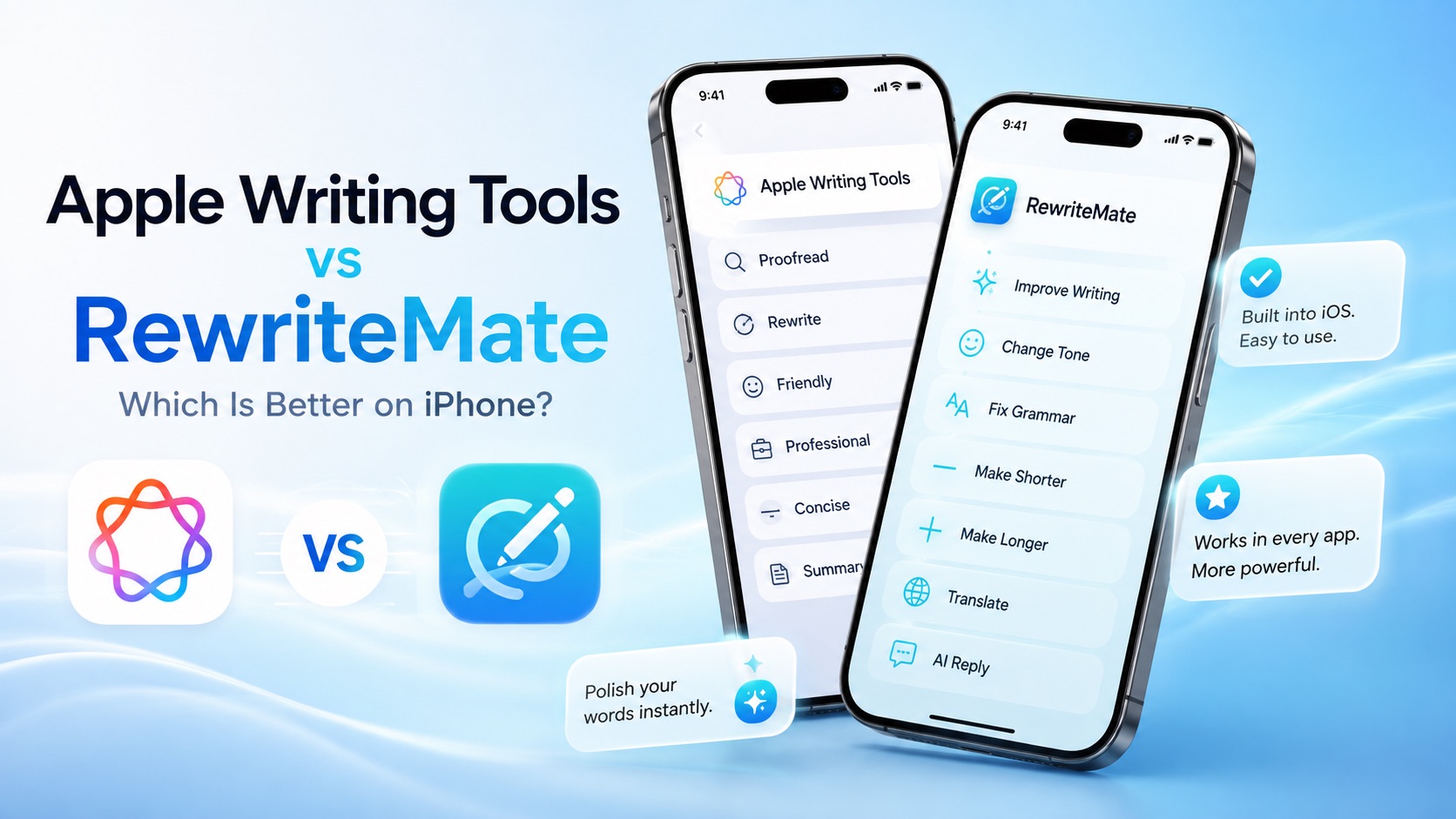
Apple Writing Tools vs RewriteMate: Which Is Better on iPhone?
Compare Apple Writing Tools and RewriteMate to see which AI writing solution is best for iPhone. Learn the differences in AI rewriting, keyboard workflow, customization, privacy, and everyday productivity.
Best Grammarly Alternatives for iPhone in 2026 (Compared & Reviewed)
Looking for the best Grammarly alternative for iPhone? Compare Grammarly, RewriteMate, LanguageTool, SwiftKey, QuillBot, and Apple Writing Tools to find the best AI writing app for iOS.
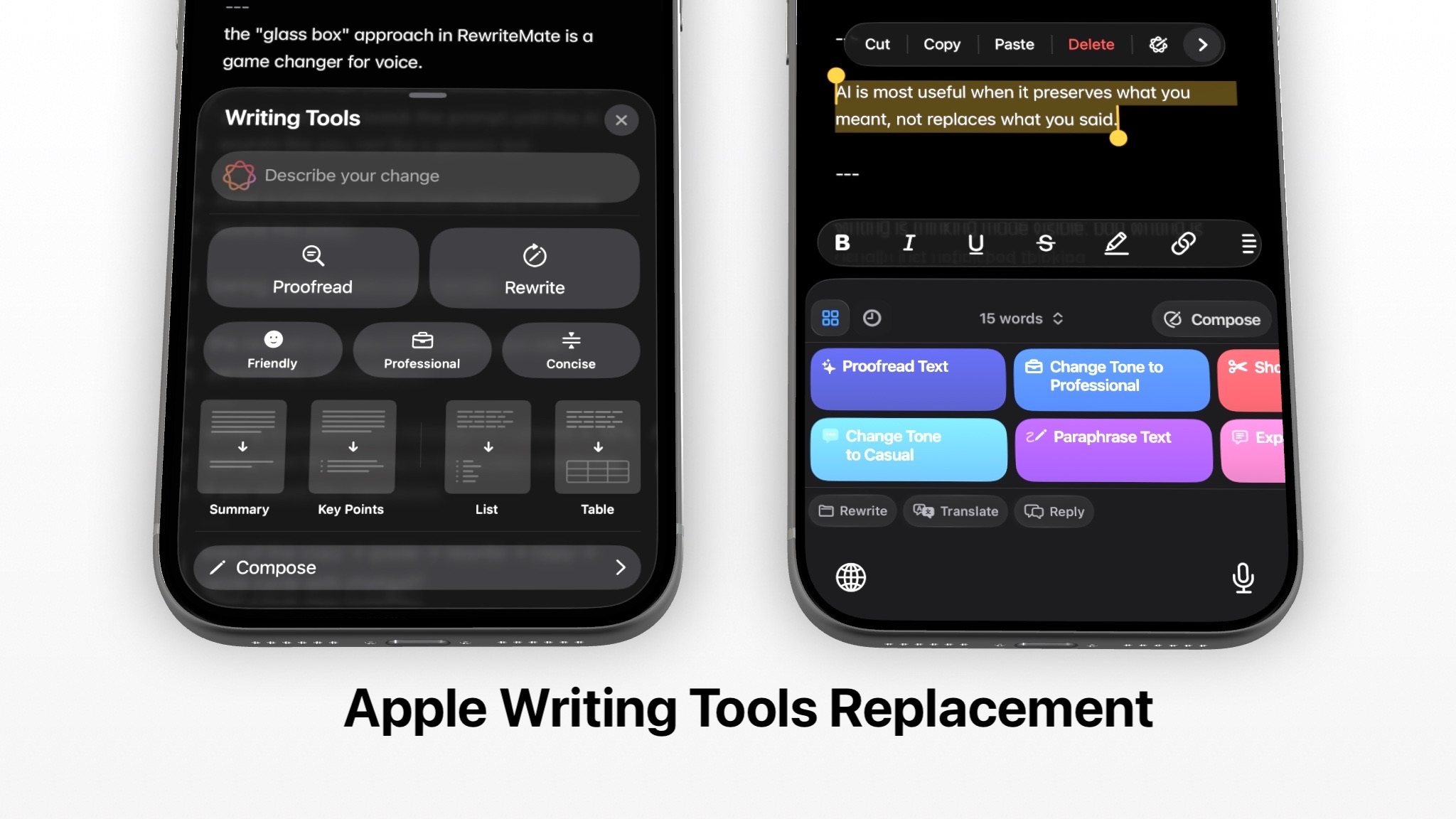
Apple Intelligence Skipped Your iPhone. Here's What I Use.
Millions of iPhone 13 and 14 users were locked out of AI writing tools. There are better workarounds than copy-pasting into Notes.

Felix Tran
RewriteMate Dev & Editorial Lead
Write about everyday workflows, systems that help ideas move faster, from first draft to finished work.