October 21, 2026
iPhone Email Stuck in Outbox? Safe Checks to Try First
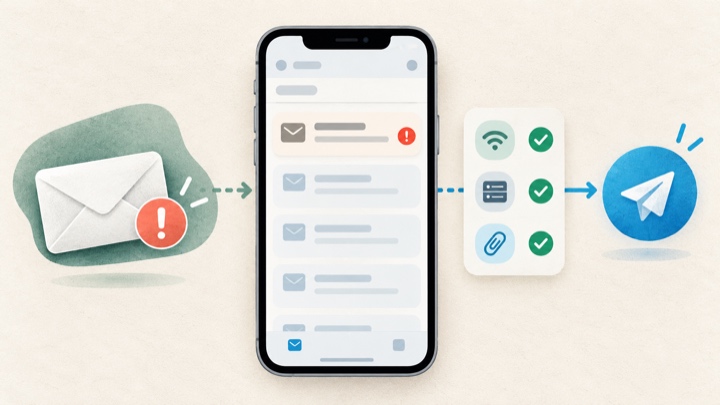
If your email is stuck in the iPhone Mail Outbox, first check whether the message is truly unsent, then inspect its recipient and your connection before changing account settings. Apple’s current guidance is to open Mail’s mailbox list, check Outbox, tap the message, verify the address, and try Send again. If the Outbox is absent, Apple says the email was sent; check Sent before composing another copy. Apple’s troubleshooting guide also recommends checking internet access, provider outages, and sign-in details.
The important safety point: don’t delete and re-create the mail account as an early “quick fix.” Apple warns that changing or deleting account settings can remove previously downloaded emails from the iPhone. Start with the reversible checks below and ask your provider or workplace administrator before changing server settings.
First, confirm the message’s status
Open Mail and return to the list of mailboxes. If you see Outbox, tap it and look for the message. Apple says an email that Mail reports as not sent goes to Outbox. Tap the item, confirm the recipient address is correct, then try sending again when the connection is working.
If you do not see Outbox, Apple’s guide says the email was sent. Check the Sent mailbox for that account before creating a new message; sending a duplicate can confuse the recipient. If Undo Send appears immediately after sending, Apple says the message has not been sent yet; its iPhone guide says you have ten seconds to undo a send and explains how to set a delay in Mail settings. Apple’s Undo Send instructions explain the control.
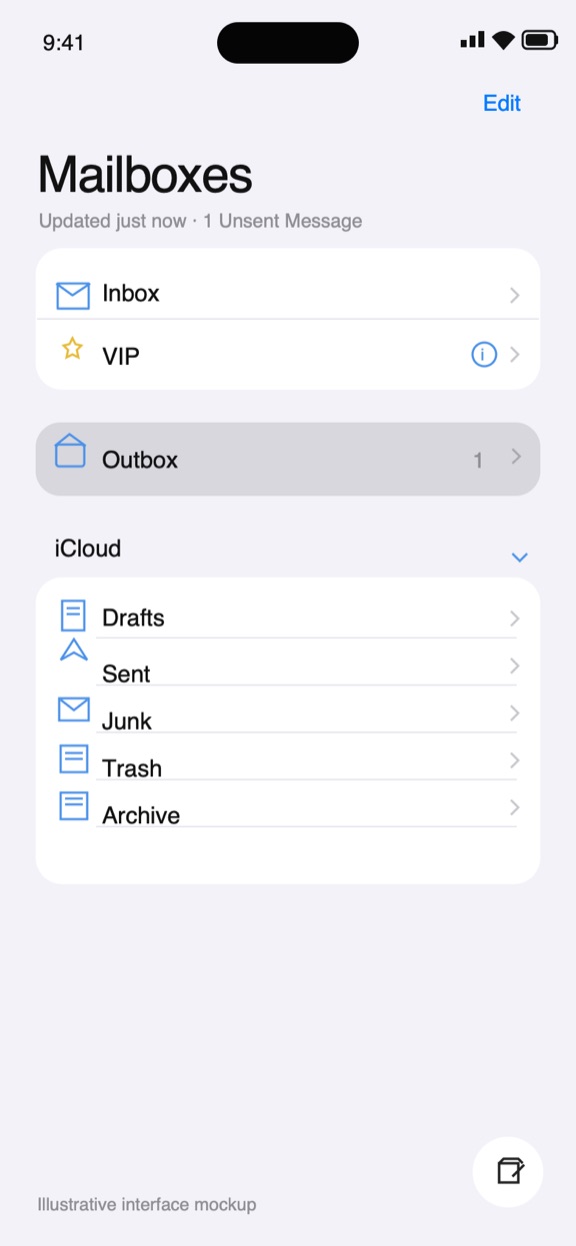
UI mockup based on Apple’s documented Mailboxes and Outbox view.
Retry the Outbox message once, carefully
When the message is visible in Outbox:
- Open the message and inspect the full recipient address, including spelling and domain.
- If the message has an attachment, confirm it is still present and that the file is the one you intended to send.
- Tap Send once. Then wait for Mail to respond rather than repeatedly tapping or immediately composing another copy.
- Check whether the message leaves Outbox and appears in Sent. If it stays in Outbox or Mail shows an error, note the exact wording; it can point to a rejected address, sign-in problem, provider restriction, or temporary service issue.
The subject line or a “sending” spinner alone does not establish delivery. For time-sensitive or consequential email, verify in Sent or in your provider’s webmail, and contact the recipient through an appropriate alternate channel if you need to confirm receipt.
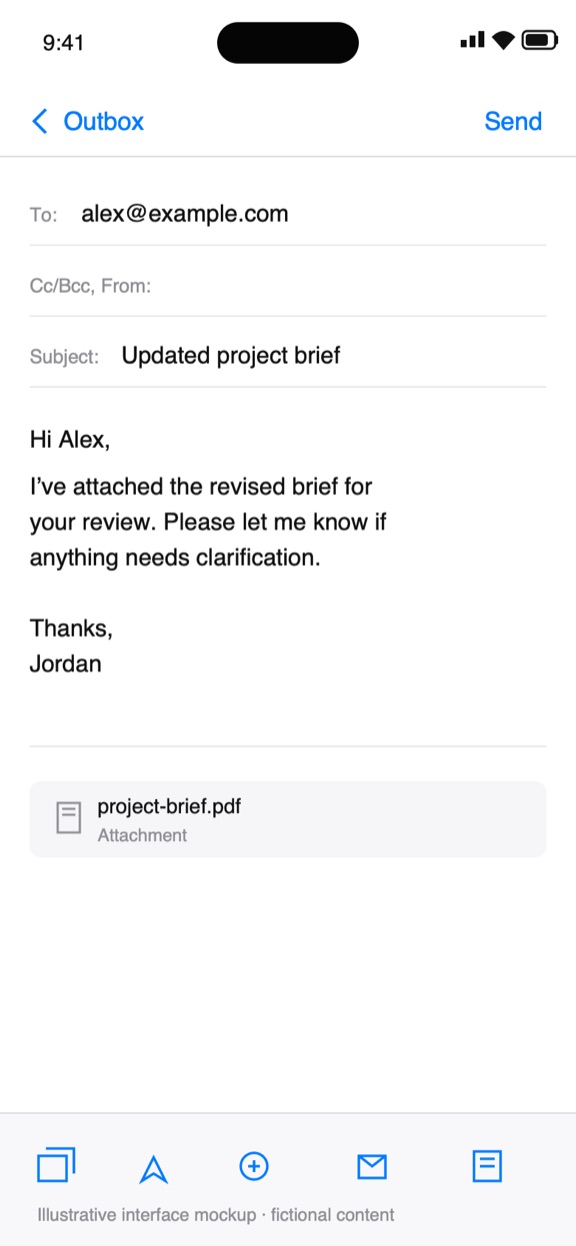
UI mockup showing the message-selection step; the example email is fictional.
Work through the likely causes in a low-risk order
1. Confirm the iPhone has an internet connection
Open a trusted webpage or another online service to see whether the iPhone is connected. If you have no connection, reconnect to Wi‑Fi or cellular data and try the Outbox message again. A connected Wi‑Fi icon alone does not guarantee that the mail provider can be reached, so continue to the provider-status check if sending still fails.
2. Check whether the email provider has an outage
Mail is the app used to compose and send; your email provider still handles the account and outgoing mail service. Check the provider’s official status page or contact its support team. If this is a managed work or school account, an administrator may need to confirm the service status or account policy. Apple specifically recommends checking with the provider for outages and asking about security restrictions that may require authorization or a special password. Apple’s guide is the source for those checks.
3. Correct the address before retrying
An address typo can cause a server rejection. Compare the recipient in the Outbox message with a known-good address from the person’s signature, directory, or previous conversation. Pay particular attention to an extra period, missing character, or incorrect domain. Don’t assume a suggested contact is correct if the message is going to a new or external recipient.
4. Resolve a password or security prompt through the provider
If Mail asks you to sign in, use the provider’s official website or app to confirm that you can access the account. If the account works on the website but Mail continues to report a password or authentication error, don’t keep guessing passwords or paste credentials into an unverified page. Ask the provider or your organization’s IT administrator whether the account requires a current authorization step, app-specific password, or other approved setup. The right requirement depends on the account provider and its policies; there is no universal iPhone Mail password workaround.
5. Check account settings only with provider guidance
If the provider identifies an incorrect outgoing-mail setting, follow its current instructions or ask its support team to walk you through the correction. Server names, ports, authentication requirements, and security options vary by provider and account type. Avoid copying settings from a forum post for a different provider or changing several values at once; that makes it harder to tell which change helped.
Apple’s final step is to remove and add the account again, but its warning matters: downloaded messages may be removed from the device when account settings change. Before doing that, make sure your messages are available on the provider’s website or saved elsewhere, and confirm the correct account setup steps with the provider. If the account belongs to work or school, consult IT first. Apple’s support page lists the current iPhone path as Settings → Apps → Mail → Mail Accounts for account management.
If the email disappears from Outbox
If Outbox is gone, check Sent for that account and confirm the recipient, subject, and sent time. If it is not there, check the provider’s webmail Sent folder before sending again. The app view and the provider’s mailbox can take time to refresh, and account-specific sync behavior can differ; if the folders disagree, ask the provider to check the account rather than assuming the message was delivered.
For a critical message—such as a deadline notice, client commitment, or account/security request—avoid sending repeated copies while status is unclear. Verify delivery through the provider or a suitable direct follow-up, and keep the language factual: “I’m checking whether my earlier email reached you” is safer than claiming it was delivered when you cannot confirm that.
What RewriteMate can—and cannot—help with
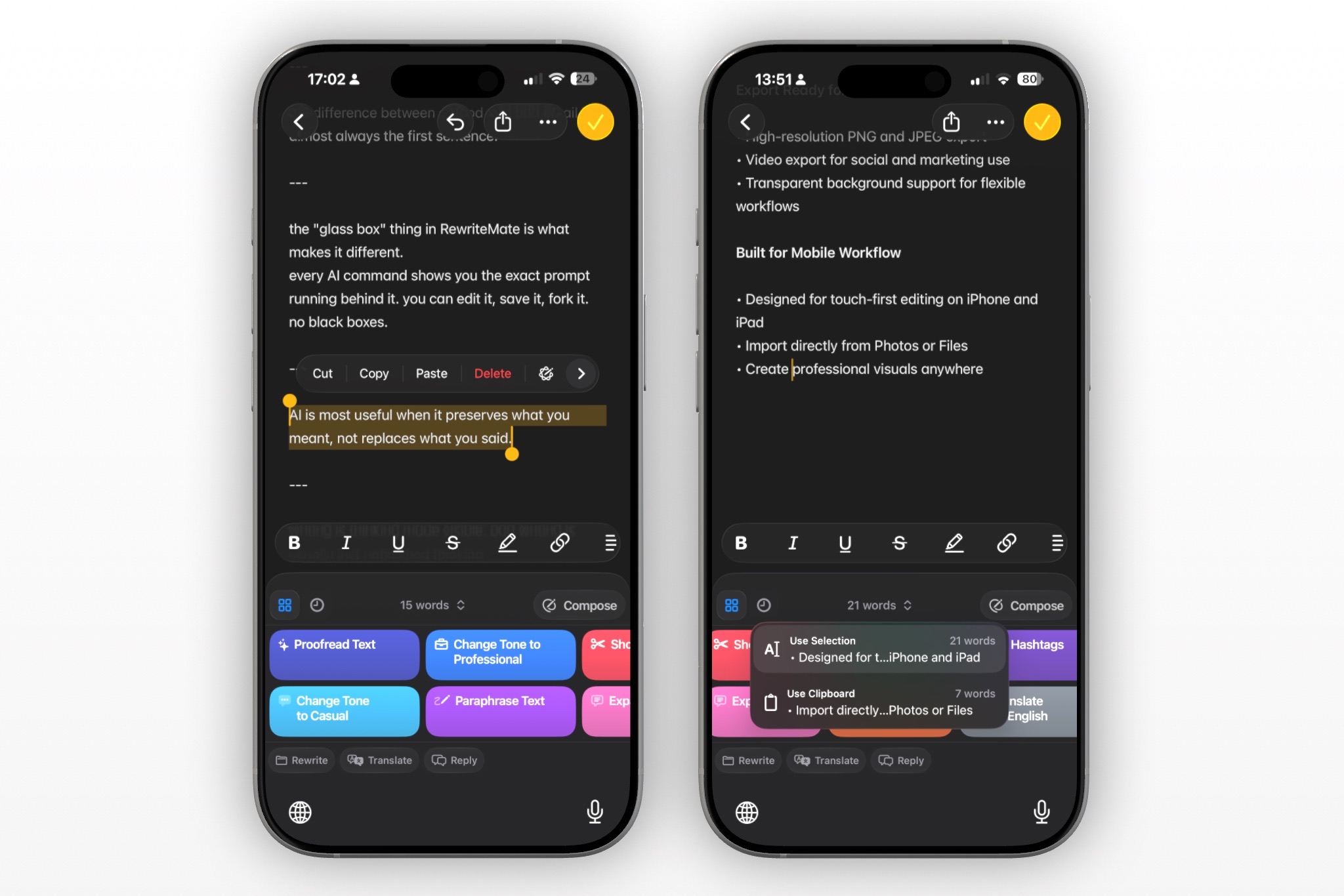
If you need to revise the wording before you retry, RewriteMate can help proofread or rephrase text you provide. It does not diagnose Mail’s Outbox, restore a network connection, authenticate an email account, or confirm delivery. Keep those jobs separate: resolve the send or account error with Apple, your provider, or your administrator; use a writing tool only for the message text. If the message is ready but you want help polishing the wording, see RewriteMate on the App Store. Before resending, verify names, addresses, dates, attachments, and any promises yourself.
Common questions
Why is my iPhone email stuck in Outbox?
Mail may be unable to complete sending because the phone is offline, the provider is unavailable, the recipient address is rejected, or the account needs sign-in or provider-specific authorization. Check the Outbox message and its error first; the exact cause depends on the account and server.
Where is Outbox in iPhone Mail?
Open Mail and return to the mailbox list. If an unsent email exists, Apple’s instructions say to tap Outbox there. If you can’t see Outbox, Apple says the email was sent; check Sent before sending another copy.
Should I delete the email and write it again?
Not as the first step. Check the existing message, correct any address issue, and retry once after checking connectivity. If it vanishes, verify Sent or provider webmail before composing a replacement.
Will removing my email account fix the Outbox?
It may be an account troubleshooting step when advised by Apple or your provider, but it is not a safe first move. Apple warns that changing or deleting account settings may remove emails downloaded to the device. Verify that messages are available elsewhere and get provider or IT guidance first.
Why does Mail say my password is wrong when webmail works?
The provider may require an additional authorization method or account-specific settings for a mail app. Check its official setup guidance or contact provider support; workplace accounts may require help from IT. Don’t assume a password reset is necessary or use unverified server settings.
Can RewriteMate make an Outbox email send?
No. RewriteMate can help edit wording, but it cannot send email, repair provider connectivity, change authentication, or confirm delivery. Use the Mail app and provider support for the sending problem.
A quick decision checklist
Before leaving the issue, confirm these five things:
- Is the message still in Outbox, or is it already in Sent?
- Is the recipient address correct?
- Does the iPhone have internet access, and is the provider operating normally?
- Does the account need a provider-approved sign-in or security step?
- Have you avoided deleting account settings until messages are confirmed safe elsewhere?
If those checks don’t resolve it, save the exact error text and contact your email provider or workplace administrator. That evidence is more useful than repeatedly resending or changing unrelated iPhone settings.
Related articles
Keep reading
How to Reply to an Email Professionally From Your iPhone
Write clear, professional email replies from your iPhone with a simple structure, practical examples, and AI-assisted editing tips that keep your message accurate.
How to Tell a Client You Need More Time Professionally
A clear way to request more time from a client without making excuses, overpromising a new date, or leaving the next step unclear.

Felix Tran
RewriteMate Dev & Editorial Lead
Write about everyday workflows, systems that help ideas move faster, from first draft to finished work.