October 24, 2026
Gmail Signature Not Showing on iPhone? Fix the Right Setting
If your Gmail signature is not showing on iPhone, first check the mobile signature inside the Gmail app for the exact account you are sending from. Open Gmail, tap Menu → Settings, then find Signature settings under Compose and Reply. Turn on Mobile Signature, enter or correct the text, and tap Back to save. Google says the setting must be changed for each account in the app; if you have not created a mobile signature, new messages use the signature set up on your computer. Google’s current iPhone and iPad instructions show the full route.
Before editing anything, make sure you are testing the same app and sender account where the problem occurs. Gmail’s mobile signature and the signature in Apple Mail are separate settings, so changing one does not configure the other.
First check: are you writing in Gmail or Apple Mail?
The word “Gmail” can refer to the email service, the Gmail iPhone app, or a Gmail account added to Apple Mail. Those are not the same place to configure a signature.
- Writing in the Gmail app? Follow the Gmail-app steps below. Google’s setting applies to messages sent from the Gmail app, and the mobile signature is configured separately for each account you use there.
- Writing in Apple Mail? The signature is managed in iPhone Settings, not in Gmail’s app settings. Apple’s current path is Settings → Apps → Mail → Signature. If Mail has more than one account, Apple says you can choose Per Account to use different signatures.
- Not sure which app created the draft? Check the app icon and the account shown in the From field before diagnosing the signature. A setting in Gmail will not fix a draft being composed in another email app.
Apple documents the Mail signature setting for iPhone; use that path only when the message is being composed in Apple Mail.
Turn on the mobile signature in the Gmail app
Google’s documented steps are short. The important detail is to do them while the account you need is selected, then save by going back.
- Open the Gmail app on your iPhone.
- Tap the Menu button in the upper-left corner, then tap Settings.
- Under Compose and Reply, tap Signature settings.
- Turn on Mobile Signature.
- Add or edit the signature text.
- Tap Back to save the change.
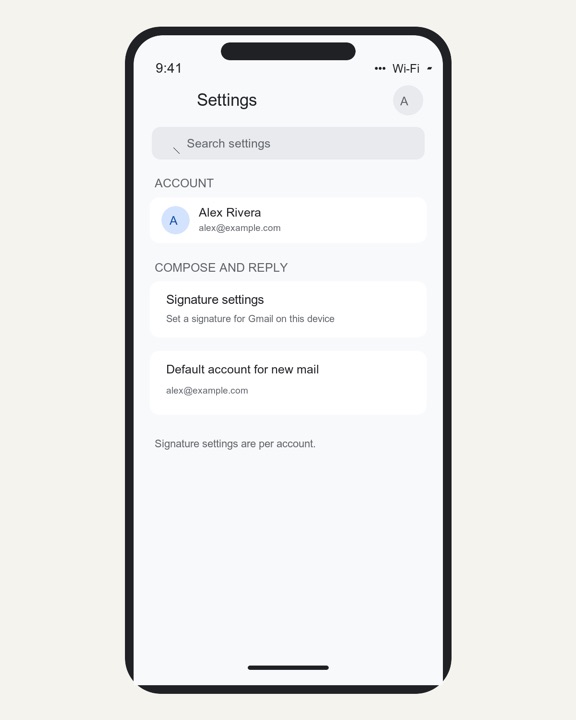
Recreated interface mockup based on Google’s iOS help instructions; it is not a captured Gmail screenshot.
If Gmail has multiple accounts, repeat the check for each one you send from. A signature configured for one account is not a reliable test of another account’s settings. Check the From field in the message draft before deciding that the setting failed.
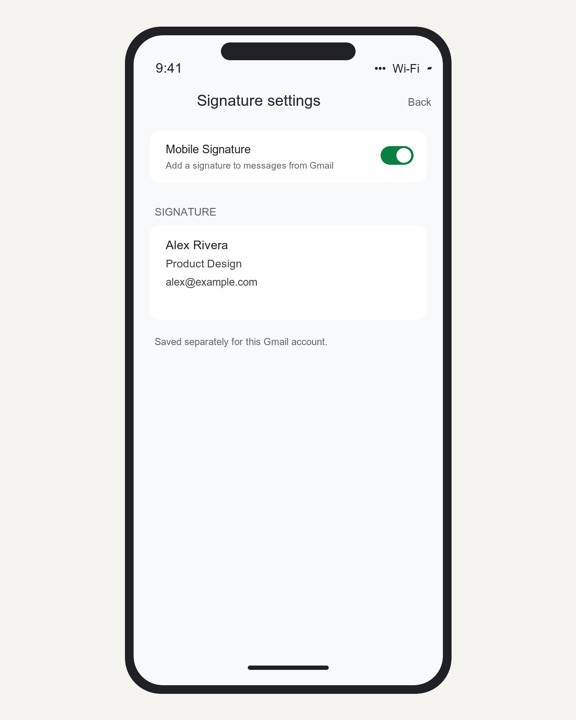
Recreated interface mockup; Google’s guide says to tap Back to save the mobile signature.
Check the computer signature if a new message is still blank
Google’s iPhone guide says that if you do not create a signature in the Gmail app, new messages use the signature set up on your computer. So if you expected the desktop signature to appear, check whether Gmail has a mobile signature saved for that account and whether the message is actually being sent from it.
If the computer signature is the one you want, open Gmail on a computer and verify that signature is present in the account’s Gmail settings. Then compose a new test message in the iPhone Gmail app using that same account. Google’s help page describes the computer-signature fallback for new messages; do not assume a particular result for every reply, forwarded message, alias, or email app without testing that exact case.
If you want different wording on iPhone, write a short mobile version in Signature settings instead. A compact signature is easier to scan on a phone and avoids carrying over details that are not useful in every mobile reply. That is an editorial recommendation, not a Gmail requirement.
Run a small test before relying on the signature
Use a test that isolates the app, account, and message type rather than changing several settings at once.
- In Gmail, start a new message and confirm the intended account appears in From.
- Look for the signature in the draft. If it is missing, reopen Signature settings for that same account and check that Mobile Signature is on and the text is present.
- Tap Back to leave settings, then start another fresh draft. This checks that the setting was saved; it is not a claim that every existing draft refreshes automatically.
- Send a short test to an address you control, then inspect both the sent copy and the received message. This helps separate a draft-display issue from what was actually sent.
- If the issue only happens in replies or forwards, test that case separately and compare it with a new message. Keep track of the app and From account used in each test.
Do not begin by deleting the account or reinstalling Gmail. The documented first check is the app’s signature setting and account selection. Escalate to Google’s help resources if the setting is present and saved but the same account still omits it in a fresh test.
Keep the mobile sign-off clear and accurate
A useful signature usually answers the recipient’s next question: who sent this, what role they have, and how to reach them if needed. For example:
Alex Rivera
Product Designer
alex@example.com
Use only details you have verified and want to include. If your role, phone number, or contact link changes, update the saved signature rather than relying on an old copy in a draft. A signature is repeated text, not a substitute for context in the email itself; add a deadline, promise, or next step in the message only when it is accurate for that conversation.
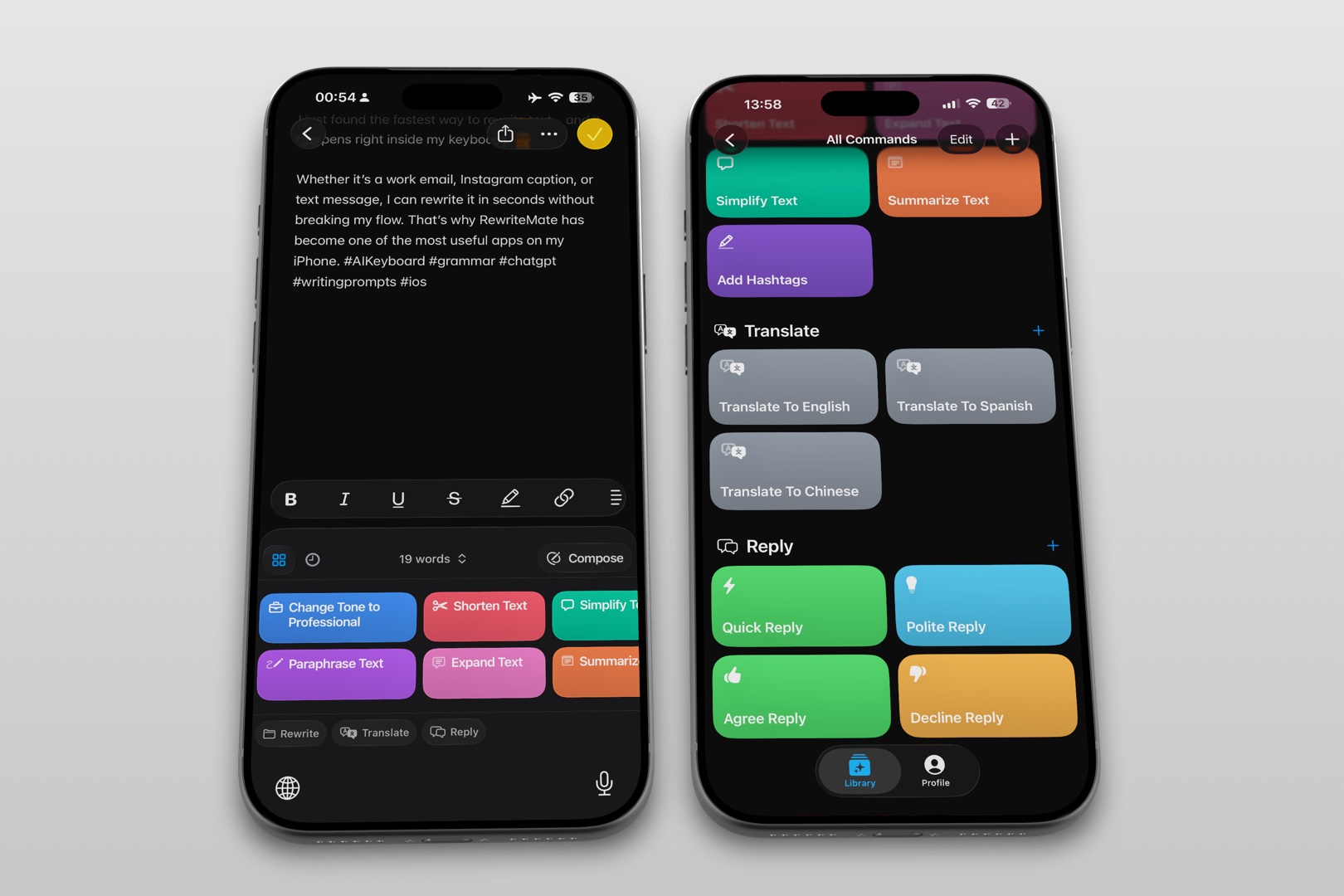
If the wording feels too long or stiff, RewriteMate can help draft or refine the text, but it does not configure Gmail’s signature setting. For example, you could create a custom command that asks: “Make this email sign-off concise and professional. Preserve the exact name, role, and contact details provided. Do not add credentials, claims, or promises. Return only the sign-off.” Enter only details you have checked, review the result, then paste the approved wording into Gmail’s Signature settings. RewriteMate’s custom-command guide explains how its reusable writing instructions work.
Gmail signature troubleshooting checklist
If the signature still seems missing, use this order:
| What you notice | What to check next |
|---|---|
| No signature in a new Gmail-app message | Check Mobile Signature and text under the correct account’s Signature settings. |
| Signature appears for one address but not another | Repeat the check for the second Gmail account; Google says the setting is configured for each account. |
| Gmail app works, but Apple Mail does not | Set the signature separately in Settings → Apps → Mail → Signature. |
| You expected your computer signature | Google says new messages use the computer signature when no Gmail-app signature is created; verify the same account with a new test message. |
| A reply behaves differently from a new message | Test that message type separately and inspect what was sent; do not assume the new-message result proves reply behavior. |
Avoid changing unrelated notification, sync, or keyboard settings: they do not directly configure the signature described in Google’s guide. If you report the issue to support, include the iPhone app used, the sending account, whether it is a new message or reply, and what you observed in a test—without sharing private message contents unnecessarily.
Frequently asked questions
Why is my Gmail signature missing only on my iPhone?
The Gmail app has a mobile-signature setting of its own. Check it in Gmail → Menu → Settings → Signature settings for the account in the draft. Google says each account in the app needs its own setting.
Does my desktop Gmail signature appear in the iPhone Gmail app?
Google says new messages use the signature set up on your computer if you have not created a signature in the Gmail app. If you need to confirm the result, test a new message from the same account on your iPhone.
Why does my Gmail signature show for one account but not another?
Gmail’s iPhone instructions say to change the mobile-signature setting for each account in the app. Select the account used in the message and check its Signature settings separately.
I use Gmail in Apple Mail. Where do I change the signature?
Use Apple’s Mail settings: Settings → Apps → Mail → Signature. Apple also provides a Per Account option when you want different signatures for different mail accounts.
Should I reinstall Gmail if the signature setting is not working?
Not as the first step. Confirm the app, sender account, mobile-signature toggle, saved text, and a fresh test message first. Those checks target the documented signature controls without changing other account data.
Can RewriteMate add my Gmail signature automatically?
No. RewriteMate can help draft or transform wording, but you must put the approved text into Gmail’s signature settings yourself and verify the result before sending.
Related articles
Keep reading
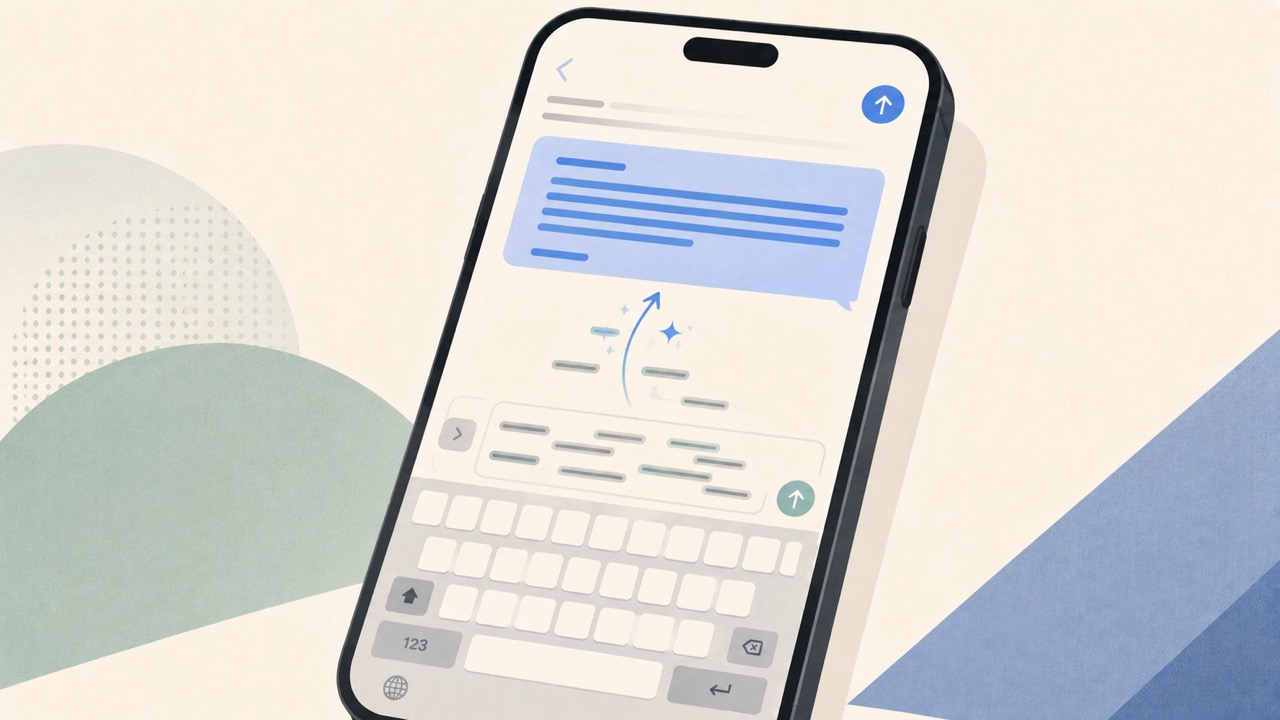
How to Reply to an Email Professionally From Your iPhone
Write clear, professional email replies from your iPhone with a simple structure, practical examples, and AI-assisted editing tips that keep your message accurate.
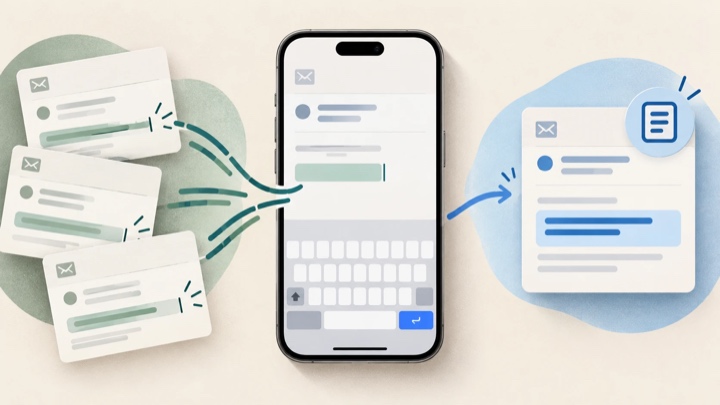
How to Create Email Templates on iPhone With Text Replacement
Stop retyping the same email lines on your iPhone. Set up reusable Text Replacement shortcuts, avoid accidental expansions, and learn when a fixed snippet is not flexible enough for the message you need to write.

Felix Tran
RewriteMate Dev & Editorial Lead
Write about everyday workflows, systems that help ideas move faster, from first draft to finished work.