April 12, 2026
How to Write Confident Professional Emails on iPhone When English Isn't Your First Language
You're halfway through an important email to an international client. You know exactly what you want to say. But the moment you switch to English, something shifts. The words feel stiff. The tone feels off. You rewrite the same sentence three times, open a translation app, close it, and rewrite again.
Sound familiar?
The problem isn't your English. It's the broken workflow that forces you to leave your train of thought every time doubt creeps in.
For millions of non-native English speakers, this is the invisible tax on every professional email they send.
The Hidden Cost of Second-Guessing Yourself
A quick status update to your manager shouldn't take five minutes. A follow-up to a potential client shouldn't require reassurance from a colleague before you hit send. But that's the reality for many people writing professional English on mobile.
The micro-delays add up fast.
✦ Five extra minutes per email × dozens of emails per week = hours of lost productivity — driven entirely by self-doubt, not lack of skill.
What makes this especially frustrating is that the issue has nothing to do with your intelligence or language ability. Non-native speakers often have sharp, nuanced communication instincts in their first language. The real problem is the workflow — the constant context-switching between your email app, grammar checkers, and translation tools that shatters your focus and amplifies anxiety with every send.
What If the Help Was Already in Your Keyboard?
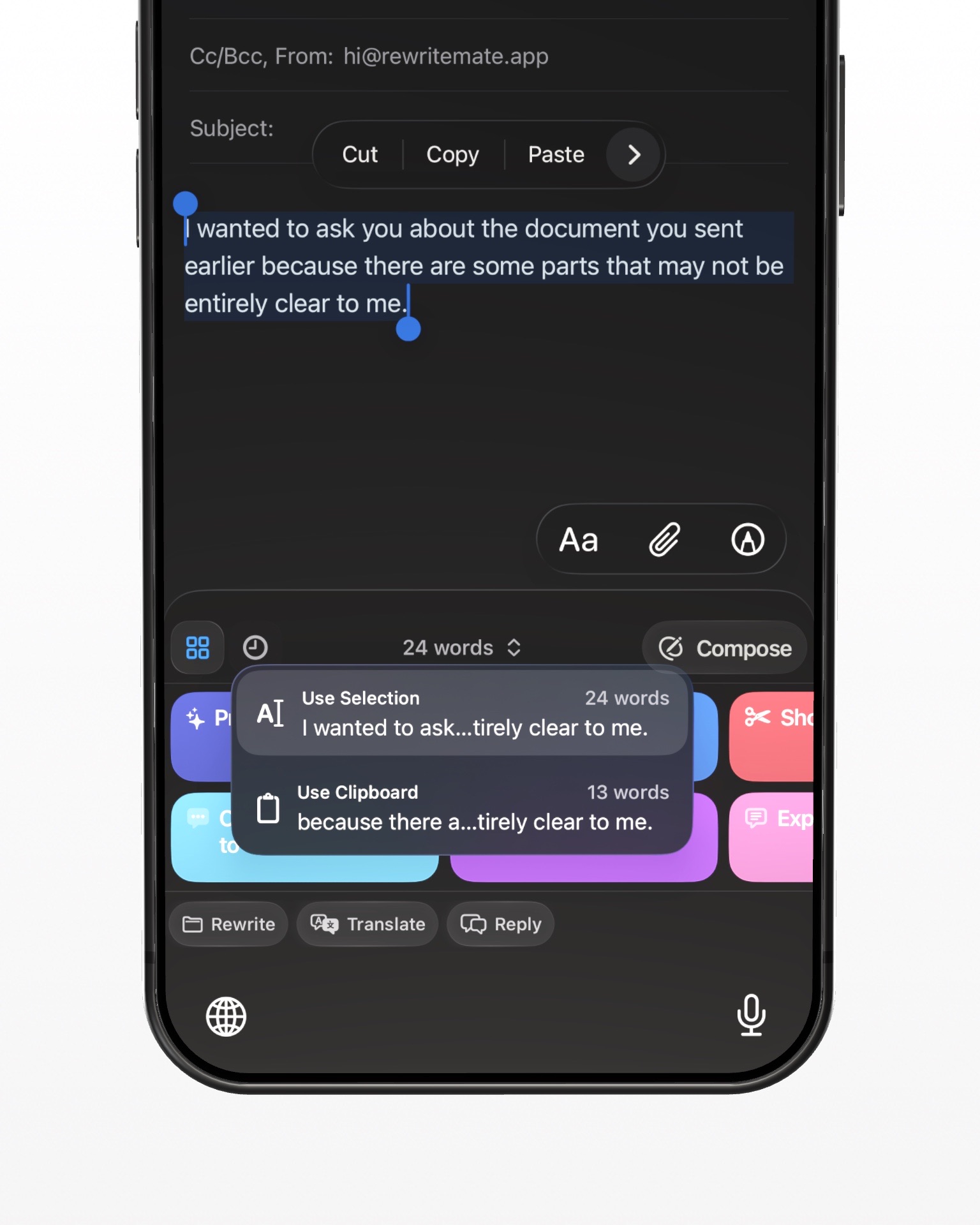
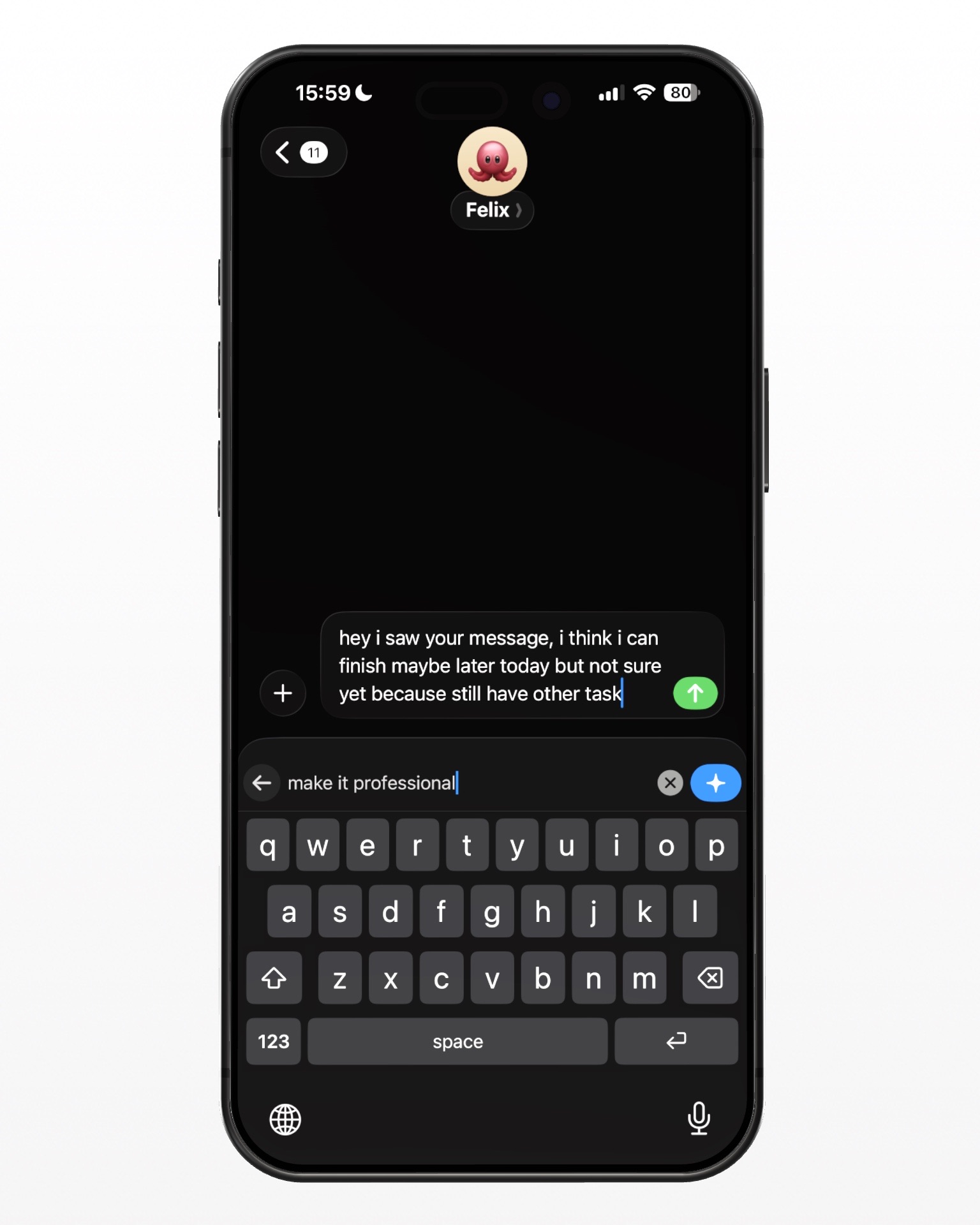
That's the idea behind RewriteMate — an AI-powered iPhone keyboard that gives you writing assistance inline, without ever leaving your email app.
No copying. No pasting. No tab-switching. Just tap, adjust, and send.
Instead of interrupting your flow to fix your writing, RewriteMate makes refinement part of the flow itself.
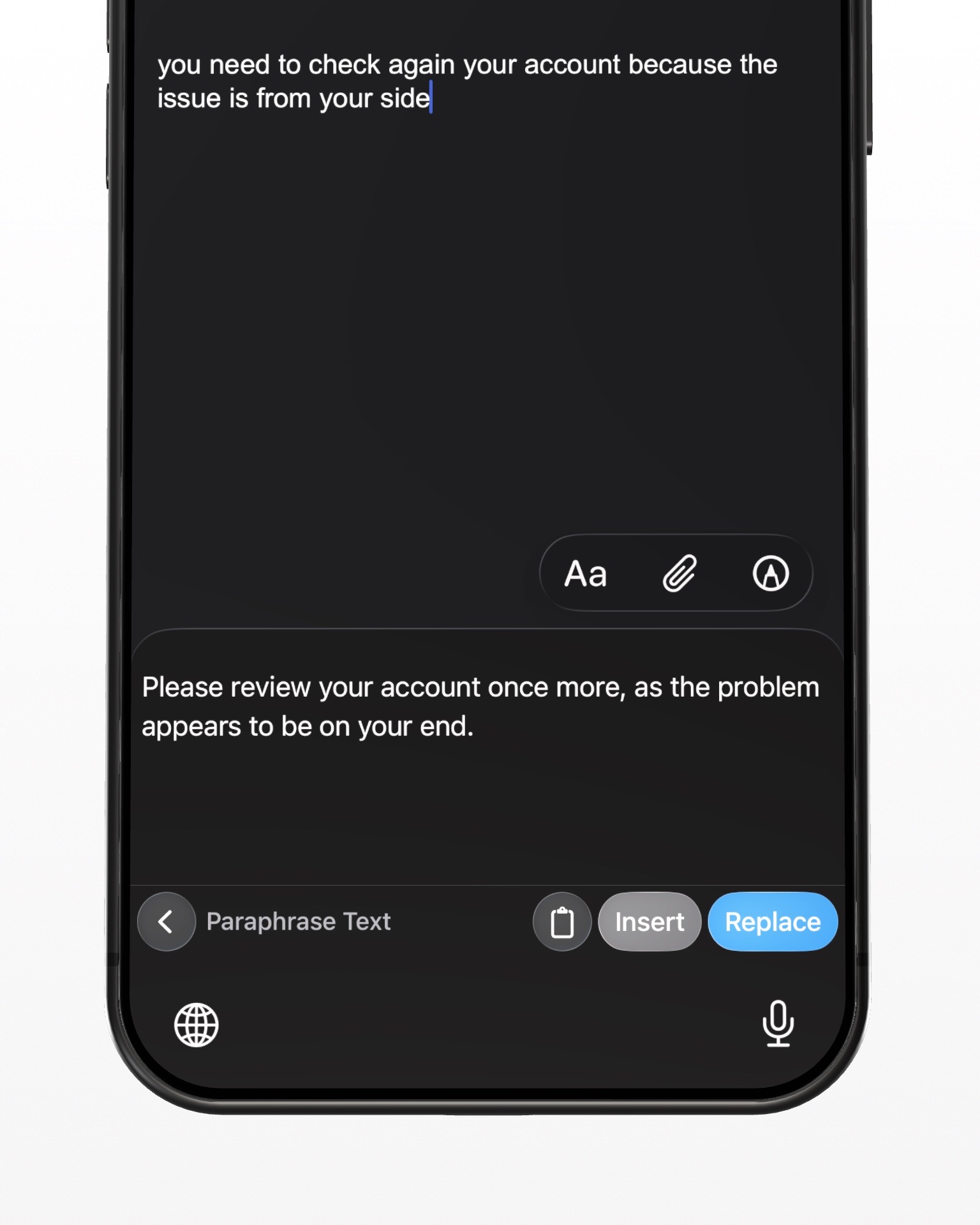
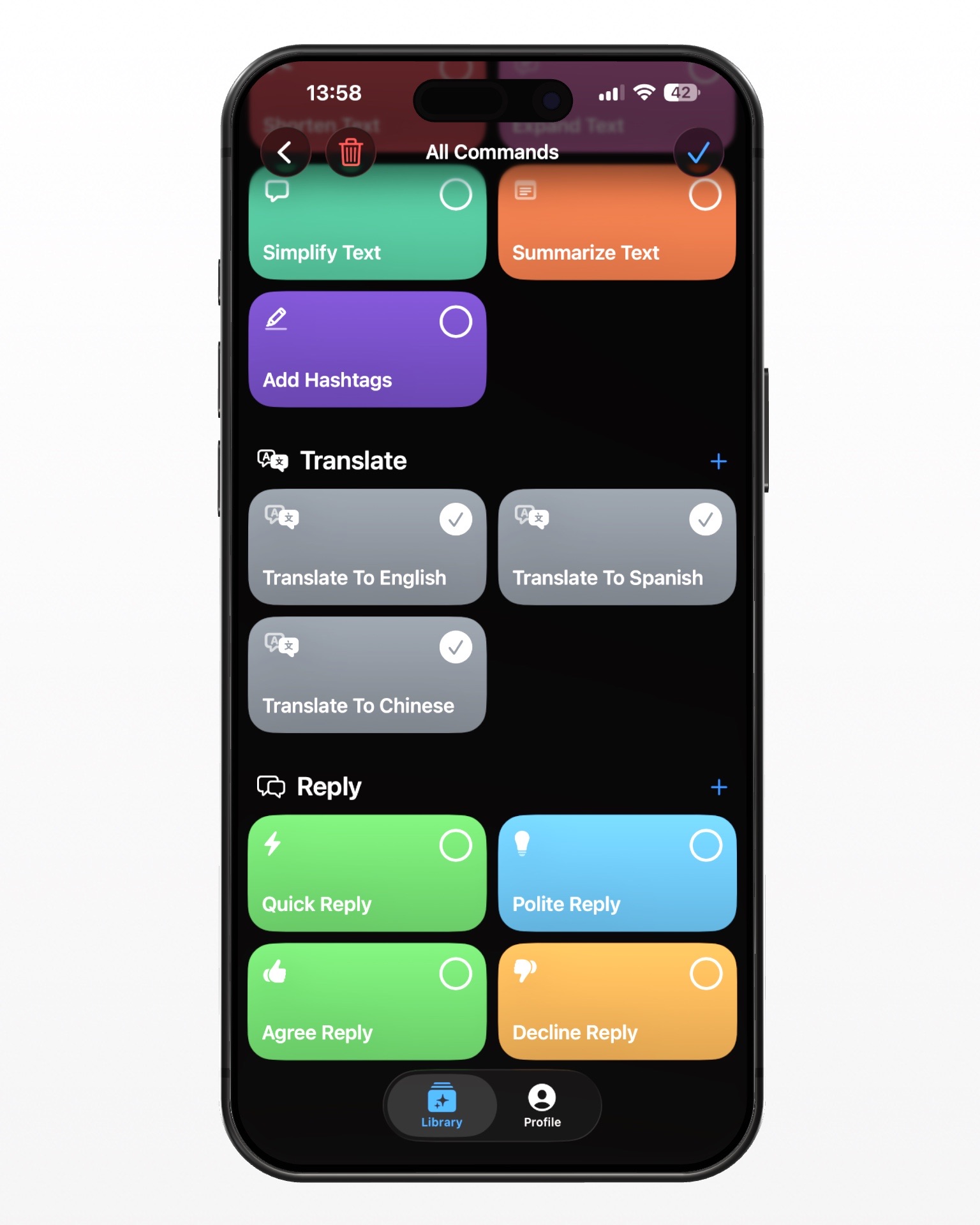
The tone adjustment feature is where it really shines for professional communication. With one tap, you can shift your writing from overly casual to polished, or from stiff and formal to naturally conversational — all while keeping your original meaning intact.
You're not replacing your voice. You're refining it.
A Real Example: From Draft to Polished in Seconds
Here's what that looks like in practice.
You're updating a colleague on a delayed project. You type:
"The delay happened because we waiting for client feedback."
You tap Grammar Fix. RewriteMate suggests:
"The delay occurred because we were waiting for client feedback."
You accept it — not because you're incapable, but because you wanted the confirmation. Then you apply the Professional tone setting to your full response. Your message becomes:
"I wanted to inform you that the project timeline has been adjusted
due to a delay in receiving client feedback. We expect to resume
normal progress by Friday."
Same information. Same intent. Completely different impression.
What used to take several anxious minutes of editing now takes seconds — and you hit send knowing your message landed the way you meant it to.
The Deeper Benefit: Building Your Writing Instincts
Here's what most people don't expect: the more you use it, the less you need it.
Each time RewriteMate suggests a more professional phrasing or catches a subtle grammar slip, you're quietly absorbing patterns. You start to anticipate what will sound right in a formal context. You develop an ear for professional English that carries over into everything you write — not just emails.
✦ The AI doesn't become a crutch. It becomes a training partner.
Non-native speakers who regularly use tone adjustment tools report that they begin preemptively choosing more professional phrasings, without needing a prompt. That internal compass — once shaky — becomes reliable.
Three Steps to More Confident Emails, Starting Today
Getting started takes less than a minute:
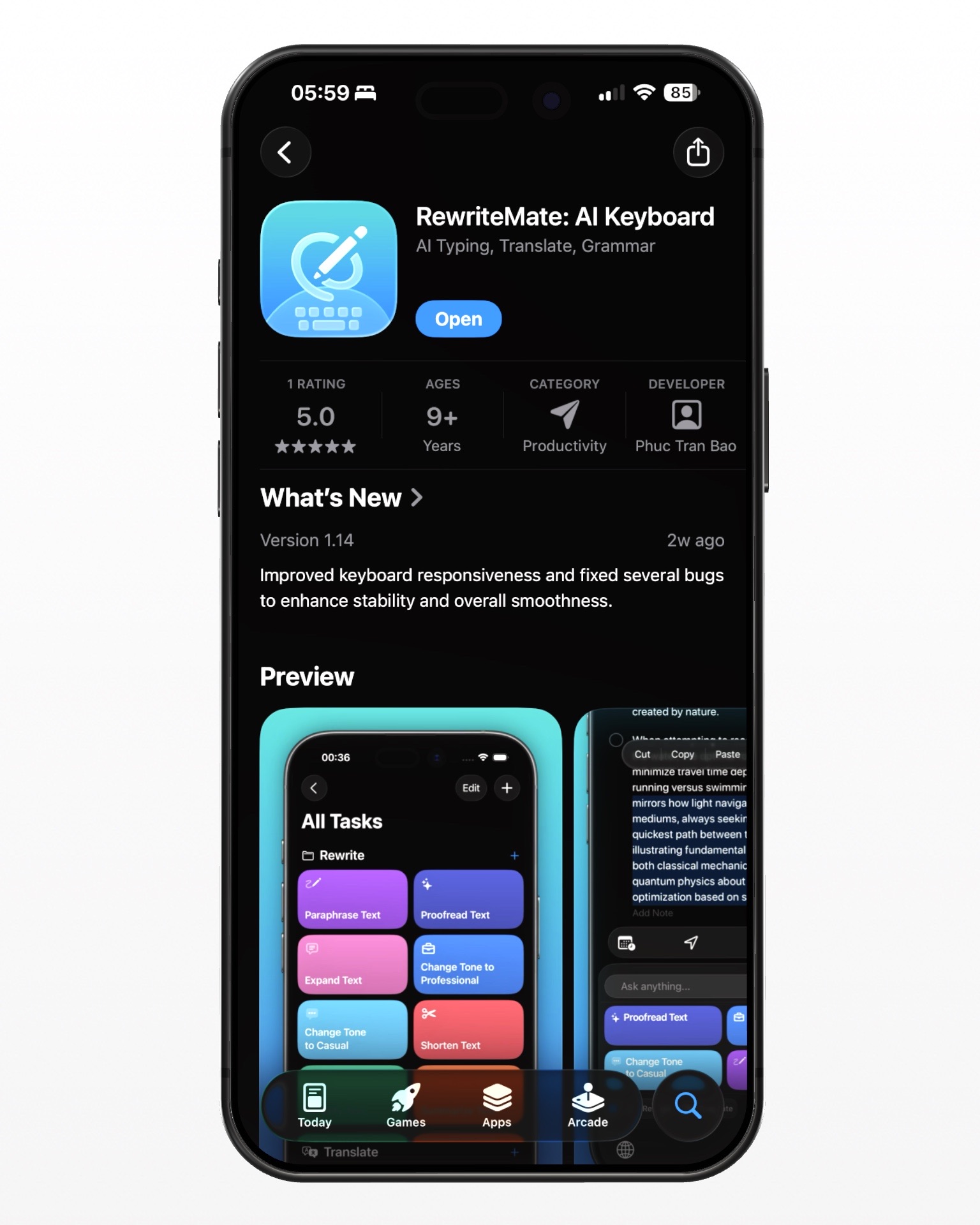
- Download RewriteMate from the App Store — setup takes under 30 seconds
- Write your next work email in your natural voice, without overthinking it
- Select any section, apply a tone adjustment or grammar fix, and watch your message sharpen
You don't need to sound like a native speaker. You just need your words to land the way you intend them to — professionally, clearly, and confidently.
"Your iPhone keyboard should work with your communication skills, not make you doubt them."
RewriteMate does exactly that.
Ready to try it? You can grab it on the App Store — it'll be running before your next work email.

Felix Tran
Indie Developer & RewriteMate Founder