July 8, 2026
10 Things You Can Do With an AI Keyboard on iPhone
Most people don’t think of their iPhone keyboard as a writing tool. It’s just the place where text gets typed before it’s sent. But that’s changing.
If you write a lot on your phone—emails, Slack updates, text messages, captions, notes, support replies, or multilingual messages—an AI keyboard on iPhone can do a lot more than autocorrect a typo. It can help you rewrite awkward sentences, fix grammar, change tone, translate text, shorten long messages, generate replies, and even run custom prompts without forcing you to leave the app you’re already in.
That’s what makes this category interesting. An AI keyboard app isn’t just a keyboard with AI added for novelty. It’s a faster way to improve your writing exactly where you’re already typing.
In this guide, we’ll walk through 10 practical things you can do with an AI keyboard on iPhone, and why this category is becoming one of the most useful forms of mobile writing assistance.
1. Proofread Grammar and Spelling Without Leaving the App
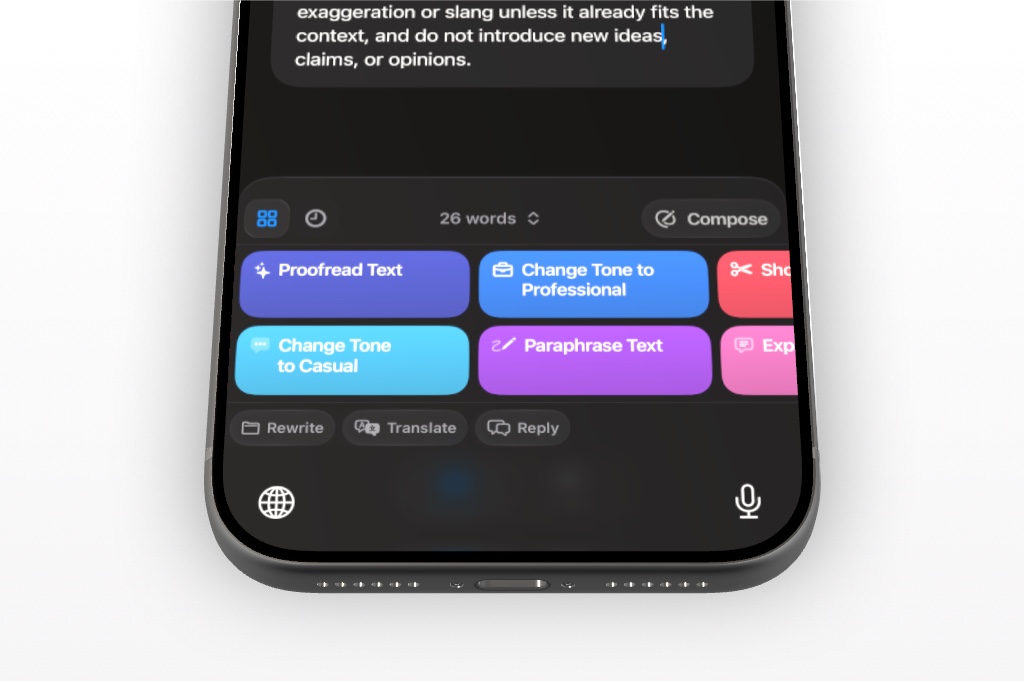
The most obvious use case for an AI keyboard iPhone app is also one of the most useful: cleaning up grammar, spelling, punctuation, and awkward phrasing before you hit send.
That matters more on mobile than people think. Phone writing tends to be faster, rougher, and less edited than laptop writing. You fire off a message between meetings, reply to an email from the back of a rideshare, or send a quick update from your lock screen—and the result is often good enough, but not great.
An AI keyboard helps close that gap.
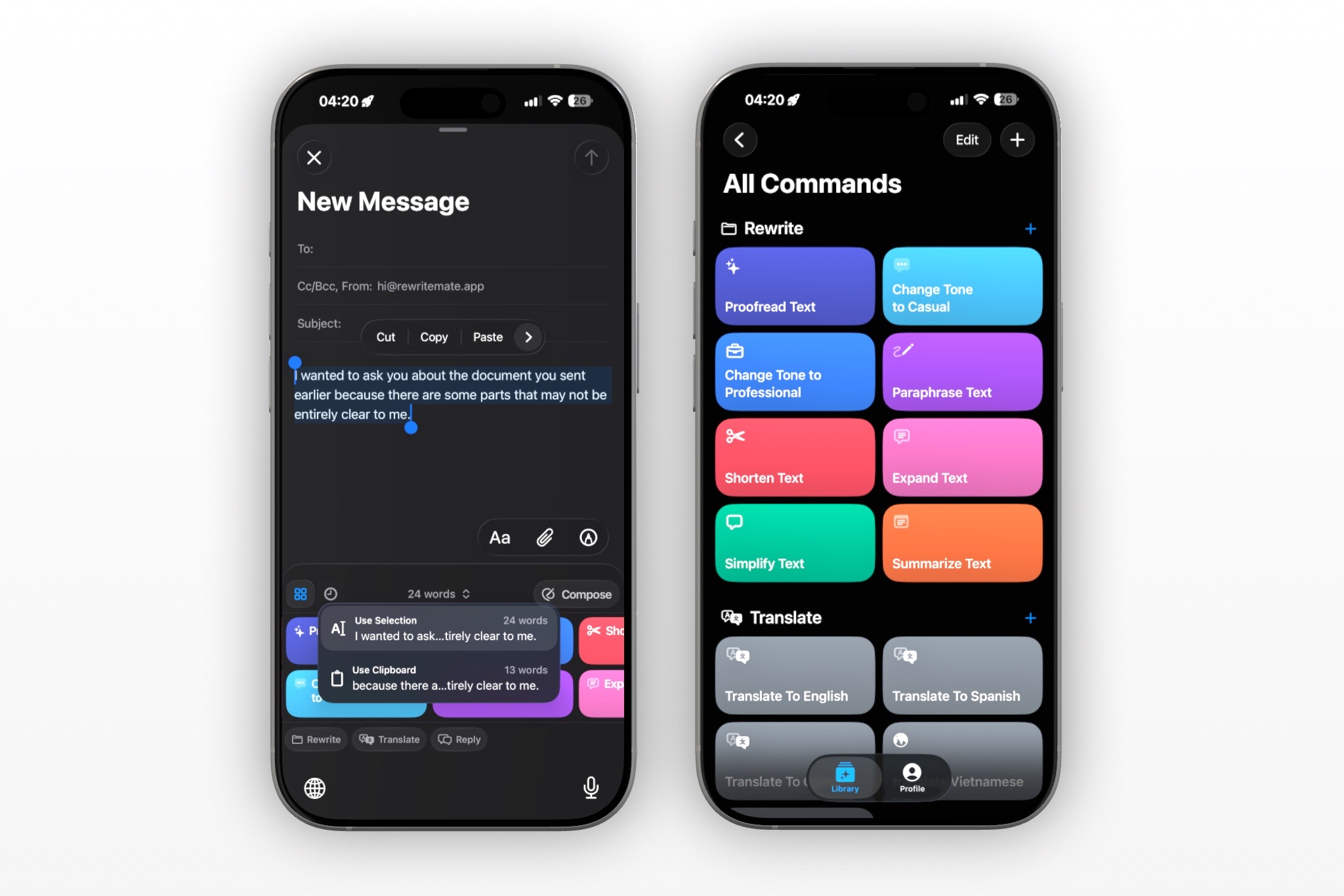
Instead of rereading every sentence and manually fixing small mistakes, you can tap a command like Proofread and let the keyboard tighten the writing for you. That might mean:
- fixing typos
- cleaning up punctuation
- correcting grammar
- smoothing out clunky phrasing
- making a message easier to read
For example, imagine you’ve drafted a work email in Mail on your iPhone. The content is there, but the sentence structure feels rushed and there are a few grammar issues. With an AI keyboard, you can run a proofreading command and apply the cleaned-up version directly inside the email.
That’s a big part of the appeal of a grammar keyboard for iPhone. It doesn’t just help you type. It helps you send writing that feels more polished, without adding another step to your workflow.
If work email is one of your biggest use cases, it’s worth reading our guide on how to use an AI keyboard for work emails.
2. Rewrite a Message So It Sounds More Professional
Sometimes the problem with a message isn’t grammar. It’s tone.
Maybe your email sounds too abrupt. Maybe your Slack message feels too casual for the situation. Maybe you’re trying to reply to a client, professor, manager, or landlord and you know the wording needs to be cleaner, calmer, or more professional.
This is one of the best use cases for an AI writing keyboard.
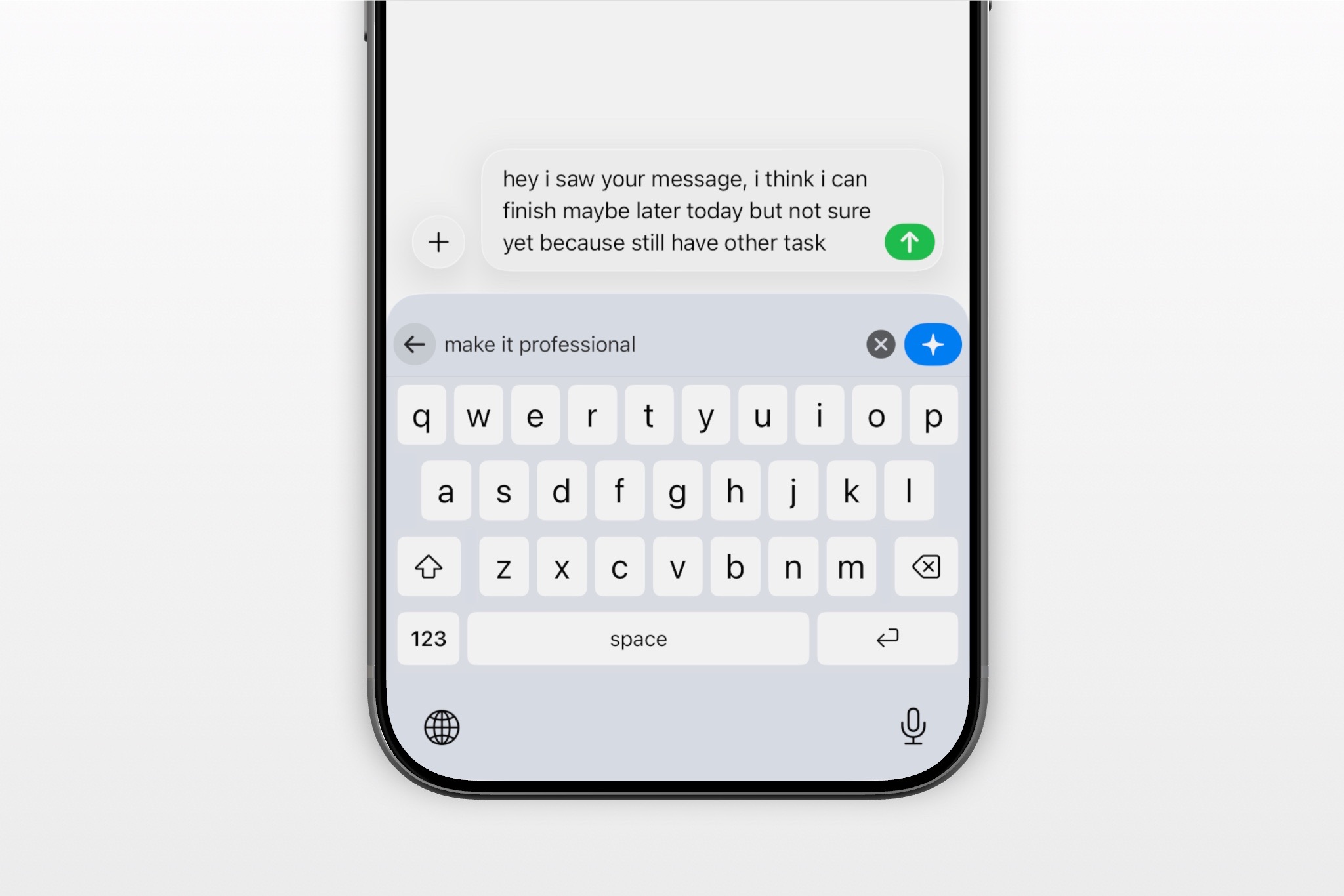
Instead of rewriting the message from scratch, you can ask the keyboard to change the tone while keeping the core meaning intact. That might look like:
- making a client email sound more polished
- turning a blunt text into something more tactful
- softening a follow-up message
- rewriting a team update so it sounds more concise and clear
- making a support reply feel warmer and more helpful
This is where AI keyboards go beyond what a traditional grammar tool can do. Grammar tools can correct mistakes, but they usually don’t do much to reshape the tone of a message for a specific context.
An AI keyboard can.
If you’re writing on your phone a lot for work, that’s a meaningful upgrade. A message that’s technically correct can still feel too cold, too vague, or too messy. A keyboard that can rewrite it in place saves time and reduces second-guessing.
For a deeper workflow breakdown, see our post on how to rewrite emails on iPhone without copy-pasting into ChatGPT.
3. Paraphrase Text to Make It Clearer
Paraphrasing is one of those writing tasks people do all the time without really labeling it.
You write a sentence. It technically says what you mean, but it feels repetitive, awkward, too stiff, or just not quite right. So you rewrite it. Then rewrite it again. Then maybe give up and send it anyway.
An AI keyboard can take over that job.
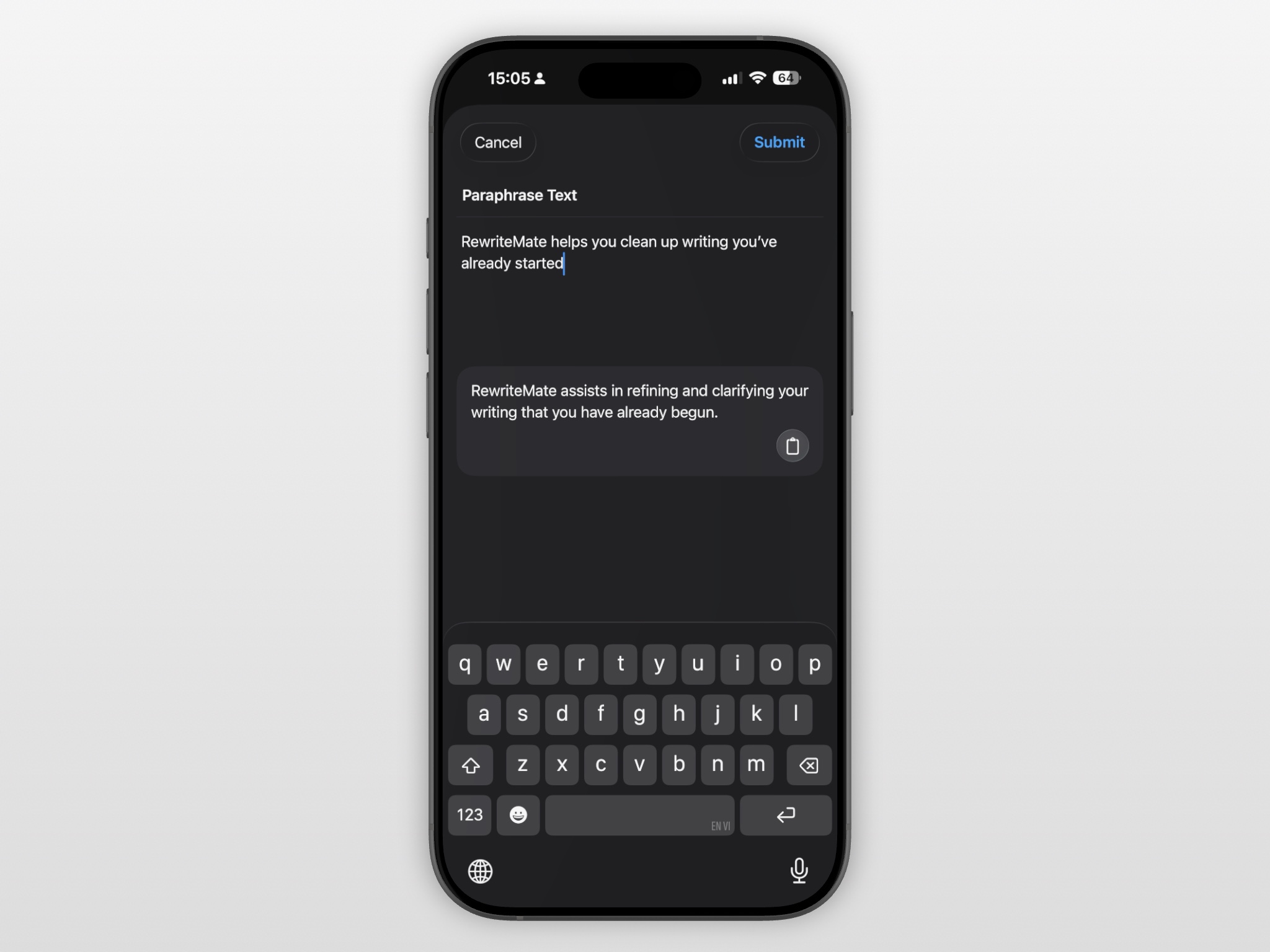
With a paraphrase command, you can keep the meaning of the text while changing the wording to make it clearer, smoother, or more natural. This is especially useful for:
- rewording repetitive messages
- making notes easier to understand later
- improving the flow of an email
- changing a sentence that sounds unnatural in English
- polishing captions, comments, or DMs
For example, you might write:
“I wanted to follow up to see if there are any updates in relation to the timeline for this.”
That sentence isn’t wrong, but it’s heavier than it needs to be. A paraphrase command might turn it into something more natural like:
“Just following up to see if there are any updates on the timeline.”
That kind of micro-edit is where an AI keyboard app becomes genuinely useful on iPhone. It’s not trying to write a novel for you. It’s helping you improve the sentences you already have.
4. Shorten Long Messages Before You Send Them
A lot of mobile writing problems come down to one thing: the message is too long.
You over-explain something in a work email. You type a rambling text because you’re trying to be clear. You write a Slack update with five extra details nobody really needs. Then you stare at the screen knowing it should be shorter, but not wanting to manually edit the whole thing.
This is another strong use case for an AI keyboard on iPhone.
A shorten or tighten command can help you:
- remove filler
- simplify long explanations
- cut repetition
- turn a wall of text into something easier to scan
- keep the meaning while making the message more concise
That’s especially helpful on mobile, where long blocks of text are harder to review and more annoying to edit manually.
Shortening is useful in all kinds of writing:
- work emails
- text messages
- meeting summaries
- social captions
- support replies
- notes you want to turn into something sendable
It’s also a nice middle ground between “fix my grammar” and “rewrite this from scratch.” Sometimes the writing is already fine. It just needs to be 30% shorter.
5. Expand Rough Notes Into a More Complete Draft
The opposite problem happens just as often: you know what you want to say, but all you have is a rough outline.
Maybe it’s a half-finished email. Maybe it’s a few bullet points in Notes. Maybe it’s a one-line reply that needs more context before you send it. On iPhone, people often write in fragments because it’s faster than drafting a full message on a small screen.
An AI keyboard can help expand that rough text into something more complete.
For example, you might type:
- “Running 10 mins late, traffic bad, sorry”
- “Need follow up w client on timeline + pricing”
- “Thanks for sending this, will review tomorrow”
An expansion command can turn those fragments into cleaner, more complete writing that still sounds like you.
This is useful when you want to:
- turn rough notes into a proper email
- flesh out a quick reply
- turn shorthand into a more polished update
- build a caption from a rough idea
- write faster without losing clarity
It’s important to frame this correctly: an AI keyboard isn’t replacing long-form writing software here. It’s helping you convert rough mobile text into a better draft with less effort.
6. Translate Messages While You Type
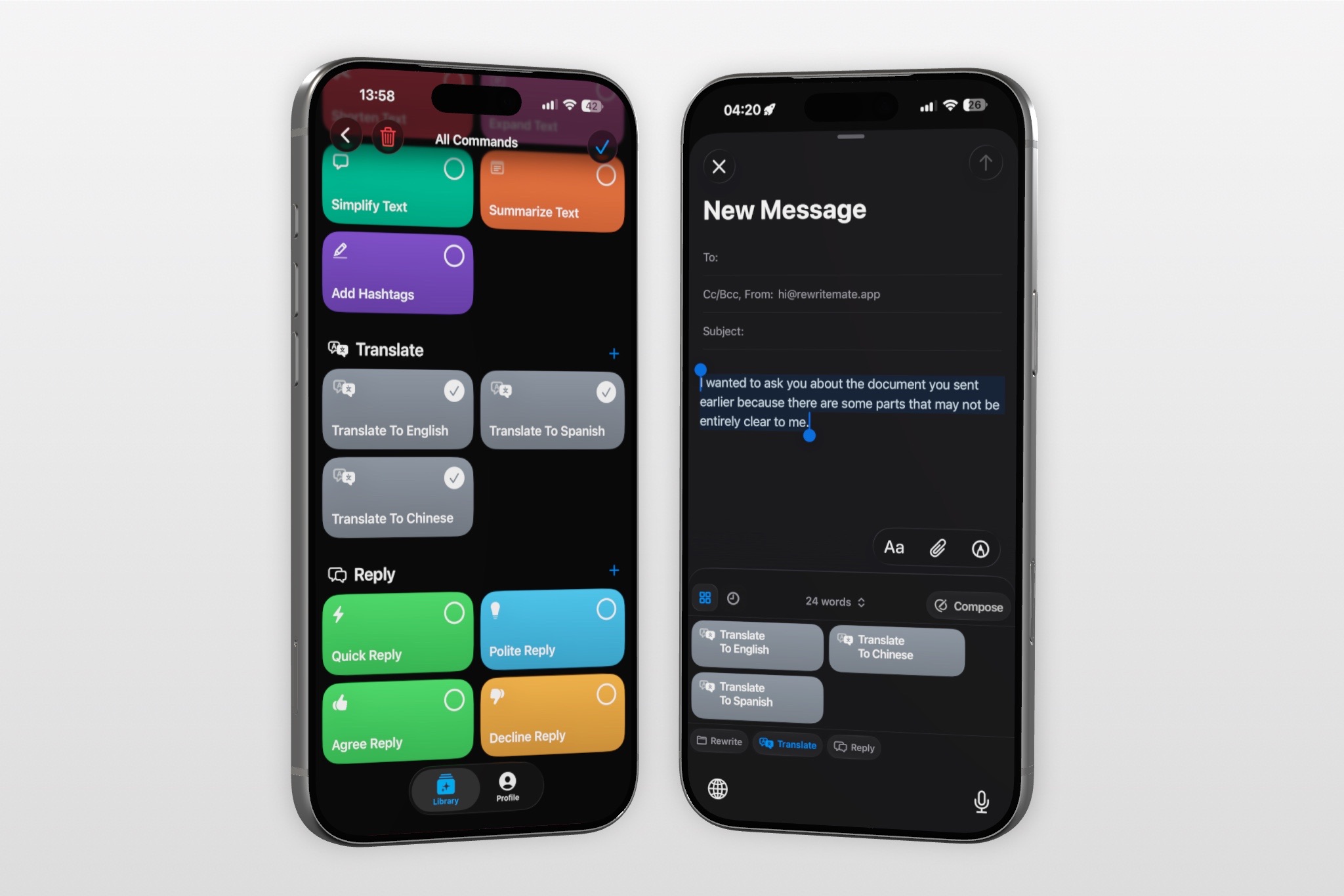
Translation is one of the strongest mobile use cases for an AI keyboard because it solves a very common problem: you need to switch languages, but you don’t want to stop your workflow to do it.
Without an AI keyboard, the usual process looks like this:
- copy the message
- open a translation app or chatbot
- paste it in
- translate it
- copy the result
- return to the original app
- paste it back
That’s a lot of friction for something that often happens in the middle of a conversation.
A good AI keyboard iPhone app can handle translation directly from the keyboard. That means you can:
- translate a text message before sending it
- rewrite a work message in another language
- turn a rough English draft into more natural English
- translate support replies for multilingual users
- switch between languages inside Mail, Messages, Slack, or Notes
Even better, some AI keyboards can do more than literal translation. They can translate and preserve tone, clarity, and intent. That matters because a word-for-word translation isn’t always the same as a message that sounds natural.
If multilingual writing is important to your workflow, check out our post on how to translate and rewrite messages on iPhone in one tap.
7. Change the Tone of Your Writing for Different Situations
This is one of the clearest differences between an AI keyboard and a basic writing tool.
A regular grammar checker might tell you whether a sentence is technically correct. An AI keyboard can help you decide how it should sound.
That matters because writing isn’t just about correctness. It’s also about fit. The same core message might need to sound different depending on who you’re sending it to.
For example, you might want to make a message:
- more professional
- more casual
- friendlier
- more concise
- more formal
- more confident
- softer and more polite
- more direct without sounding rude
That opens up a lot of useful mobile writing workflows.
You can write a quick draft, then ask the keyboard to:
- “make this sound more professional”
- “make this more polite”
- “rewrite this in a friendly tone”
- “make this sound concise but warm”
- “make this sound confident, not aggressive”
That’s especially helpful in situations where tone is hard to calibrate on your phone—like work messages, customer support replies, follow-ups, and emotionally sensitive texts.
For many people, this is where an AI keyboard app starts to feel less like a gadget and more like a real writing assistant.
8. Generate Quick Replies to Save Time
Not every message needs a handcrafted response.
A lot of daily communication is repetitive:
- “Thanks, I’ll take a look.”
- “Sounds good to me.”
- “I’m running a little late.”
- “Appreciate it—will follow up tomorrow.”
- “Yes, that works on my side.”
- “Sorry, I won’t be able to make it.”
An AI keyboard can speed these up by generating quick replies inside the app where the conversation is already happening.
That’s useful for:
- work chat
- scheduling messages
- support responses
- email acknowledgements
- polite declines
- short follow-ups
- social replies
The point isn’t to automate every conversation. It’s to remove friction from the boring parts of communication.
If you send a lot of short replies throughout the day, those tiny savings add up. And because the keyboard is already sitting inside Messages, Mail, or Slack, the workflow feels natural. You don’t need to stop and “go use AI.” The AI is already there when you need it.
9. Use Custom Commands for Repetitive Writing Tasks
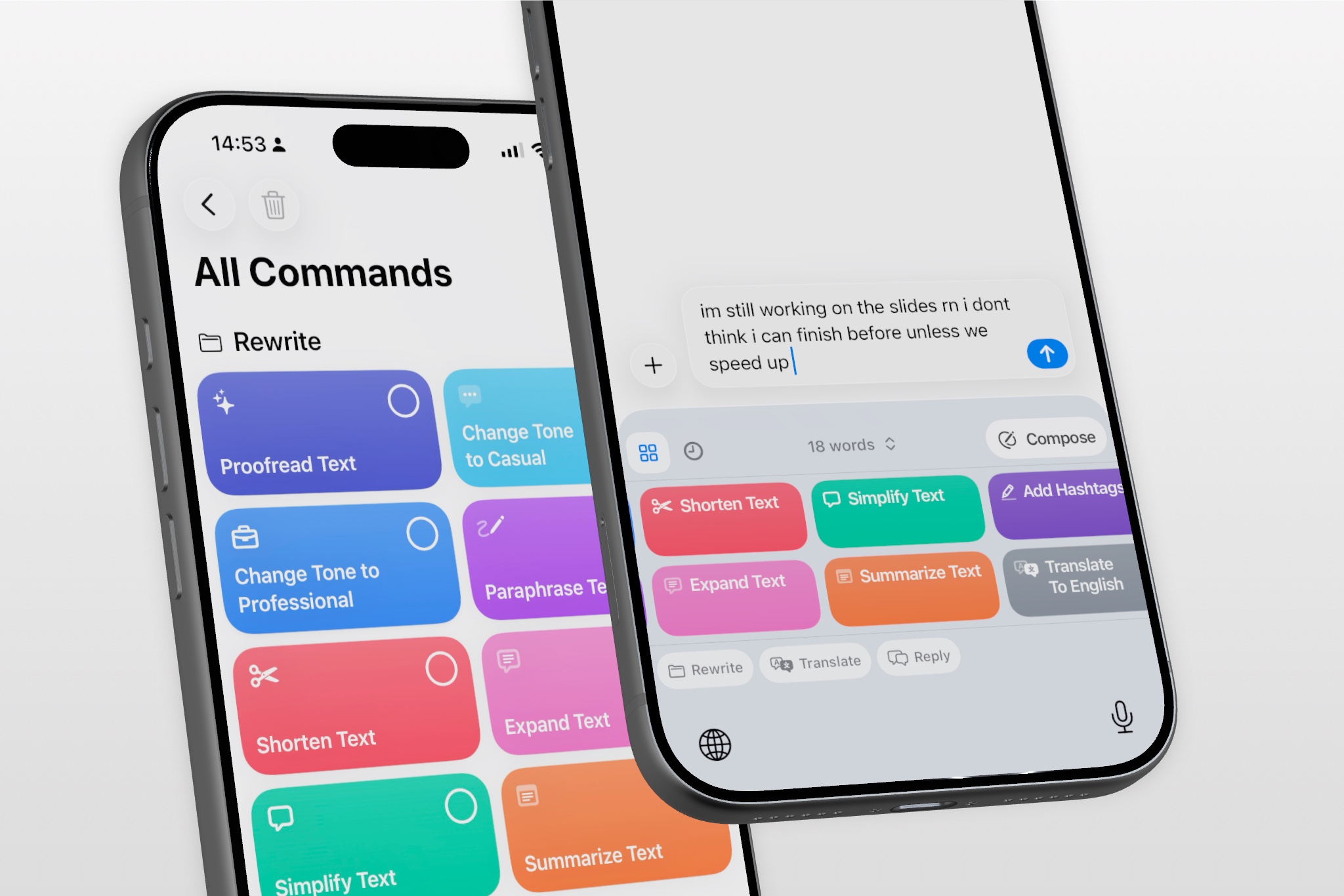
This is where an AI keyboard starts to become much more powerful than a generic rewrite button.
A custom AI command is basically a saved prompt that tells the keyboard how to rewrite text in a specific way. Instead of typing the same instruction into a chatbot over and over, you create it once and reuse it whenever you want.
For example, you could create commands like:
- “Turn this into a concise client update”
- “Rewrite this support reply in a warmer tone”
- “Make this sound like a polished founder email”
- “Shorten this social caption but keep the CTA”
- “Translate this to Spanish and keep it casual”
- “Rewrite this note as a professional follow-up”
This matters because a lot of real-world writing is repetitive. You’re not always solving a brand-new writing problem. You’re often doing variations of the same thing:
- replying to customers
- writing internal updates
- following up with leads
- turning notes into emails
- cleaning up social captions
- translating the same kinds of messages
Custom commands let you build those workflows into the keyboard itself.
That’s a major shift from “AI that can do writing tasks” to “AI that can support my specific writing patterns.” It’s also one of the clearest ways a tool like RewriteMate differentiates itself from simpler AI keyboards.
If you want to go deeper on this, read our guide on how to build custom AI commands for repetitive writing tasks on iPhone.
10. Improve Writing Across Any App on Your iPhone
The biggest benefit of an AI keyboard isn’t just one feature. It’s that all of these features can travel with you across the apps where you already write.
That includes:
- Messages
- Notes
- Slack
- Safari forms
- customer support tools
- productivity apps
- messaging apps
This is what makes the category so useful.
A standalone AI writing app can still be valuable, especially for brainstorming or long-form drafting. But for day-to-day mobile writing, an AI keyboard is often more practical because it reduces context switching. You don’t have to stop what you’re doing, open another app, paste text, write a prompt, and move the result back.
You just keep writing in the app you’re already using.
That makes an AI keyboard for iPhone feel less like “another AI app” and more like an upgrade to your actual writing environment.
AI Keyboard vs Regular iPhone Keyboard
If you’re new to the category, it helps to look at the difference side by side.
| Task | Regular iPhone keyboard | AI keyboard iPhone |
|---|---|---|
| Basic typing | Yes | Yes |
| Autocorrect | Yes | Yes |
| Proofread full text | Limited | Yes |
| Rewrite awkward messages | No | Yes |
| Change tone | No | Yes |
| Translate text in flow | Limited | Yes |
| Generate quick replies | No | Yes |
| Save custom writing commands | No | Some do |
| Improve text inside third-party apps | Limited | Yes |
A regular keyboard helps you type faster. An AI keyboard helps you write better and revise faster while you type.
That’s the difference.
Where RewriteMate Fits In
RewriteMate is built around the idea that writing help should happen inside the keyboard, not in a separate app you have to keep switching to.
Instead of treating AI as a separate writing workspace, RewriteMate is designed as a keyboard-native writing assistant for iPhone. That means it can help with many of the workflows above directly where you type:
- proofreading rough text
- rewriting awkward sentences
- changing tone for work or personal writing
- translating messages
- generating quick replies
- shortening or expanding drafts
- running custom commands for repetitive writing tasks
That last part is especially important. A lot of mobile writing isn’t random. It’s recurring. You send the same types of client updates, support replies, follow-ups, captions, and multilingual messages over and over again. RewriteMate is designed to turn those repeat tasks into keyboard-level shortcuts instead of separate writing sessions.
So if the idea of handling proofreading, tone changes, translation, and rewrites directly from your keyboard sounds useful, that’s the category RewriteMate is built for.
Explore RewriteMate on the App Store, visit the RewriteMate homepage, or read our guides on rewriting emails on iPhone, translating and rewriting messages, and building custom AI commands.
Frequently Asked Questions
What can an AI keyboard do on iPhone?
An AI keyboard on iPhone can proofread grammar, rewrite awkward text, paraphrase sentences, shorten long messages, expand rough notes, translate text, change tone, generate replies, and in some cases run custom AI commands for repeated writing tasks.
Is an AI keyboard better than a grammar keyboard on iPhone?
A grammar keyboard for iPhone usually focuses on spelling, punctuation, and grammar corrections. An AI keyboard often goes further by adding paraphrasing, rewriting, tone changes, translation, quick replies, and workflow-specific prompts.
Can an AI keyboard rewrite emails and messages?
Yes. One of the most common uses of an AI keyboard app is rewriting emails, text messages, Slack updates, and support replies directly inside the app where you’re already typing.
Can an AI keyboard translate text on iPhone?
Yes. Many AI keyboard apps can translate text without forcing you to leave the app. Some also help rewrite translated text so it sounds more natural in the target language.
What’s the difference between an AI keyboard app and ChatGPT?
An AI keyboard app works inside the keyboard on your iPhone, which makes it useful for editing messages, emails, notes, and replies in place. ChatGPT is a separate chatbot or writing workspace that’s often better for brainstorming, long-form drafting, or open-ended prompts.
Do AI keyboards only help with grammar?
No. Grammar is only one part of what an AI keyboard can do. Depending on the app, it can also paraphrase, rewrite, shorten, expand, translate, change tone, generate replies, and save custom prompts for recurring writing tasks.
Final Thoughts
If you still think of your iPhone keyboard as just a place to type, AI keyboards make a pretty strong case for rethinking that.
A good AI keyboard for iPhone can proofread your writing, improve tone, paraphrase awkward sentences, shorten long messages, expand rough notes, translate text, generate replies, and help you handle repeated writing tasks more efficiently. The real benefit isn’t that any one of those features exists in isolation. It’s that they all happen inside the keyboard, in the apps where your writing actually happens.
That’s what makes the category useful. It removes friction from the small writing tasks that add up across the day.
And if you want a tool built specifically for rewriting, proofreading, translating, tone changes, and custom commands inside any app on iPhone, that’s exactly the kind of workflow RewriteMate is designed for.
Related articles
Keep reading
Grammarly Alternative iPhone: RewriteMate vs Grammarly
A head-to-head comparison of the best AI writing keyboards for iOS, highlighting why custom prompts beat locked presets.

RewriteMate vs Grammarly Keyboard: Which Is Better for Mobile Writing?
Compare RewriteMate vs Grammarly Keyboard to see which iPhone writing assistant fits your workflow. Learn the differences in AI rewriting, grammar checking, customization, pricing, and everyday mobile writing.
AI Keyboard vs AI Writing App: What's the Difference? (And Which Is Better for iPhone?)
Learn the difference between AI keyboards and AI writing apps, compare their workflows, and discover why an AI keyboard can be the faster choice for everyday writing on iPhone.

Felix Tran
RewriteMate Dev & Editorial Lead
Write about everyday workflows, systems that help ideas move faster, from first draft to finished work.